







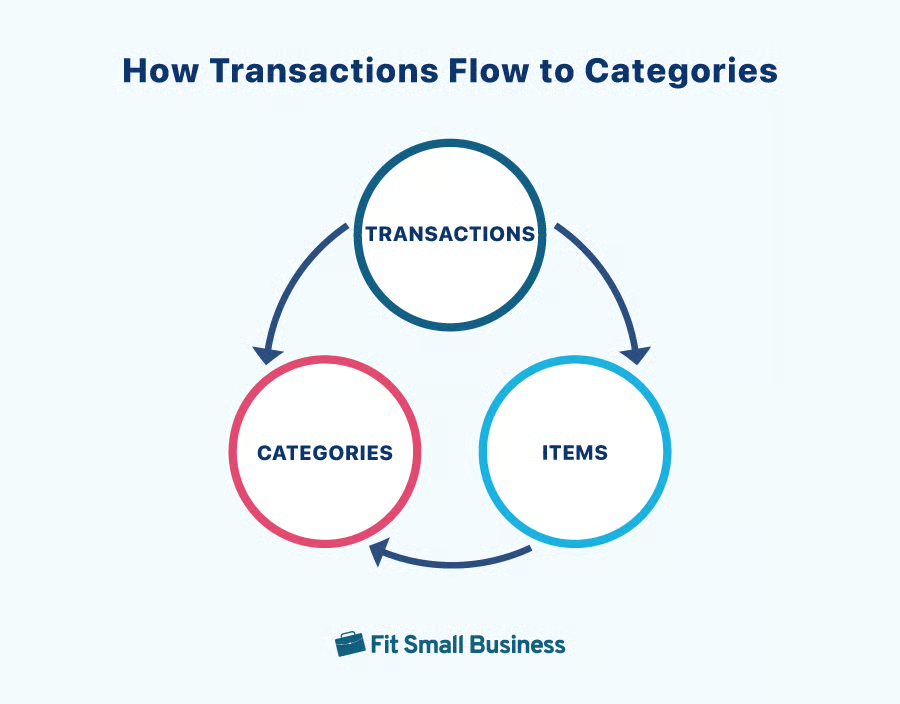
Categories in QuickBooks Online are used to classify transactions into general groups and are based on the chart of accounts. Meanwhile, Items allow you to specify products and services associated with sales and purchases and are mapped to particular categories:
- Categories provide a high-level overview of business income and expenses.
- Items provide a more detailed breakdown of specific products or services that a business buys or sells.
The fundamental difference between category details and item details in QuickBooks Online can best be understood by understanding the purpose of items, so we need to discuss that before moving to a detailed comparison.
When To Use Categories vs Items in QuickBooks
Transactions in QuickBooks can be posted to either items or categories. When transactions are posted to items, they eventually flow to categories—but the use of items provides additional details that can be used to track inventory quantity, cost of goods sold (COGS), and any details you wish for the breakdown of sales or expenses.
- Financial reporting: The primary purpose of categories is to aggregate all the transactions during the year and summarize them in the financial statements.
- Summarizing activity: Categories are often created with a very low level of detail. For example, all product sales should go to one “Product Sales” category. There should never be a category created for something like “Sales of Product A.” Instead, Sales of Product A should be tracked using an Item for Product A.
- Tracking general expenses: You’ll also use categories to track general expenses, like rent, utilities, employee salaries, and marketing expenses.
- Buying and selling inventory: It is crucial to post all transactions related to the purchase and sale of inventory to items as this allows QuickBooks to calculate your COGS automatically, which is a complicated calculation that you don’t want to do by hand. Using inventory items also allows QuickBooks to track the inventory you have available. It’s important to set up a separate inventory item for each product that you sell. For example, don’t set up one item for all printers that you sell. Instead, set up a separate item for each model of printer that you sell.
- Anytime you have something to bill customers: If you plan on passing through the cost of something to your customer, set up a noninventory or service item. Items look better and have more detail on invoices than do categories.
- Anytime you want more detail than shown on the chart of accounts: It’s best to keep the list of categories in your chart of accounts as short as possible to provide good-looking financial statements. If you want to track more detail about a particular category, then create multiple items that feed into that category. For instance, to track property taxes separately for over-the-road trucks versus light trucks, create an item “Property Taxes – OTR Trucks” and an item “Property Taxes – Light Trucks”—and then map them both to the property taxes category.
Category vs Item in QuickBooks Online: Quick Comparison
| Category | Item | |
|---|---|---|
| Classification Scope | Classifies transactions into broad groups based on the company’s chart of accounts | Specifies products or services in fine detailNote: Every group of identical products or services should have a unique item, such as similar products with different model numbers should have different item names or numbers. |
| Main Usage | Classifies income and expenses in the Profit and Loss Report |
|
| Examples |
|
|
| Where To Create | Account creation form(Chart of accounts screen) | Product/service information form(Products and services screen) |
| Feature Availability | All QuickBooks Online plans | All QuickBooks Online plans |
Categories in QuickBooks Online
As mentioned earlier, categories in QuickBooks Online come directly from the chart of accounts and are commonly referred to as accounts by most accountants and bookkeepers. Traditional accounting systems record all transactions directly to accounts—or categories—in QuickBooks. After all transactions are posted to accounts, the account balances are carried to the various financial statements and used for reporting.
Examples of Categories in QuickBooks Online
To help you understand categories in QuickBooks Online better, the table below shows a list of sample categories aligned with specific account types.
| Account Types | Sample Categories |
|---|---|
| Income | Rental income, consultation fees, sales, membership dues, billable expense, and credit card processing |
| Expenses | Utilities, office supplies, advertising, travel and meals, professional fees, and rent or lease |
| Other Income | Interest income, royalty income, and consulting fees |
| Other Expenses | Legal fees, bank fees, and insurance expenses |
| Fixed Assets | Land, buildings, vehicles, and computer |
| Equity | Owner’s equity, capital contributions, and retained earnings |
| COGS | Material cost, direct labor cost, and shipping costs |
How To Create and Use QuickBooks Categories in Transactions
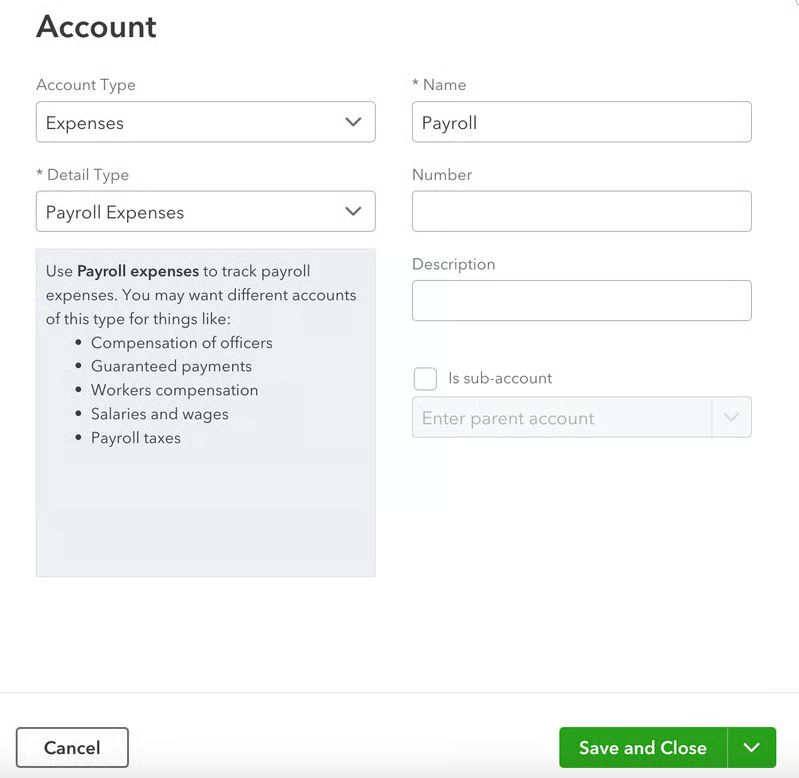
While QuickBooks Online provides default categories, which you can use as a starting option for classifying your income and expenses, you can create new ones as needed. As mentioned, categories are based on the accounts in your chart of accounts, so you can set them up on the Chart of accounts tab screen under the Transactions screen.
When creating a new category, you’ll be prompted to enter essential details, including the account name and account type. For instance, you can create a new expense category called “Payroll” for tracking employee salaries and benefits and an “Equipment” category for tracking expenses related to business equipment.
Now, when you create a transaction, you can select the appropriate category from the drop-down menu in the Category Details section to classify that transaction. For instance, when recording a new expense for a rent payment, you can select Rent from the category drop-down list.
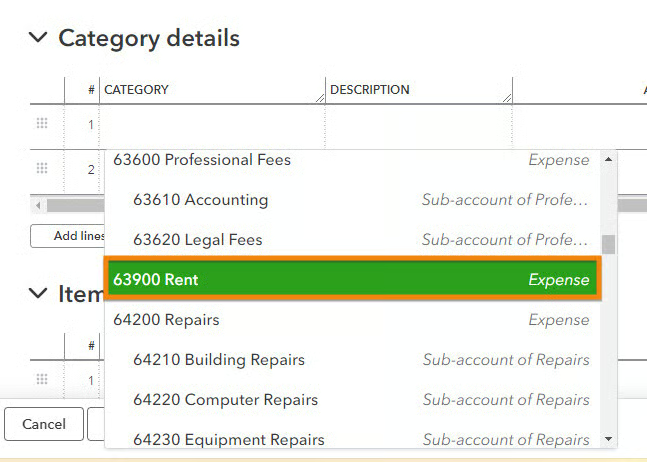
By categorizing the expense as Rent, the transaction is properly classified and grouped with other rent-related transactions in your reports.
This will allow QuickBooks Online to track your rent-related expenses separately from other types of expenses. When you generate reports, such as profit and loss (P&L) statements, the rent expense amount will be included under the Rent category.
Items in QuickBooks Online
In QuickBooks Online, items are products and services that you buy and sell. By setting up items, you can include them in your invoices, sales receipts, bills, expenses, and other purchase and sales forms easily. When adding an item to a transaction, each unique item is listed as a separate line item, showing details like its name, description, quantity, and cost per item.
Items in QuickBooks Online are categorized into four main types:
- Inventory: Use this for products that your business buys, sells, and holds as inventory.
- Noninventory: Choose this for products that your business buys and sells but doesn’t keep count of.
- Service: This is used to track services that your business provides.
- Bundle: Select this to group multiple products or services that are sold or purchased as a single unit.
Examples of Items in QuickBooks Online
Below are sample QuickBooks items under specific types.
| Type | Sample Items |
|---|---|
| Inventory | Laptop, T-shirt, printer, desk, and chair |
| Noninventory | Software license, training course, and supplies |
| Service | A/C installation and A/C repair |
| Bundle | Computer accessories bundle and event planning bundle |
How Items Are Used in QuickBooks
- Invoicing customers and recording sales receipts: When creating an invoice or a sales receipt for your customer, you can select the appropriate item to specify the products or services you sell or sold to the customer.
- Purchasing from vendors: When entering bills or expenses, you can select the right items from the drop-down list to classify the products or services you purchased.
- Inventory management: If your business sells products that you need to keep count of, then you can use inventory items to track stock levels, COGS, and inventory valuation.
- Detailed sales reporting: Items help you categorize your sales and transactions by product or service type. This allows you to create detailed sales reports showing which specific product is making the most revenue and which ones need further promotion.
- Tax reporting: Just like categories, items allow you to properly allocate income and expenses to specific tax-deductible classifications, making it easy for you to organize and file your tax returns.
How To Create and Use QuickBooks Items in Transactions
You can create items in QuickBooks by setting up a new product or service using the Product/service information form, which you can access from the Products and Services tab under the Sales menu. Choose the type of item you wish to create and provide the required information, like the item name and relevant fields depending on the type selected.
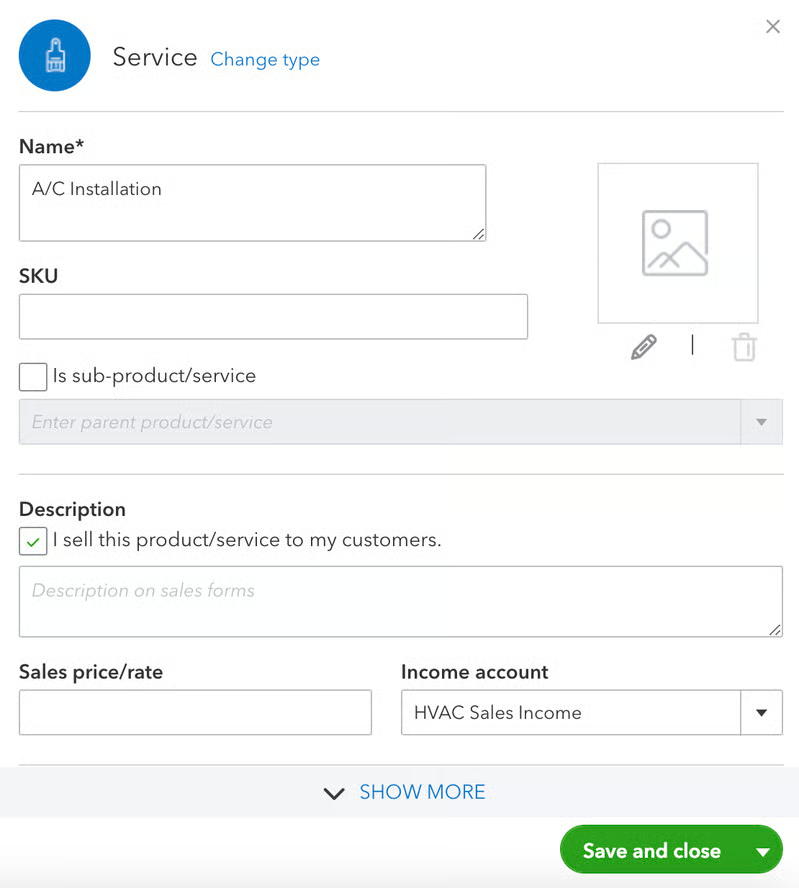
Again, when entering new transactions, you can select the appropriate items from the Item Details or Product or service section to specify the item you purchased or sold.
For example, when creating a new invoice for an air conditioning repair service, you can select A/C Repair from the drop-down list.
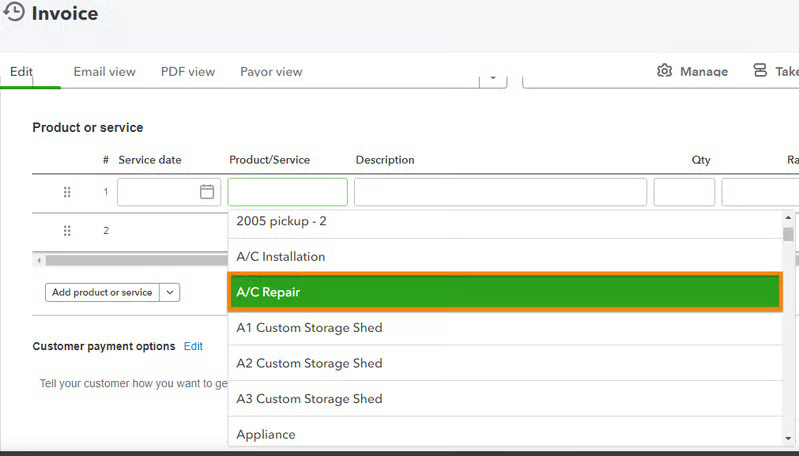
By doing so, QuickBooks will record the income automatically under the corresponding account associated with the A/C repair item. You will then see the amount reflected in your reports under the A/C Repair Income section.
Frequently Asked Questions (FAQs)
What is the difference between category and item in QuickBooks Online?
Categories in QuickBooks Online are used to classify transactions into broad groups for reporting and analysis purposes and are based on the accounts on the chart of accounts. Meanwhile, items are used to represent products and services on sales and purchase transactions and are mapped to categories. Multiple items can be mapped to the same category.
How do I create categories in QuickBooks Online?
You can create categories in QuickBooks Online by setting up a new account in the Chart of accounts screen. You can follow the steps in our tutorial on how to set up a chart of accounts in QuickBooks.
How do I create items in QuickBooks?
You can create items in QuickBooks by setting up a new product or service using the Product/service information form, as illustrated in our guide on how to set up the products and services list in QuickBooks.
Wrap Up
Both categories and items in QuickBooks Online are essential for organizing your financial data but they serve different purposes. The key to keeping your books accurate is to understand their differences, when to use them, and how to create and use these features of QuickBooks Online.
If you wish to learn more about using the other features of QuickBooks Online, check out our free QuickBooks Online tutorials.
