






If you’re seeing unapplied cash payment income in QuickBooks Online, it means a customer payment was recorded, but QuickBooks doesn’t recognize it as linked to an invoice. This usually happens when the payment date is earlier than the invoice date or if a payment was entered without being correctly applied.
It can also occur if a product or service on the invoice is incorrectly mapped to a bank account instead of an income account. Fixing this ensures your financial reports reflect accurate revenue, preventing discrepancies in cash basis reporting.
How to view unapplied cash payment income
Follow this process to check if you have unapplied cash payments:
- Step 1: Navigate to the left menu bar, click Reports, and then select Standard reports.
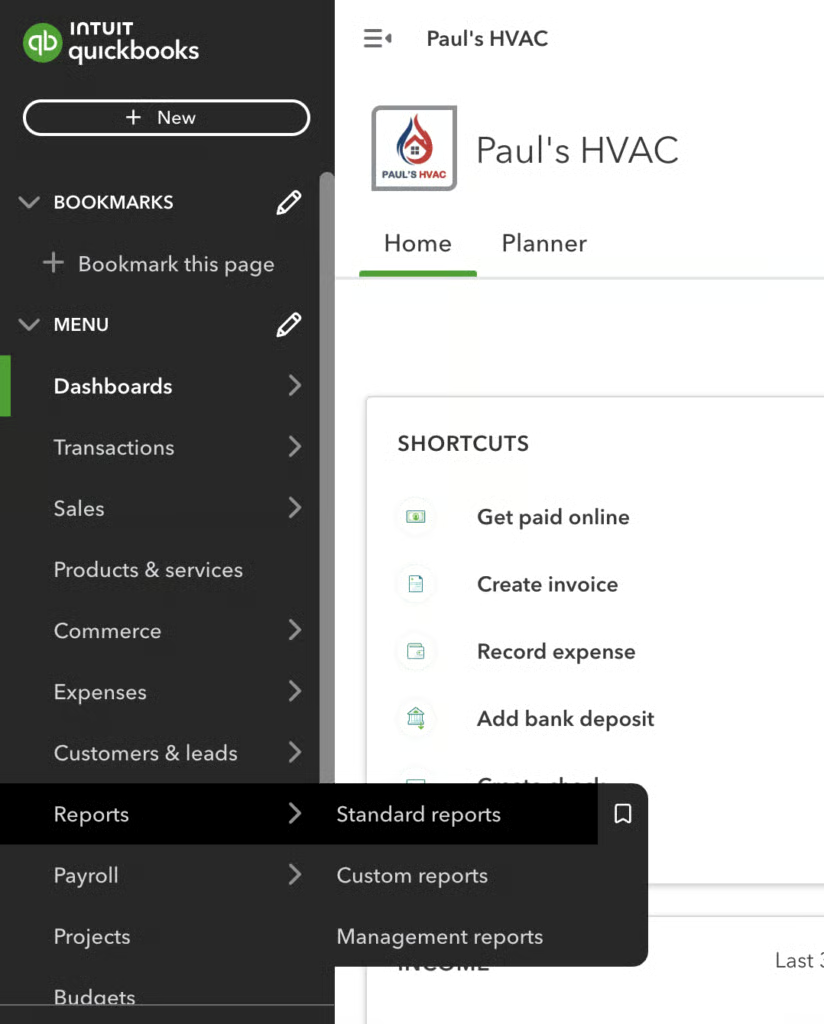
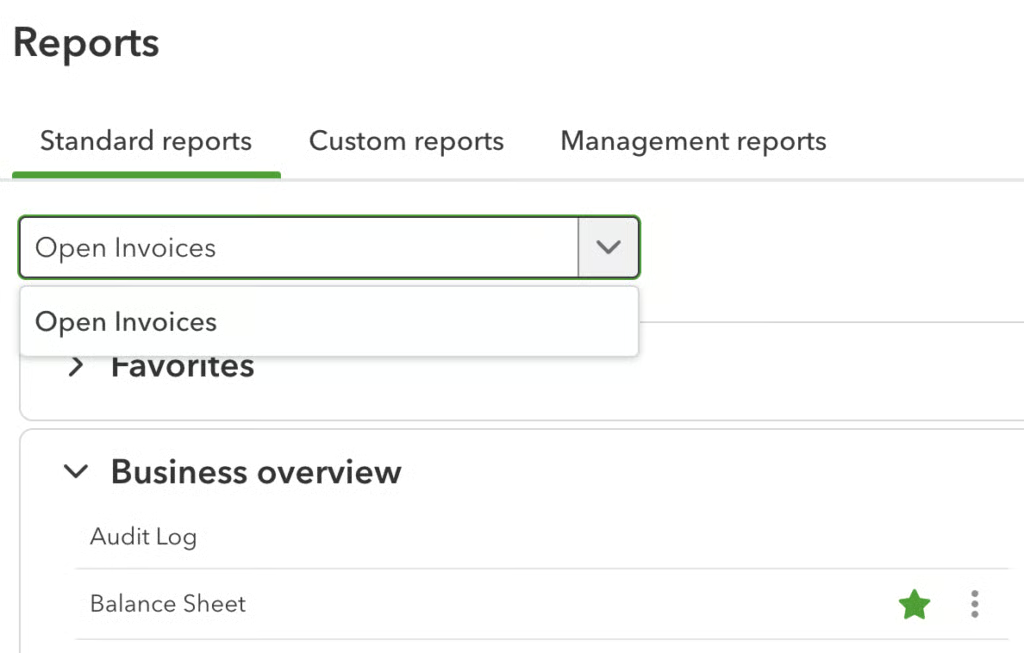
- Step 2: Search for “Open Invoices” in the Find report by name field.
- Step 3: Set the report period to your desired date range.
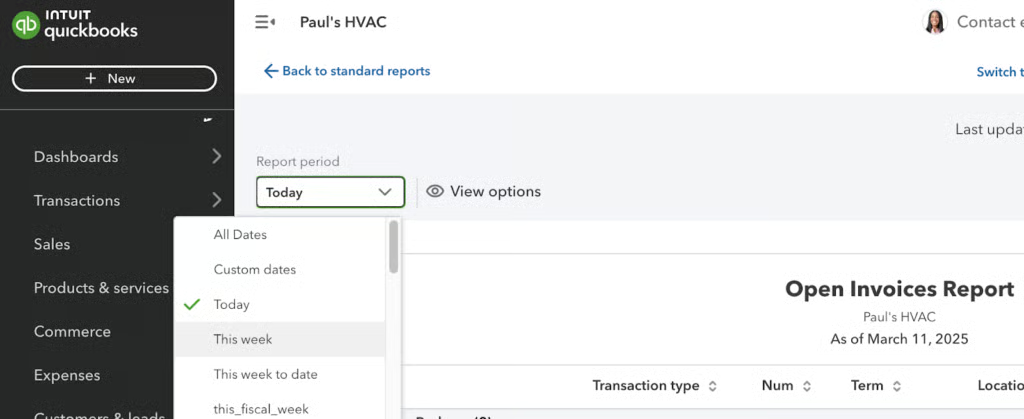
- Step 4: After selecting the period, wait for the report to reload and show you the relevant information within your set time range.
- Step 5: Find transactions listed as “Payment” in the Transaction type column.
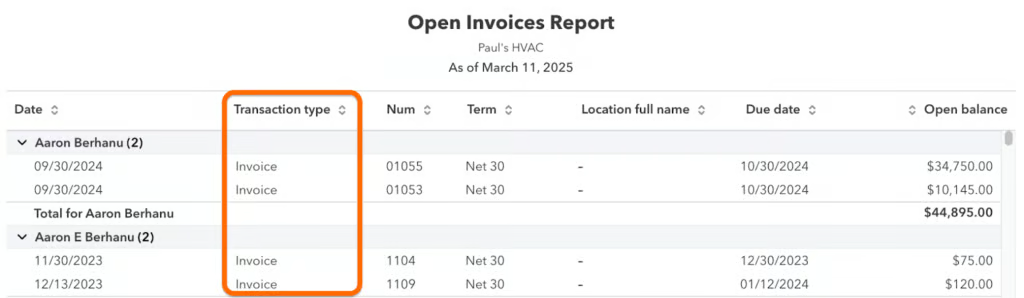
How to fix unapplied cash payment income
There are two ways to fix unapplied cash payment income. You first need to check if there is a matching invoice. Otherwise, you need to create a new invoice from scratch.
When there is a matching invoice
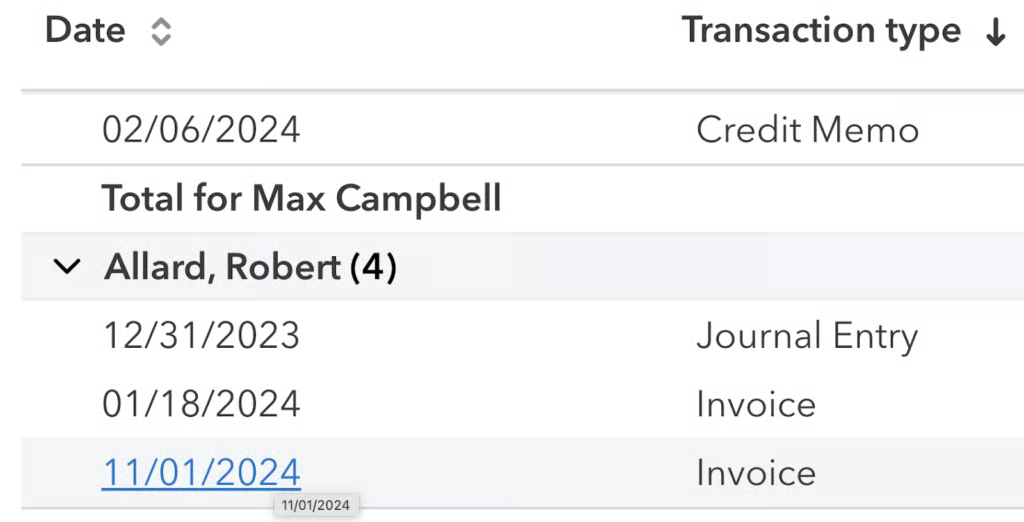
- Step 1: Select the payment. Simply click on the date and it will redirect you to the invoicing page.
- Step 2: Under Outstanding Transactions, select the invoice that the payment should be applied to.
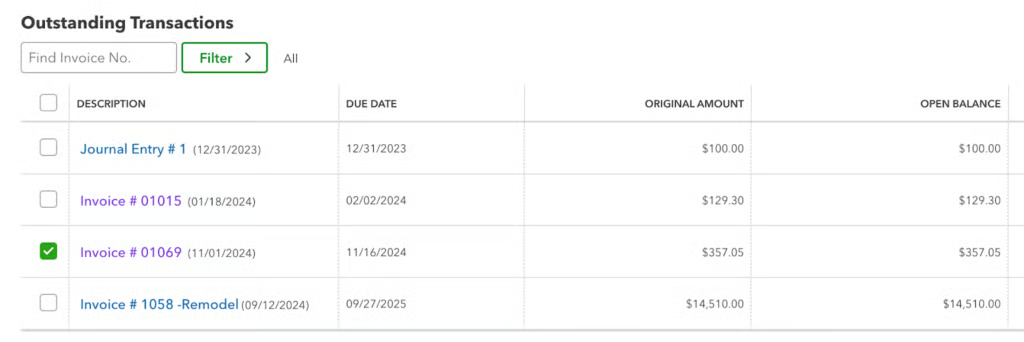
- Step 3: Click Save and close.
When there is no matching invoice
If there is no matching invoice, it only means that you forgot to create an invoice for a client. You will need to create an invoice in QuickBooks Online before resolving unapplied cash payments.
- Step 1: Go to invoice creation.
- Click + New in the left menu and select “Invoice” under Customers.
- Step 2: Fill out invoice details.
- Select the customer (or add a new one).
- Set terms, invoice date, and due date.
- Add products or services and confirm the subtotal, discounts, and sales tax.
- Step 3: Review the invoice in different views.
- Use the preview options to check how the invoice appears before sending.
- Step 4: Save and send.
- Click Review and send to email it immediately.
- Click Save if you want to send it later.
- Click Print and download if needed.
Impact of unapplied cash payment income
When you don’t resolve unapplied cash payment income in QuickBooks Online, it may affect your financial reporting and taxes in several ways.
- The customer’s invoice will remain open because the payment was not properly applied.
- You will have a floating payment from a customer since the payment isn’t linked to an invoice..
- It will overstate revenue for companies using cash basis accounting in QuickBooks Online.
Prevention tips and best practices
Having unapplied cash payment income in QuickBooks isn’t necessarily a bad thing — it simply means a payment was received before the corresponding invoice was recorded. This can happen occasionally and is easy to correct. However, if it occurs frequently, it signals a flaw in your process that needs attention.
✅ Always create invoices first.
Whenever you deliver a product or service to a customer, create the invoice immediately. I highly recommend sending invoices within 48 hours so that the customer remembers the transaction.
✅ Regularly check outstanding invoices.
Some unapplied cash payments may be linked to invoices that were accidentally overlooked. To prevent this, review outstanding invoices regularly (e.g., weekly or monthly) and resolve any unapplied payments promptly. If you find an unapplied payment that doesn’t match any existing invoice, it likely means the invoice was never recorded.
✅ Look for the invoice before recording payment.
If you received payment, don’t immediately record it on QuickBooks. Look for the customer’s open invoice first and then check if the payment corresponds to that particular invoice. Once you’ve confirmed this, click the Receive payment button on top of the invoice window in QuickBooks to record the payment.
✅ Train your team.
Ensure your team understands the importance of creating invoices before recording payments and using the Receive payment feature correctly in QuickBooks. Provide training on how to review outstanding invoices, identify unapplied payments, and resolve them promptly. Establishing clear guidelines and regular checks will help maintain accurate financial records and prevent recurring issues.
✅ Improve your workflow.
Streamline your invoicing and payment process to reduce unapplied cash payments. Establish a clear workflow where invoices are always created before receiving payments, and implement a routine check for outstanding invoices. Consider using automation tools or reminders in QuickBooks to ensure payments are properly applied, keeping your records accurate and minimizing errors.
Frequently asked questions (FAQs)
What does unapplied payment mean?
An unapplied payment refers to a payment received from a customer that has not been matched to an invoice in QuickBooks. This can occur if a payment is recorded before an invoice is created or if it was not properly linked during the payment entry process.
What is the difference between applied cash and unapplied cash?
Applied cash refers to payments that have been correctly matched to an invoice or bill, ensuring proper tracking of transactions in accounting records. Unapplied cash occurs when a payment is received or made but is not linked to an invoice or bill. This can result in floating payments that cause reconciliation issues and potential revenue misstatements in cash basis accounting. In short, applied cash is properly assigned, while unapplied cash remains unlinked, leading to accounting discrepancies.
Bottom line
Seeing unapplied cash payment income in QuickBooks isn’t a technical blunder. It’s just QuickBooks’ way of ensuring the payment was recorded even if there was no corresponding invoice. It is your responsibility to match the payment to an invoice.
