






A performance review cycle involves more than asking employees and managers to complete evaluations. System administrators also need to create review cycles, establish deadlines, and track completion timelines. QuickBooks Workforce provides tools to handle these responsibilities and monitor evaluations as they progress.
This guide shows how to manage employee performance reviews in QuickBooks Workforce, with a focus on the tasks administrators and managers need to handle throughout the process.
Important note: Performance management features are included with QuickBooks Workforce Elite. You'll need to be on this tier to follow the steps below. For more information about the available plans and features, read our QuickBooks Workforce review or check out its website.
Set up a performance review cycle in QuickBooks Workforce
To set up a performance review cycle, administrators first need a template that defines the evaluation questions, task assignments, and deadlines. QuickBooks Workforce offers prebuilt templates you can customize or the option to create one based on your company's review requirements.
Step 1. Create a performance review template
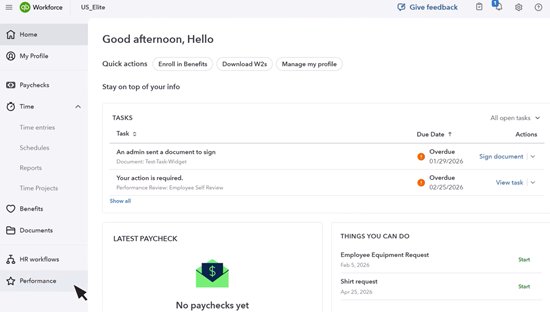
After signing into your QuickBooks Workforce account, look for the “Performance” option on the left-side menu. Click on it to navigate to the system’s performance review module.
From the performance module’s main dashboard, you’ll find three tab options: Templates, Activity, and Goals. From the Templates tab, select the + Add Template button on the right side of the screen.
A new window will pop up, with options to: Choose from library or Create performance review. Selecting the latter enables you to create a new one from scratch. The former allows you to choose from pre-made customizable performance review cycle templates, such as Annual Review, Monthly Review, Goal Brainstorm, Weekly Progress Check, and Quick Start Review.
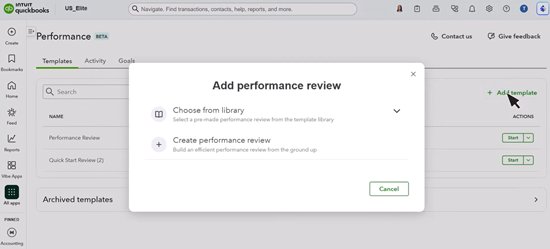
For this walkthrough, we’ll use Choose from library and navigate to the Quick Start Review template, which already includes employee self-evaluation and manager assessment tasks.
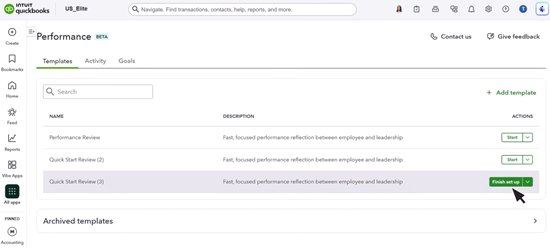
Once selected, the system will add this to your Templates list. Look for the Quick Start Review option and click Finish set up to customize it.
A new window will appear with tabs for Set Up, Steps, Data Sources, and Review. In the Set Up tab, enter a name and description for the review. Use a descriptive name, such as Quarterly Employee Performance Review, and briefly identify its purpose or evaluation period.
You'll also see an optional Schedule setting, which lets you configure whether performance reviews will launch manually or automatically and for whom (e.g., all employees or specific team members). Skipping this means you’ll have to manually start the cycle for this performance review.
Completing the Schedule option allows you to specify when the HR workflow for this review cycle template will start, such as monthly or yearly on the employee's work anniversary. If your company conducts evaluations at regular intervals, scheduling eliminates the need to initiate each review cycle individually.
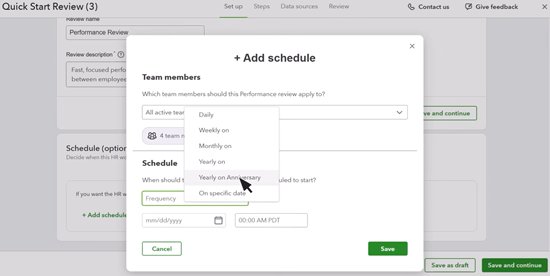
Once you’re done completing the Set Up details, select Save and continue to proceed to the Steps tab.
Step 2. Customize review tasks and assignments
The Steps tab contains the activities participants must complete during an evaluation. With the Quick Start review template, you'll see two existing tasks: Employee Self Review and Admin Review. Some of the settings you can find and customize under these two options include:
| Setting | What you can do |
| Instructions | Explain what employees or managers should include in their self-evaluations. |
| Fields | Add or modify review questions and mark required responses. |
| Assignee | Assign the task to the employee, their manager, a specific team member, or a department. |
| Dates | Set optional start and due dates for the assignment. |
| Permissions | Choose who can access completed responses without receiving an additional task. |
To start, choose Employee Self Review from the left-hand menu. In the Details tab, customize the instructions, employee rating scale, and other data fields by clicking the pen icon. QuickBooks Workforce also lets you mark specific data fields as required fields, add links to reference documents, embed videos or HR workflows, and include employee work goals.
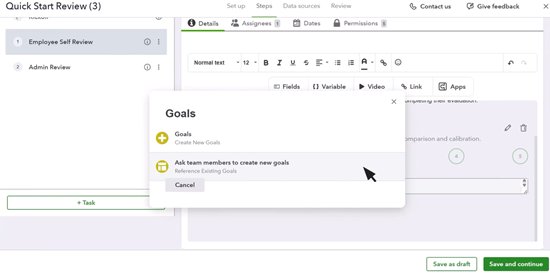
To establish when assignments become available and when they must be completed, select the Dates tab and input the number of days when the task is due. For example, a quarterly review might give employees three days to complete their self-assessments, followed by four days for managers to submit theirs.
If your process requires additional activities, select + Task to add an assignment. You can also rearrange existing tasks by dragging them into the preferred order or use the Actions menu to duplicate or delete steps.
Next, open Admin Review to configure the assessment completed by the reviewer. If managers will conduct the evaluations, change the assignee to the employee's manager and adjust the questions to cover performance, accomplishments, and areas for improvement.
You can also check the task permissions to determine which responses managers can access. For instance, you can give managers read-only access to completed employee self-evaluations without allowing them to change employees' answers.
Once you’re done customizing all the review tasks, click Save and continue to proceed to the Details step.
Step 3: Check review tasks and publish the template
The Data Sources tab allows you to review the questions and data fields included in the template. If you spot items that need adjustments or correction, click the Edit button. However, if you’re satisfied with the steps and tasks, select Save and continue.
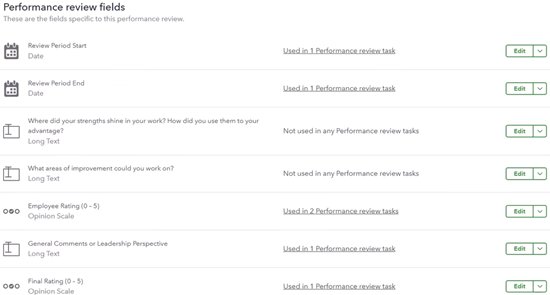
Click the Save and continue button at the bottom of the page to proceed to the Review tab, which shows a summary of the review template’s basic information permissions and steps. This is your final chance to check the review cycle’s details.
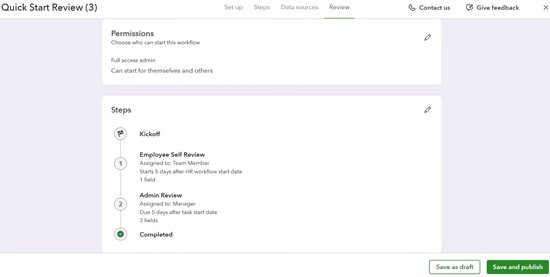
If you need to make last-minute changes, click the pen button to edit the applicable sections. Otherwise, select Save and publish to finalize the template. Your template is now available for future performance reviews.
Run and manage employee performance reviews
After publishing a template, administrators can launch employee evaluations and monitor their completion. Employees and assigned managers complete their respective tasks, using the questions and requirements established during the performance review setup.
Step 4. Start a performance review
You can manually launch a published review cycle from the Templates tab of QuickBooks Workforce’s performance management dashboard. From the list of templates, look for the review cycle you want and click Start.
Once the review begins, QuickBooks Workforce sends notifications to assigned task owners through their accounts and by email. Meanwhile, reviews with automatic schedules begin according to the timing configured in the template, so you don't need to launch those manually.
Step 5. Complete employee and manager evaluations
Employees and assigned reviewers can access their evaluations through the browser-based QuickBooks Workforce portal (not the mobile app). After signing in, navigate to the system’s main dashboard and locate the assigned review request. Click View to open the task and read its instructions.
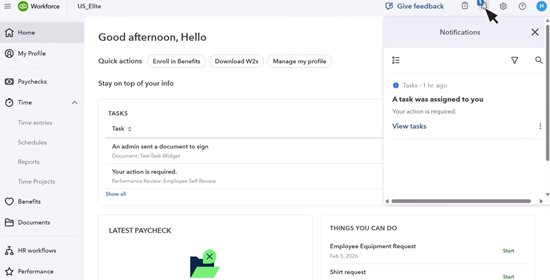
The information participants must provide depends on their assignments:
- Employees: Complete self-evaluations by describing accomplishments, challenges, progress toward existing goals, and areas where they need additional support.
- Managers: Assess employee performance using the questions and criteria established in the template. Their evaluations may cover work quality, achievements, and development opportunities.
Once participants have completed the required fields, they can update the task status to Complete. After both assessments are complete, the manager and employee can meet to discuss their feedback. The completed review provides a record they can use to compare perspectives, address concerns, and agree on development priorities.
Need help preparing for these discussions? Our how to do a performance review guide provides additional advice on preparing for and conducting employee evaluations.
Step 6. Track review progress and follow up
You can monitor ongoing evaluations through the Activity tab of QuickBooks Workforce's Performance dashboard. This provides an overview of reviews in progress and helps identify assignments that still need attention. To access it, open Performance from the main menu and select Activity.
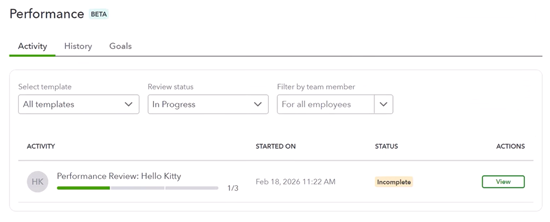
Each review has a progress bar showing how far the evaluation has advanced. Hover over the bar to see the individual assignments, their task owners, and current statuses. From there, you can determine which tasks remain incomplete and who needs to finish them.
For example, if the progress bar shows that an employee has completed their self-evaluation but the manager's assessment is still pending, you can follow up directly with the manager. You can also use the review status filter to find other evaluations that haven't been completed.
Once all required evaluation tasks are finished, confirm that managers have discussed the results with their employees. If these conversations happen outside QuickBooks Workforce, establish a way to track their completion so the review cycle doesn't end with an unfinished feedback discussion.
Frequently asked questions about QuickBooks Workforce performance reviews
Which QuickBooks Workforce plan includes performance reviews?
QuickBooks Workforce Elite includes performance management features for creating review templates, assigning employee evaluations, and monitoring review progress. These features aren't included as paid add-on tools for the Workforce Payroll or Workforce Premium plans.
Can QuickBooks Workforce automatically schedule performance reviews?
Yes, it can. QuickBooks Workforce allows administrators to schedule recurring performance reviews at daily, weekly, monthly, or yearly intervals, or on employees' work anniversaries. There’s also an option for starting performance review cycles manually.
Can I edit a performance review template after launching it in QuickBooks Workforce?
Yes, but changes to a QuickBooks Workforce performance review template won't automatically update reviews already in progress. To apply revised questions, assignments, or other settings to an active review, system administrators must republish the updated template and resend it to the affected participants.
Can managers view employee self-evaluations in QuickBooks Workforce?
Yes, if the system administrator has configured the appropriate permissions. QuickBooks Workforce lets them grant managers read-only access to completed employee self-evaluations without assigning additional review tasks or allowing them to modify employees' responses.
