







The disposal of a fixed asset is the final step in managing fixed assets within your books. It starts by identifying why the asset is being removed. After that, the asset’s cost and depreciation are cleared, any proceeds are recorded, and the result (any gain or loss) is determined based on its remaining value.
With QuickBooks Online Advanced, this process turns from a routine chore into something effortless and precise. It automatically calculates gains or losses, updates your records in real time, and generates the journal entries for you. No more second-guessing numbers or juggling spreadsheets. Every disposal stays clean, documented, and audit-ready. In this way, you close each asset confidently, knowing your books reflect the exact story of your business’s growth and smart decisions.
Fixed asset disposal methods
Disposal marks the final stage in a fixed asset’s life in the accounting records. When a fixed asset is sold, scrapped, or traded in, additional accounting entries are required to record the transaction and remove the asset and its accumulated depreciation from the books.
Sale
When you sell a fixed asset, you take it off your accounting records along with the depreciation it has built up over time. You then record the money you received from the sale, whether it’s cash or a customer still owing you. The difference between what you got and the asset’s remaining value in your books shows if you made a profit (gain) or a loss on the sale.
For example, Vita Company sells a delivery van for $12,000. The van originally cost $25,000, and its accumulated depreciation is $15,000. The van’s net book value is $10,000 ($25,000 – $15,000).
Since it sold for $12,000, the company made a $2,000 gain ($12,000 – $10,000), and the journal entry to record this transaction is as follows:
| Debit | Credit | |
|---|---|---|
| Cash | 12,000 | |
| Accumulated Depreciation | 15,000 | |
| Delivery Van | 25,000 | |
| Gain on sale of fixed asset | 2,000 |
If the van had sold for $8,000 instead, the company would record a $2,000 loss ($8,000 – $10,000).
| Debit | Credit | |
|---|---|---|
| Cash | 8,000 | |
| Accumulated Depreciation | 15,000 | |
| Loss on sale of fixed asset | 2,000 | |
| Delivery van | 25,000 |
Scrapping
When an asset is scrapped or no longer usable, you take it off your books along with its accumulated depreciation. If you don’t receive any money for it (or just a small scrap amount), you record a loss equal to whatever value was left in your records.
For instance, let’s say a machine originally cost $20,000 and has $18,000 in accumulated depreciation. Its net book value is $2,000. It has been scrapped and sold to a scrap dealer for $500. The journal entry would be:
| Debit | Credit | |
|---|---|---|
| Cash | 500 | |
| Accumulated depreciation | 18,000 | |
| Loss on sale of fixed asset | 1,500 | |
| Delivery van | 20,000 |
There’s a loss because the asset still had some remaining value in the company’s records, but it was no longer useful or only brought in a small amount from scrap. Since the company couldn’t fully recover that remaining value, it’s recorded as a loss to reflect the part of the asset’s cost that was not recovered.
Trade-in
A trade-in happens when a company gives up an old asset to get a new one, often paying or receiving some cash as part of the deal. It’s like swapping an old machine, vehicle, or equipment for a newer or different model. How the exchange is recorded depends on whether it brings a real change to the company’s operations or not.
If the new asset changes how the company earns or saves money, such as improving efficiency or serving a different purpose, the exchange has commercial substance. The new asset is recorded at its fair value, and any gain or loss from the trade is recognized right away. The old asset and its accumulated depreciation are removed from the books.
Example: Jupiter Company trades in an old machine with a cost of $50,000 and accumulated depreciation of $40,000 (book value $10,000) for a new machine worth $18,000. The company pays $8,000 in cash as part of the deal.
- The fair value of the old machine is $10,000, which equals its book value, so there’s no gain or loss.
- The new machine is recorded at $18,000 (its fair value).
- The old machine and its depreciation are removed from the books.
Debit | Credit | |
|---|---|---|
| New machine | 18,000 | |
| Accumulated depreciation | 40,000 | |
| Old machine | 50,000 | |
| Cash | 8,000 |
If the trade doesn’t really affect the company’s future cash flows, such as swapping one delivery van for another used in the same way, the new asset is recorded at the book value of the old asset, adjusted for any cash paid or received.A gain is not recorded, but a loss is recognized if the asset’s book value is higher than its fair value. If a large amount of cash (more than 25% of the total deal) is received, the transaction is treated more like a sale, and the gain can be recognized.
Example: Saturn Company trades in an old delivery van with a cost of $40,000 and accumulated depreciation of $30,000 (book value $10,000) for a new van with a fair value of $12,000. The company pays $2,000 in cash. Since the exchange doesn’t significantly change operations (it’s a similar van used the same way), the new van is recorded at the book value of the old one plus the cash paid, not at fair value.
Debit | Credit | |
|---|---|---|
| New van | 12,000 | |
| Accumulated depreciation | 30,000 | |
| Old van | 40,000 | |
| Cash | 2,000 |
Reasons for disposing fixed assets
Every fixed asset eventually reaches a point where it no longer serves the business as it once did. Whether it’s worn out, outdated, or replaced by something more efficient, there comes a time to take it off the books. Understanding why disposals happen helps ensure each one is handled correctly, both in practice and in accounting.
- End of useful life or full depreciation: When an asset reaches the end of its life, it’s fully used up and can’t perform its job properly anymore. Keeping it around only takes up space and adds no real value, so it makes sense to remove it from the books and make room for something more useful.
- Obsolescence or outdated technology: Sometimes an asset still works, but newer technology can do the job faster or more efficiently. Holding onto old equipment can slow down operations, so replacing it helps the business stay competitive and productive.
- High maintenance or repair costs: If it costs more to fix or maintain an asset than what it’s actually worth, it becomes a burden instead of a benefit. Disposing of it helps the company avoid ongoing expenses and redirect money to more valuable equipment.
- Replacement or upgrade: Businesses often replace older assets with newer ones that perform better or meet updated standards. Doing so keeps operations running smoothly, reduces downtime, and ensures the company stays compliant with new regulations.
- Physical damage or irreparability: When an asset is damaged beyond repair, keeping it serves no purpose. Disposing of it prevents safety risks and helps the business move forward with equipment that actually works.
- Sale for financial gain or cash flow: Sometimes businesses sell assets they no longer need to generate cash. The proceeds can be used to improve liquidity, fund upgrades, or invest in new opportunities that bring better returns.
How to dispose fixed asset in QuickBooks Online
The fixed asset disposal feature in QuickBooks Online Advanced simplifies how businesses handle the final stage of an asset’s life cycle. Instead of manually calculating, recording, and tracking each disposal, this tool automates the entire process from computing gains or losses to updating records and generating journal entries.
It provides a structured workflow for handling sales, scrap, donations, or trade-ins while keeping all related documentation and reports in one place. Unfortunately, this plan is only available in the Advanced plan. Below I’ll specifically discuss how a disposal works in QuickBooks.
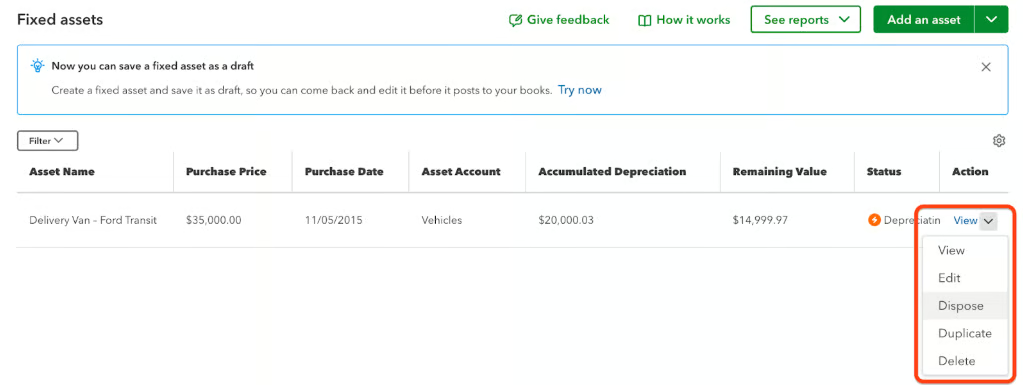
To access all fixed assets, click on My apps then select Accounting. Under the dropdown menu, click Fixed assets. You’ll see the list of all fixed assets.
Select the asset you want to dispose of by clicking View, then Dispose, as shown in the image below.
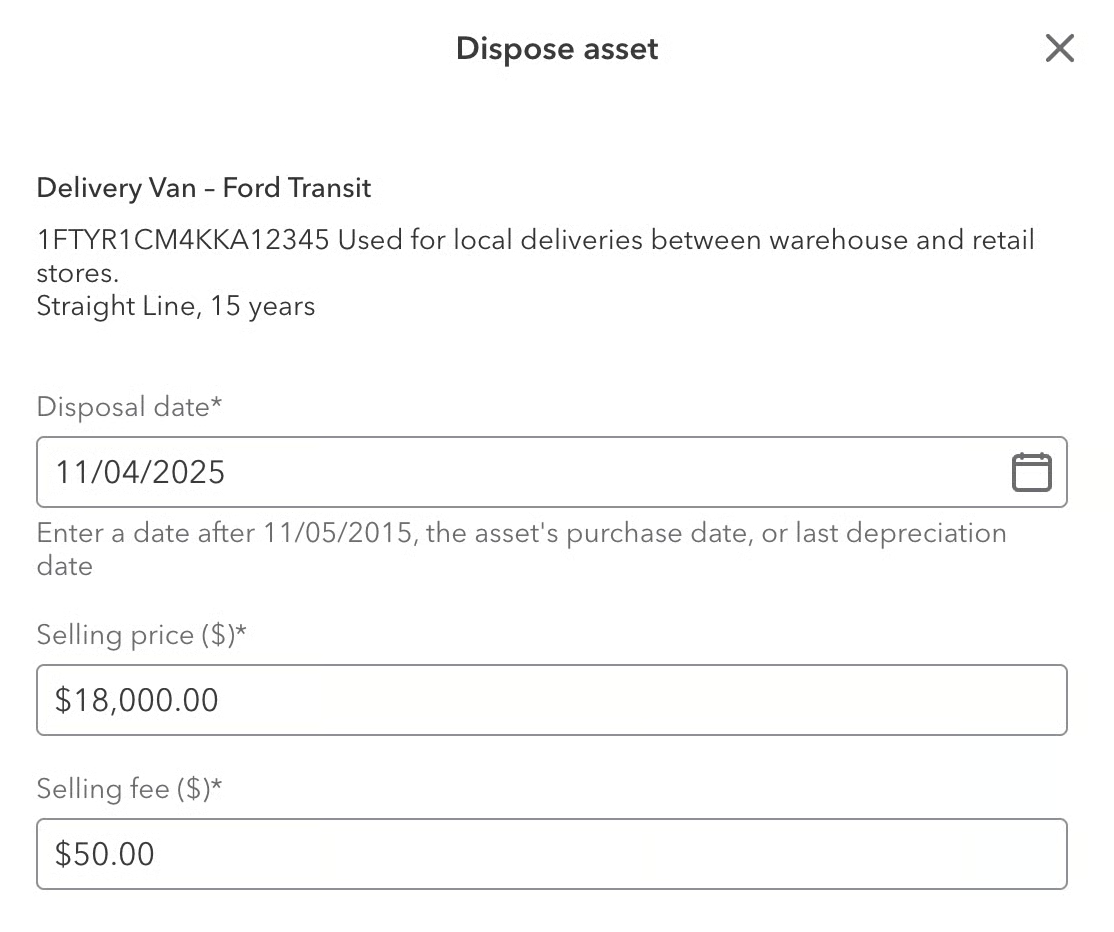
After clicking Dispose, QuickBooks opens a detailed form where the user enters key information about the asset being removed. In this example, the delivery van’s disposal date, selling price, and selling fee are filled in to record the transaction. QuickBooks Online Advanced then uses these details to automatically calculate any gain or loss on disposal, remove the asset and its accumulated depreciation from the books, and generate the necessary journal entries for accurate accounting.
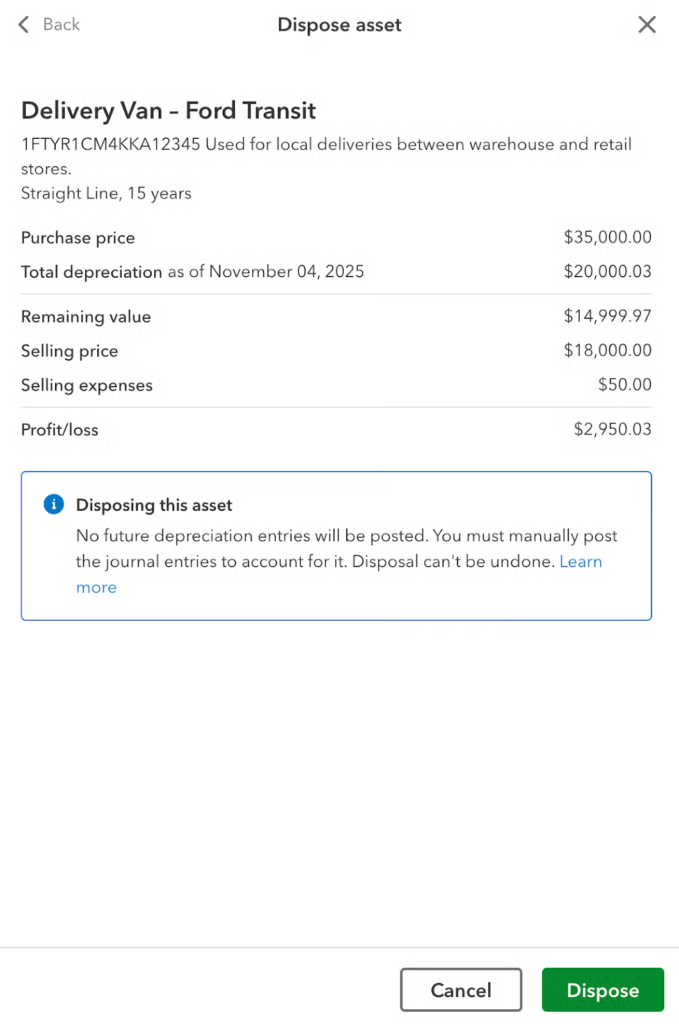
After entering the disposal details, QuickBooks Online Advanced displays a summary of the transaction. In this example, the screen shows the delivery van’s purchase price, accumulated depreciation, remaining value, selling price, and selling expenses.
The system automatically calculates the resulting profit or loss from the sale. In this case, it is a gain of $2,950.03. Before confirming, QuickBooks also warns you that no future depreciation will be recorded and that the disposal cannot be undone.
Once you’ve decided, click Dispose. The asset’s status updates to show that it has been successfully removed from the company’s books. In this view, QuickBooks Online Advanced sets the accumulated depreciation and remaining value to zero, indicating that the asset is no longer active. This confirms that the disposal process is complete and all related accounting entries have been recorded.

Workaround for Plus users
Since QuickBooks Online Plus doesn’t have a built-in fixed asset feature, you’ll need to handle disposals manually. This means you have to create your own journal entries to remove the asset, record depreciation, and note any gain or loss from the sale. You’ll also need to keep track of your assets and depreciation separately, usually in a spreadsheet or with another app, because Plus doesn’t automatically update or manage these records like QuickBooks Online Advanced does.
Tips for accurate reporting
Accurate reporting matters when disposing of fixed assets because it keeps your financial records honest and reliable. When you sell, scrap, or replace equipment, the numbers you record affect your total assets and profits. If the details aren’t right, your reports could show the wrong balance or income. Keeping disposal records accurate also helps you stay compliant, avoid audit issues, and clearly show what happened to each asset when it left your books.
Maintain clear records
Good recordkeeping keeps everything in order and prevents confusion later on. When you know each asset’s cost, depreciation, and what happened when it was sold or scrapped, your reports stay clear and accurate. With QuickBooks Online Advanced, these details are automatically saved and organized for you, complete with attached receipts or invoices that you can pull up anytime.
Reconcile asset movement schedules regularly
Think of reconciliation as a regular check-up for your books. It helps catch errors, missing entries, or double postings before they become a problem. QuickBooks Online Advanced simplifies this step by syncing asset movements automatically and generating up-to-date reports, so you can easily confirm that your asset records and general ledger always match.
Prepare for audits with disposal documents
Audits are much easier when everything you need is in one place. Having clear disposal records—like sale receipts, scrap certificates, or approvals—proves that your transactions were done properly. QuickBooks Online Advanced links these documents directly to each asset’s record, giving you a complete and traceable history without digging through folders or spreadsheets.
Frequently asked questions (FAQs)
Why is it important to record fixed asset disposals properly?
When a fixed asset is no longer used, it must be removed from the balance sheet. The removal will often result in a gain or loss to be recognized on the income statement. If the journal entries are incorrect, it may affect the accuracy of the balance sheet and income statement.
How do you record fixed asset disposal in QuickBooks Online?
You need to make a manual journal entry. Click the plus sign (+) above the left menu bar and select “create journal entry”. QuickBooks Online doesn’t have dedicated features for fixed asset disposals, so you need to do this manually.
What is the entry for writing off a fixed asset?
To write off a fixed asset, you should:
- Debit Accumulated Depreciation for the life-to-date depreciation claimed on the asset
- Credit Fixed Asset for the original cost of the asset
- Debit Loss or credit Gain for the amount necessary to balance the journal entry
