







Comparing Google Meet vs Microsoft Teams, both are video meeting solutions with screen sharing, meeting recordings, whiteboard, and live captions. However, Microsoft (MS) Teams is a standout choice if you need a feature-rich video conferencing platform with robust collaboration tools and extensive integrations. While Google Meet falls short in features, it is best for Google Workspace users that prioritize ease of use over advanced functionalities.
Here are the best use cases for Google Meet vs MS Teams:
- Google Meet: Best for small teams wanting a video meeting platform that seamlessly integrates with Google Workspace apps
- Microsoft Teams: Best for companies looking for an all-in-one video conferencing and collaboration solution
- Google Meet vs Microsoft Teams at a Glance
- Best Alternatives
- Best for Pricing: Microsoft Teams
- Best for Video Meetings: Microsoft Teams
- Best for Team Collaboration: Microsoft Teams
- Best for Ease of Use: Google Meet
- Best for Integrations: Microsoft Teams
- Best for Security: Microsoft Teams
- Frequently Asked Questions (FAQs)
- How We Evaluated Google Meet vs Microsoft Teams
- Bottom Line
Google Meet vs Microsoft Teams at a Glance
 |  | |
|---|---|---|
| Monthly Starting Price (per user) | $6* | $4** |
| Free Trial | 30 days | 14 days |
| Free Plan | ✓ | ✓ |
| Video Meeting Tools |
|
|
| Collaboration Tools |
|
|
| Integrations |
| 1,800+ third-party apps |
| For more information | Visit Google Meet | Visit Microsoft Teams |
*Google Meet pricing is based on the Google Workspace Business Starter plan.
**Microsoft Teams pricing is based on the Microsoft 365 Business Basic package and requires an annual commitment.
Best Alternatives
Microsoft and Google aren’t the only players when it comes to communication and collaboration tools. Alternatives range from standalone video meeting platforms to systems with a full suite of unified communications (UC) features. Here are other video conferencing solutions to consider:
- RingCentral Video: RingCentral is a market-leading business phone system offering a standalone video meeting application. A free version is available, while the paid plan includes advanced analytics, one-year recording storage, and team messaging.
- Zoho Meeting: Zoho Meeting is an online meeting and webinar solution that deeply integrates with Zoho’s ecosystem of products. Subscriptions are priced differently for meeting and webinar plans, and pricing depends on participant capacity.
- 8×8: Like RingCentral, 8×8 is an all-in-one solution for voice, video, and chat communications. Invite up to 500 video attendees and access features like cloud recordings, YouTube livestreaming, branding, and calendar integrations.
Best for Pricing: Microsoft Teams
| |
|---|---|
Pricing is per user every month. All versions require an annual commitment. |
Rates are based on monthly per-user pricing. |
Microsoft Teams takes the lead when it comes to overall value because both free and paid plans unlock more cloud-based features than Google Workspace’s packages. At only $6, Teams users have access to meeting recordings, breakout rooms, 1TB of file storage, and comprehensive language support. Google Meet, on the other hand, requires a Business Standard subscription for $12 to have the same feature set for video meetings.
While Google Meet allows monthly billing, a full Google Workspace subscription is required to access all its video conferencing features. This means having to pay for other cloud-based services you won’t really need, such as Google Jamboard, Sites, Keep, and Chat.
Additionally, if you’re willing to upgrade your plan for webinar hosting, Google Workspace Business Plus only has attendance tracking. Upgrading to Microsoft 365 Business gives you a full suite of webinar tools, such as attendee registration pages, email confirmations, and reporting.
Best for Video Meetings: Microsoft Teams
| |
|---|---|
|
|
Microsoft Teams is our best video conferencing software for collaborative teams because of its rich functionalities for video meetings. Features are accessible at cheaper packages, such as meeting recordings and transcripts, while advanced tiers unlock webinar tools, collaborative annotations, and translation services. Meanwhile, Google Meet lacks features like remote desktop control, webinar hosting, and chat transcriptions.
Another thing that sets Google Meet apart from Teams is its straightforward interface. This makes it ideal for business users that prioritize ease of use over fancy features. With your Google account, you can host and join meetings free through a web browser.
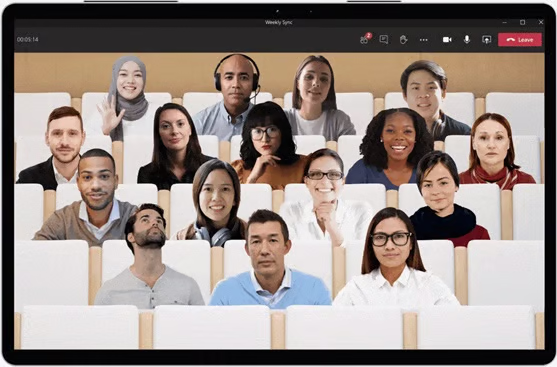
When it comes to video quality, Microsoft Teams is still inherently better with 1080 pixels versus Google Meet’s default of 360p or its max resolution of 720p. Teams supports the “Together” mode, which puts participants in front of a shared background, adding interactivity in meetings. Google Meet, on the other hand, only offers tiled, spotlight, or sidebar layouts.
Best for Team Collaboration: Microsoft Teams
| |
|---|---|
|
|
Microsoft Teams is the winner for this category as it provides a single space for collaboration, allowing you to jump from a chat into a video meeting with just a couple of clicks. For example, shared channels are collaboration spaces where you can chat, meet, share, and co-author files without switching apps. Use group chats to create shared to-do lists, share files, start a poll, convert a message to a task item, and add stickers and emojis to your messages.
Collaboration in Google Meet is limited to video meetings. It lacks the advanced collaboration features offered by Microsoft Teams. While Google Workspace users can co-annotate documents and spreadsheets, this function is separate from the Google Meet app.
Users must switch to Google Chat to initiate a topic-based workstream collaboration.
Best for Ease of Use: Google Meet
| |
|---|---|
| A video conferencing platform with all features accessible using a web browser during a meeting. | An all-in-one collaboration platform with different tabs and sections for chats, calendar, calls, files, and team channels. |
Google Meet is more straightforward to use than Microsoft Teams. That’s partly because Google Meet is only for video conferencing—it’s all you see when you want to start a meeting. Function buttons for screen sharing, captions, and hand raising are accessible under the video meeting screen.

While Microsoft Teams is known for its professional-looking interface, many users experience a steep learning curve due to its compartmentalized layout. There’s a whole workspace with tabs for your calendar, tasks, chat, and channels, so there’s more to navigate. However, your employees will appreciate Teams’ familiar Microsoft 365 layout if your company uses other Microsoft products.

Best for Integrations: Microsoft Teams
| |
|---|---|
| Integrations consist of 1,800+ third-party apps, including Microsoft 365 tools and business solutions for sales, customer service, operations, marketing, and finance. | Integrations are limited to Gmail, Google Calendar, Google Workspace, Zapier, and Microsoft Outlook. |
Microsoft Teams[/fitlink] is the clear winner when it comes to integrations. Connect hundreds of third-party services and add tabs to channels for other applications like YouTube, Trello, and Slack. Simply put, if your company uses popular third-party software, Microsoft Teams likely integrates with it.
In comparison, Google Meet directly integrates with Google Workspace apps like Drive, Calendar, Docs, and Gmail. Use the Google Meet add-in for Microsoft Outlook to quickly add a Google Meet video meeting to a Microsoft Outlook event or email. While you can extend Google Meet’s functionality using Chrome extensions or Zapier, it lacks the built-in integrations offered by Microsoft.
Best for Security: Microsoft Teams
| |
|---|---|
|
|
While both Google Meet and Microsoft Teams meet or exceed industry standards for security, Microsoft Teams has the advantage because it supplies advanced user and endpoint management tools. It enforces multi-factor authentication (MFA) on paid plans, whereas Google Meet subscribers must enable the feature. Both vendors offer single sign-on (SSO) paid packages, but it’s easier to use Google Meet’s host controls from a web browser.
Microsoft Teams has more protocols for managing internal employee usage. You can set individual permissions or create policies for nearly every function within Microsoft Teams, including viewing channels or posting messages.
Frequently Asked Questions (FAQs)
Can Google Meet & Microsoft Teams work together?
Yes. One way to do this is to use Zapier to act as an intermediary between Google Meet and Teams. You will have to pick one of the apps as a trigger and choose a resulting action, so when an event happens in one app, Zapier will tell another app to perform a particular action.
Do I need a Microsoft account to use Teams?
Yes. You need a Microsoft account to get the basic version of Teams. Signing up is free, and you can choose the version you want—for work, school, or home. However, you’ll want to upgrade to a Microsoft 365 Business account to take advantage of advanced features like longer meeting duration.
What are the disadvantages of Google Meet?
Google Meet has a few disadvantages, specifically for teams needing a robust video conferencing platform. You’ll find several missing features, such as co-annotation, multi-share, and keyboard and mouse control. A Google Workspace business account is also required to utilize Google’s video meeting capabilities, such as breakout rooms, noise cancellation, and meeting recordings.
How We Evaluated Google Meet vs Microsoft Teams
We looked at free and paid plans from Google Meet vs Teams to discover how the packages compare. We also tested each software and checked user feedback on popular review websites. From there, we created a scoring system based on the following categories: pricing, video meeting capabilities, collaboration features, ease of use, integrations, and security.
Here’s a complete breakdown of these factors:
We compared monthly per-user costs for Google Meet and Microsoft Teams as well as features accessible at different tiers. We also checked for the availability of a free plan, free trial, and discounts for annual billing and volume purchases.
We looked at capabilities essential to a video conferencing service, such as screen sharing, meeting recordings, and breakout rooms. We also checked which provider has a larger participant capacity and longer meeting duration.
We used each platform for specific activities to determine how easy or complicated it was to perform various tasks, such as scheduling a meeting or starting a video conference. In addition, we evaluated each system based on ease of setup and installation.
We explored how each platform supports third-party integrations, including the amount and types of supported software. We also considered how Microsoft Teams and Google Meet work within the respective Microsoft and Google product ecosystems.
We analyzed each product’s value by looking at total costs and feature sets. We also checked user reviews to determine the overall popularity of both platforms while considering our own experiences.
Bottom Line
Microsoft Teams wins this head-to-head comparison because of its scalable monthly plans, robust third-party integrations, and strong security features. Larger teams looking for a collaborative workspace will appreciate Microsoft Teams’ built-in tools for team messaging and video conferencing.
However, if you simply need a straightforward video conferencing app to launch instant meetings, Google Meet is a more practical choice. For a seamless experience, we recommend going for the same ecosystem (i.e., Google Meet for Google Workspace users and Teams for Microsoft 365 users).
