







Digital planners work best when they come in the form of project management or productivity apps. These platforms give you the flexibility to plan the way you want, with features like customizable calendars, color-coded labels, and task dependencies that help you stay organized, whether you’re managing personal goals or running a business.
Over one in five small business owners work more than 50 hours a week, compared to 28 percent of solopreneurs, according to Adobe’s 2025 Work-Life Balance Report. With that kind of workload, digital planners become essential tools for staying on top of tasks and shifting priorities without burning out. As someone who relies on digital planning daily, I’ve compiled a list of the best digital planners to help you stay organized and productive.
- Google Workspace: Best for Google-centric users and teams
- monday.com: Best for visual task planning
- ClickUp: Best for detailed planning
- Todoist: Best for minimalist planning
- Notion: Best for customizable planning
- Wrike: Best for AI-driven project managers
- Smartsheet: Best for data-driven planning
Why you can trust Fit Small Business
- Best digital planners compared
- Google Workspace: Best for Google-centric users & teams
- monday.com: Best for visual task planning
- ClickUp: Best for detailed planning for teams
- Todoist: Best for minimalist planning
- Notion: Best for customizable planning
- Wrike: Best for AI-driven project managers
- Smartsheet: Best for data-driven planning
- What are the key features to look for in a digital planner
- FAQs
Best digital planners compared
| Digital planner 2025 | Free plan | Monthly starting price (per user) | Key features | My rating |
|---|---|---|---|---|
 | ✅ | $7 |
| 4.94 out of 5 |
| Visit Google Workspace | ||||
 | ✅ | $14 |
| 4.65 out of 5 |
| Visit monday.com | ||||
 | ✅ | $10 |
| 4.63 out of 5 |
| Visit ClickUp | ||||
 | ✅ | $5 |
| 4.54 out of 5 |
| Visit Todoist | ||||
 | ✅ | $12 |
| 4.22 out of 5 |
| Visit Notion | ||||
 | ✅ | $10 |
| 4.14 out of 5 |
| Visit Wrike | ||||
 | ✅ | $12 |
| 4.03 out of 5 |
| Visit Smartsheet | ||||
Which digital planner is right for you?
Take the quiz to find out which digital planner suits your business needs.
Question 1 of 3
Who will be using the planner?
Google Workspace: Best for Google-centric users & teams
My expert opinion
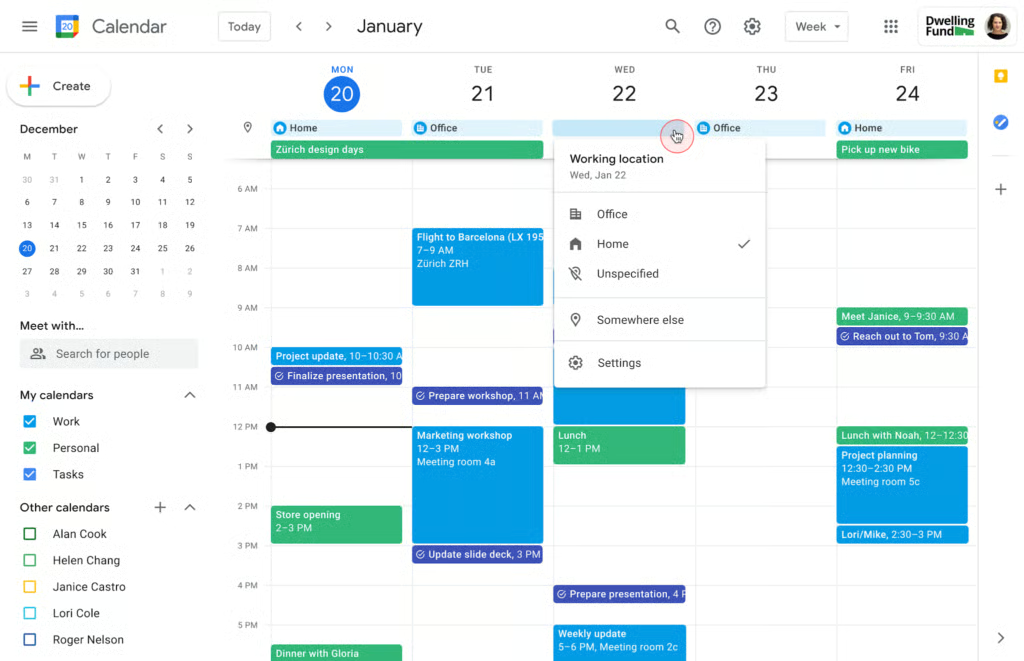
Google Workspace’s Calendar is likely the go-to planner for those who already rely on Google for personal or work productivity. Since it’s included with every Workspace account, Google Calendar connects directly with Gmail and Google Meet, making it easy to add events and appointments to your schedule in just one click. It also integrates with both Android and iOS ecosystems, which helps you keep your calendar synced across all your devices.
One of the biggest strengths of Google Calendar is its wide range of customization options and support for shared calendars. You can display a secondary time zone for working with global teams, set your work hours and location, and even mark holidays so others know when you’re available for meetings. I also find it useful to switch the view to Google Tasks and adjust the brightness of past events to keep my schedule more focused.
What actual users say:
Google Calendar has earned thousands of reviews, particularly from long-time Google account users. Some users rely on Google Calendar for personal planning, creating separate calendars for upcoming bills, finances, and appointments. Others find the interface a bit overwhelming, even when they aren’t scheduling hour-by-hour activities.
“I moved all of my personal [tasks] directly to [Google Calendar] and [managed] them there. I have separate calendars for chores, home maintenance, finances, etc. I set them up as all day events.” (Source: Reddit)
“Google Calendar feels overwhelming even though I don’t schedule things to do every hour.” (Source: Reddit)
“I use Google Calendar for appointments and reminders for when bills [are] due, or if I have an auto payment for something coming up.” (Source: Reddit)
Pricing & top features
Google Calendar is free when you sign up for a Gmail account, and it’s also included with company-owned Google Workspace plans (starting at $7 per user monthly, discounts may be available).
- Add tasks directly from Google Calendar, Gmail, or the Google Tasks app.
- Layer multiple calendars into one view to save time when scheduling meetings.
- Event details from emails, such as flights, concerts, or reservations, are automatically added to your Google Calendar.
monday.com: Best for visual task planning
My expert opinion
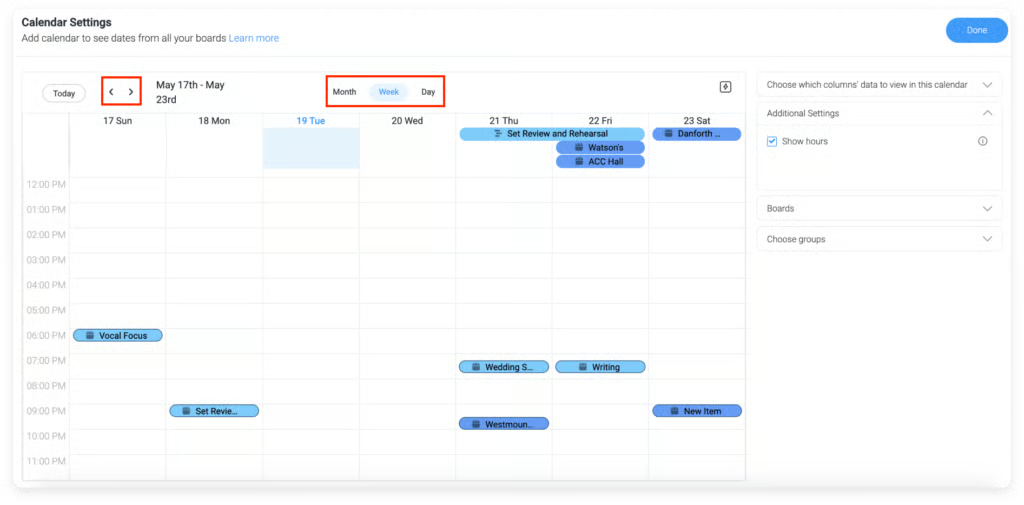
monday work management is a great option if you’re looking for a digital planner that combines ease of use with strong visual organization. What I appreciate most is the ability to personalize it through templates, so you can set up a planner that matches your workflow without worrying about space limitations. Since it uses a visual board layout, you can easily drag tasks to new dates or add details to appointments.
monday offers numerous ready-made templates, such as a weekly to-do list, a bullet journal, or a daily task tracker. You can customize each one by adjusting the format, changing field names, and applying your preferred color scheme. To streamline your routine, you can even set recurring tasks so they automatically show up when needed.
What actual users say:
Reviewers note that monday has become an essential daily tool, helping them keep track of client details and ongoing work. The platform is often praised for its ease of use and highly customizable, user-friendly interface. However, some mention that it can feel a little overwhelming at first, especially for those new to the system.
“I have been using Monday.com since 2022, and it has become an essential part of my daily work. It allows me to stay on top of every detail for each of our clients,” (Source: G2)
“The only challenge I’ve noticed is that sometimes the platform feels a bit overwhelming at first for new users.” (Source: G2)
“The best thing about it in my eyes is its ease of use, as well as the super user-friendly interface. It’s so easy to customize it according to your needs.” (Source: G2)
Pricing & top features
monday.com has a free-forever plan for two seats. Paid plans range from $14 to $24 per seat each month, and you can save 18% when you choose annual billing.
- Filter your calendar view by adding or removing columns.
- Use color-coding to quickly see which tasks belong to each project.
- Integrates seamlessly with external calendars like Google, Apple, and Outlook.
ClickUp: Best for detailed planning for teams
My expert opinion
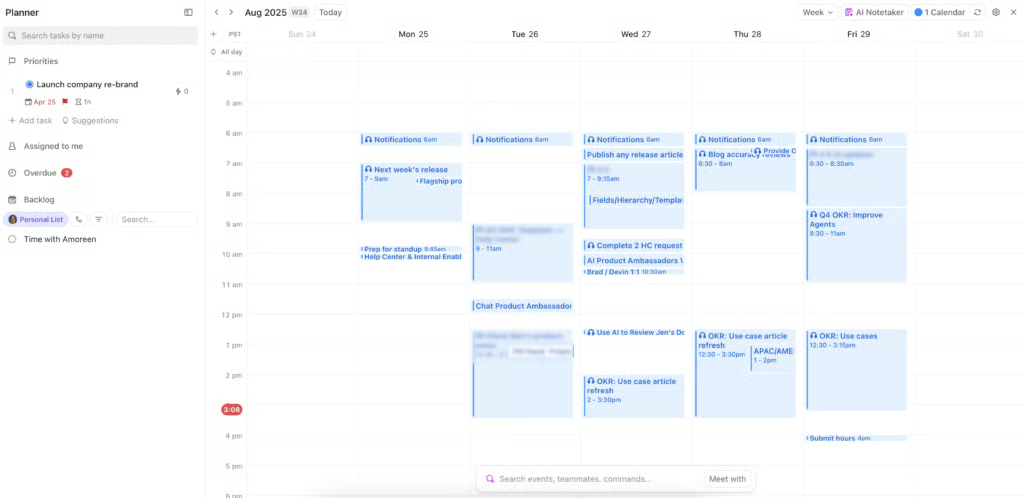
ClickUp may be designed for complex project management, but it also works well as a digital planner for teams that need detailed organization. You can use it as a digital planner to organize your team’s tasks into categories and set priorities based on urgency and importance.
What makes ClickUp stand out for me is the level of control it gives you over task planning. You can add custom statuses, link tasks with dependencies, and break projects into smaller steps while tracking time as you progress. And if the full ClickUp setup feels overwhelming, you can start with daily planner templates, similar to monday’s, which are helpful for beginners or anyone who wants a quick way to get started.
What actual users say:
ClickUp is praised for its wide range of features that let users manage tasks and track progress in one platform. Many reviewers say it’s a powerful tool for both personal and team projects, noting that once it’s set up, it greatly improves productivity and organization. Still, some users admit the platform can feel overwhelming at first due to the sheer number of features available.
“ClickUp offers an impressive range of features that make it easy to customize workflows, manage tasks, and track progress in one place.” (Source: G2)
“Overall, my experience has been very positive. I’ve used ClickUp for both team projects and personal task management, and it’s one of the most powerful tools I’ve worked with. Once everything is set up, it really boosts productivity and keeps everything organized.” (Source: SoftwareAdvice)
“Sometimes, ClickUp can feel a bit overwhelming for new users because of the large number of features and options available.” (Source: G2)
Pricing & top features
ClickUp offers a free-forever plan, with paid options starting at $10 to $19 per user per month. Save up to 30% when you opt for annual billing.
- Pull in meeting details from Zoom, Google Meet, and Microsoft Teams automatically.
- Quickly set up custom tags and statuses, making it easy to organize tasks.
- The built-in calendar reserves focus time and automatically shifts tasks when priorities change.
Todoist: Best for minimalist planning
My expert opinion
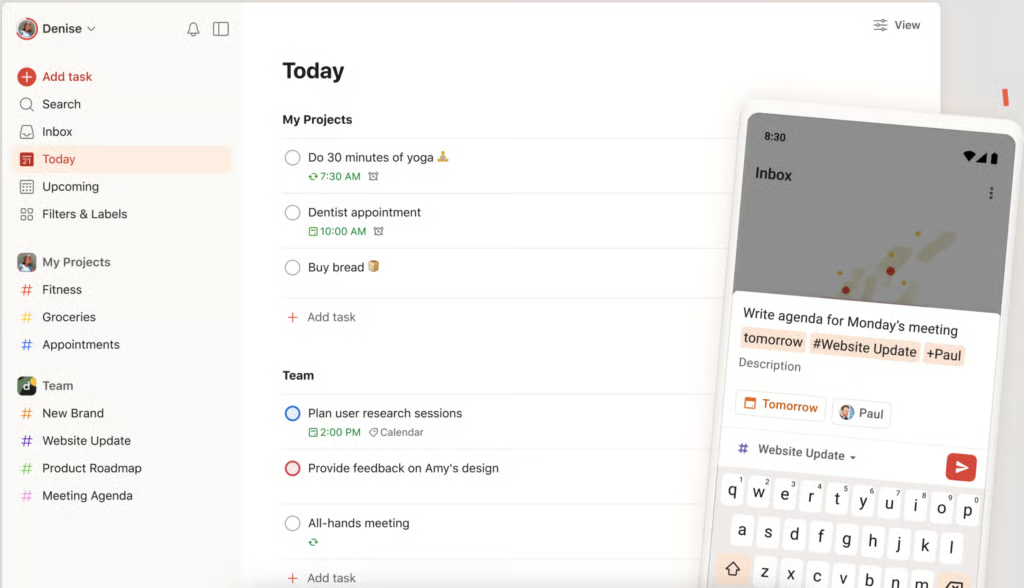
If you’ve ever browsed reviews or forums like Reddit for free digital planners recommendations, you’ll notice Todoist is one of the most frequently recommended tools among individual users. I’d also recommend it, especially if you’re looking for a simple way to plan your week without being overwhelmed by too many extra features.
As someone who easily feels stressed just by listing tasks without any kind of overarching structure, I appreciate how Todoist’s clean and intuitive design brings clarity. On the surface, it looks like a straightforward to-do list. However, Todoist takes it a step further by offering helpful tools like recurring due dates, daily snapshots, and even a habit tracker that keeps you motivated to achieve your goals.
What actual users say:
Long-time users appreciate Todoist for its simplicity, natural language recognition, and ease of setting priorities and due dates. Some reviewers point out limitations, such as the lack of theme options and the fact that reminders are locked behind the premium plan. On the positive side, many highlight its clean, minimal interface, which makes planning feel effortless rather than overwhelming.
“I have been using Todoist for many years. I have tried many task managers in the past, but for me this has been the best. It’s very easy to use, parses natural language for setting due dates, priority etc.” (Source: Reddit)
“There are no custom themes and full UI personalization options. The reminders feature is only available for premium plan users, which limits casual users.” (Source: G2)
“The user experience. I’ve used the app for quite a while, and it NEVER felt like a drag. – The interface is minimal and doesn’t overwhelm you. I think knowing you’ve got your stuff together puts you in the right mindset.” (Source: G2)
Pricing & top features
You can use Todoist for free, or upgrade to paid plans at $5 or $8 per user each month, with a 20% discount for yearly subscriptions.
- Set recurring due dates that adapt to your habits and routines so you never have to remember them yourself.
- Use habit-tracking extensions that sync with other apps to help reinforce and maintain good habits.
- View your completed tasks in one place and celebrate your progress.
Notion: Best for customizable planning
My expert opinion
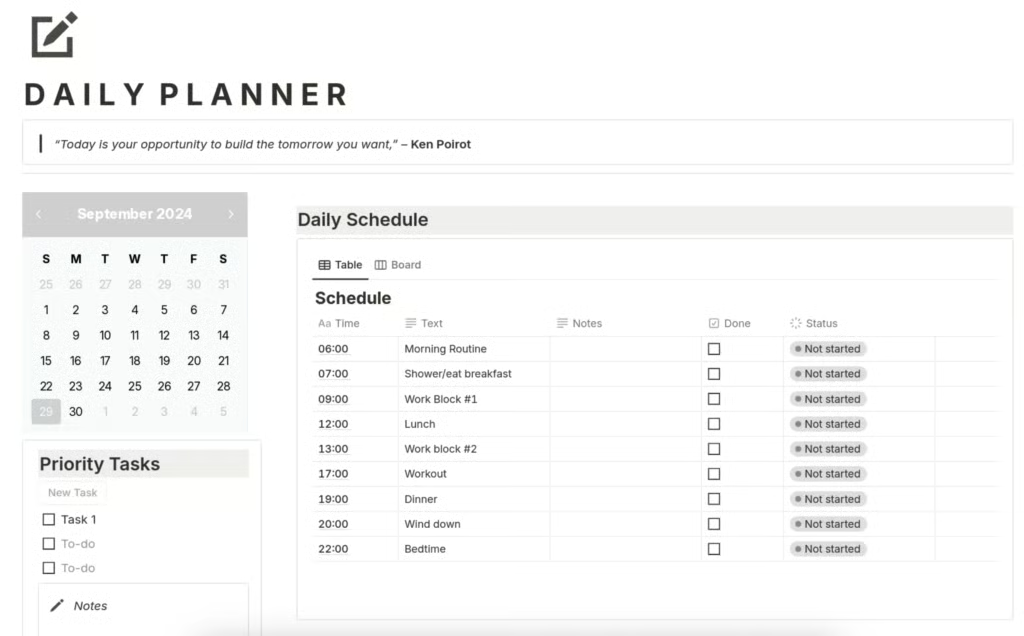
Notion may be best known as a note-taking app, but its flexibility makes it an excellent choice for building a digital planner. If you prefer a setup that matches your exact planning style, you can create one from scratch by turning a database into a table view and customizing it with checkboxes, an embedded calendar, and widgets for your daily agenda.
If you’d rather not start from the ground up, Notion’s template library offers more than 850 monthly and weekly planner options designed by other users. These range from task managers and habit trackers to social media schedulers, and each one can be customized to fit your needs by adjusting titles, icons, text formatting, database properties, and content blocks.
What actual users say:
Users highlight how Notion’s templates and planner features make it simple to organize tasks, track deadlines, and stay productive. Some mention that while the platform is powerful, it requires significant customization, which can feel overwhelming at first. At the same time, reviewers praise Notion AI for streamlining their workflow, describing it as an essential tool for storing and organizing ideas.
“I love everything. The templates and planner is my [favorite] part. It is so easy to use and it helps me [visualize the] tasks [so] i can keep track of everything and meet my deadlines” (Source: G2)
“Using Notion has made me feel like there was something wrong with me until I came here. It takes a lot of work to make it customized.” (Source: Notion)
“Notion AI makes my life so much easier. Notion has become my brain. It is my repository to store and organize all of my thoughts…” (Source: G2)
Pricing & top features
For personal use, Notion is free. Paid tiers start at $12 per month and increase to $24, with a 20% discount available when billed annually.
- View your schedule at a glance and join meetings right from the menu bar.
- Share your availability and appointment scheduling link so others can easily book time with you.
- Track deadlines and project timelines alongside your calendar events.
Wrike: Best for AI-driven project managers
My expert opinion
Wrike uses AI to support enterprise-level project management, making it a strong option for leaders managing multiple projects and employee schedules. Its built-in assistant, Wrike Copilot, acts like a planning partner, giving you quick insights on task assignments and project status. It can also help you deconflict schedules and reduce assignment overlap by letting you ask simple, plain-English questions about your tasks. You can even use voice commands to add tasks, mark items complete, or delegate actions.
AI tools are fully integrated into Wrike’s monthly planner to help you create subtasks and generate project descriptions when you need them. Wrike also organizes your planner with folders, allowing you to categorize tasks by department or project for a clearer view of everything on your plate.
What actual users say:
Users value Wrike’s timeline features, which make it easy to assign responsibilities, set deadlines, and receive reminders. Others, however, find the platform’s setup overly complicated, noting that it feels better suited for complex projects than for simple task management. On the positive side, reviewers also appreciate its clean interface and the ability to manage both internal and client work in one place.
“The project timeline addition and individual responsibility update with set deadlines and reminders is the best part.” (Source: G2)
“I used Wrike for a bit, but I honestly didn’t like it. The setup is complicated, and you’ll spend a lot of time just trying to figure out how to use everything. It’s good if you have complex projects, but if you’re just managing some tasks, it’s not worth it.” (Source: Reddit)
“I really like [the] UI of Wrike and also it enables us to manage both our internal and client tasks.” (Source: G2)
Pricing & top features
Pricing for Wrike begins with a free plan, while paid options cost $10 to $25 per user monthly on annual billing. Larger enterprises can get a custom quote.
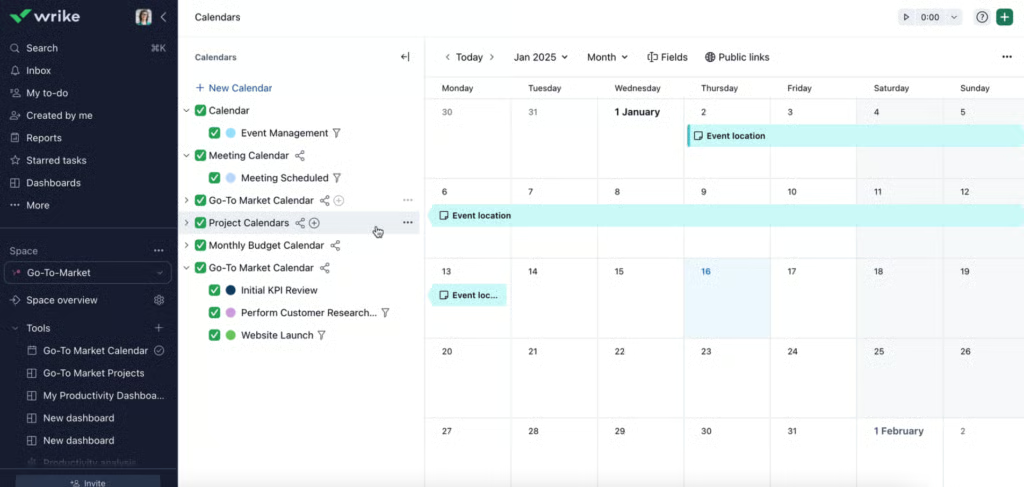
- Use Smart Calendars to automatically track tasks across projects, teams, or folders.
- Apply color coding by status, channel, or task to clearly visualize progress and deadlines.
- Quickly create tasks and subtasks, then cross-tag them into folders to organize your workload.
Smartsheet: Best for data-driven planning
My expert opinion
Similar to Wrike, Smartsheet is a solid option for project managers and enterprise teams that want advanced planning tools with built-in flexibility. Its strength lies in its spreadsheet-style layout, which enables you to utilize functions and formulas to calculate data, manage dates, and organize information in a structured hierarchy.
What makes Smartsheet stand out as a planner is its ability to connect data with task execution. You can plan projects using formulas for budgets, timelines, and resources, then link those calculations directly to task lists and schedules. This makes it valuable for teams that rely on precise, data-driven insights to guide their day-to-day planning.
What actual users say:
Smartsheet is praised as an effective tool for handling both daily tasks and larger project needs. Users highlight how it centralizes information, making it easier to share updates with stakeholders and stay organized in one place. However, some reviewers mention that the platform can be a bit challenging to navigate at times.
“Good effective tool for managing several different aspects of projects or day to day tasks.” (Source: G2)
“I am loving Smartsheet so far! It’s allowed me to centralize a lot of the information that needs to be passed along to different stakeholders daily. It helps me keep up with requests, updates and dates for past and ongoing projects! It’s a one stop shop to stay organized” (Source: SoftwareAdvice)
“It’s a little difficult to navigate at times” (Source: G2)
Pricing & top features
Smartsheet charges per-user fees ranging from $12 to $24 per month, with up to 25% off for annual prepayment.
- Handle advanced calculations and connect data across sheets
- Customize notifications to highlight key tasks and get instant in-app alerts.
- Use AI to turn plain-language requests into accurate working formulas.
My methodology
When reviewing the best digital planner app, I used a scoring rubric that measured each tool across pricing, features, support, usability, and overall value. This approach ensures that every recommendation is practical, cost-effective, and well-suited for small business owners.
I reviewed each platform’s free plan, paid tiers, and overall affordability, along with the value you gain when upgrading to a premium plan. Planners that keep costs under $12 per user per month while offering useful premium-only features ranked highest because they provide strong budget value for small teams.
I evaluated must-have basics like task management, note-taking, calendar integration, and collaboration tools. Platforms that combine these essentials in one workspace earned higher ratings.
I considered advanced tools such as goal tracking, project templates, and cross-platform syncing. Apps with unique options like habit trackers or integrations for specific industries scored higher for versatility.
I reviewed the availability of customer support across email, chat, and knowledge bases. The best digital planner offering 24/7 support or extensive online resources received top marks.
I tested how intuitive the setup and interface are for first-time users. Planners with simple navigation and minimal learning curves scored better for usability.
Finally, I factored in my own experience using these planners and industry feedback. This ensures the list highlights tools that balance affordability, functionality, and real-world value.
What are the key features to look for in a digital planner
Choosing the best digital planner involves more than just layout and design. The right ones offer features that make your planning easier and accessible across different situations.
- Cross-device sync reliability: A good digital planner should sync seamlessly across desktop, mobile, and tablet. It also helps to check whether the app works reliably across both Android and Apple ecosystems, since choosing a platform that fits your devices can make syncing more consistent. This ensures your schedule stays updated regardless of which device you use.
- Template support: Look for planners that come with ready-made templates, such as project trackers or habit logs. Templates save you time and let you jump right into organizing without starting from scratch.
- Accessibility options: Features like font scaling, screen reader compatibility, and offline access make a planner usable for everyone. These options also help you stay productive even when you’re not connected to the internet.
- Task automation: The ability to set recurring tasks or automate reminders helps cut down on repetitive work. This keeps you focused on priorities instead of constantly re-entering tasks.
- Collaboration tools: If you’re using a planner for business, built-in sharing and team collaboration tools are essential. They let you assign tasks and keep everyone on the same page.
- Customization flexibility: A strong digital planner should let you adjust views (Kanban and Gantt charts), colors, and fields to match your workflow. Customization ensures the planner adapts to you, not the other way around.
Digital planners are more than just calendars. They help you stay organized and improve productivity across both work and personal life. The right planner should sync smoothly across devices, include flexible templates, and provide accessibility options so you can stay in control of your time and goals.
FAQs
What’s the best free iPad planner?
Many digital planners are compatible with the Apple ecosystem, but Todoist stands out if you want something simple and effective. Its clean design makes it easy to organize tasks and set recurring reminders.
Do digital planners work offline?
Yes, several digital planners such as Todoist, monday.com, and ClickUp include offline functionality. You can make updates to your task lists while offline, and all changes will sync automatically once you reconnect to the internet.
How secure are my planner notes?
Most digital planners built into project management platforms, like Wrike and Smartsheet, include strong security and compliance features to protect your data. It’s always best to review the provider’s privacy policy and security settings to ensure they meet your business requirements.
Can I switch planners without losing data?
Yes, many digital planners, including monday.com and ClickUp, allow you to import and export data. This makes it easier to migrate tasks and schedules without starting over from scratch.
