







We’ll walk you through how to customize the QuickBooks Online dashboard and why it’s important to do so. The ways to customize your dashboard include selecting what items to add to the left navigation menu, hiding your financial information, and adding bookmarks for easy access to specific features you often use. If needed, you can also change your company name and logo easily straight from the dashboard.
1. Customize the Left Navigation Panel
You can customize the left-side navigation panel in QuickBooks by adding and removing items from your menu. This allows you to access items that are most relevant to your workflows easily and remove unnecessary items or those you don’t use often.
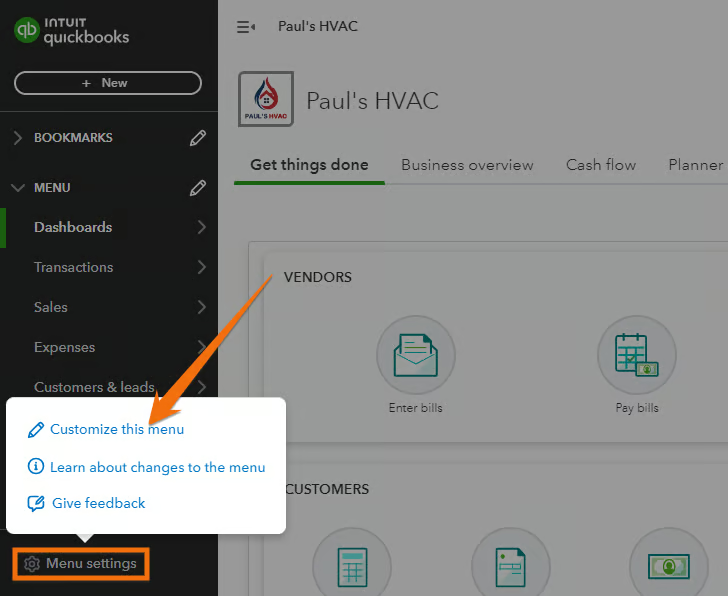
To customize the sidebar panel, click on Menu settings at the lower-left corner of your QuickBooks Online dashboard, and then select Customize this menu, as shown below.
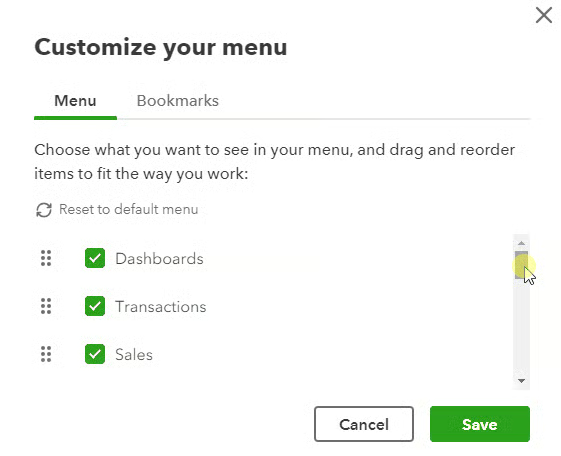
Next, check the items you wish to add to your menu and uncheck those you want to exclude. Also, you can drag and drop the items and reorganize them in the order you want. For instance, if you often use the Payroll feature, then you may drag it to the top of the menu for easy access.
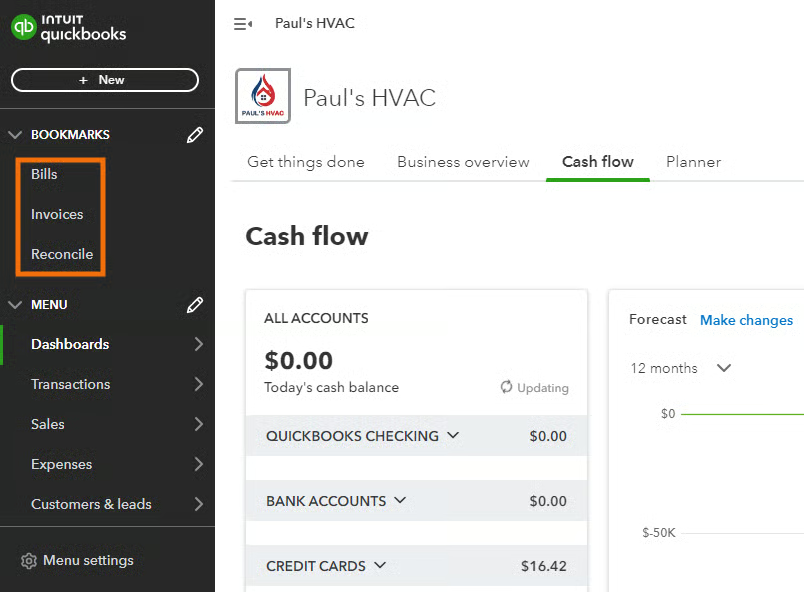
Click on the Bookmarks tab to add frequently used features as bookmarked items at the top of the menu bar. For example, if you add Bill, Invoices, and Reconcile to your bookmarks, these three items will appear at the top of your menu, as shown below.
2. Hide Your Financial Information
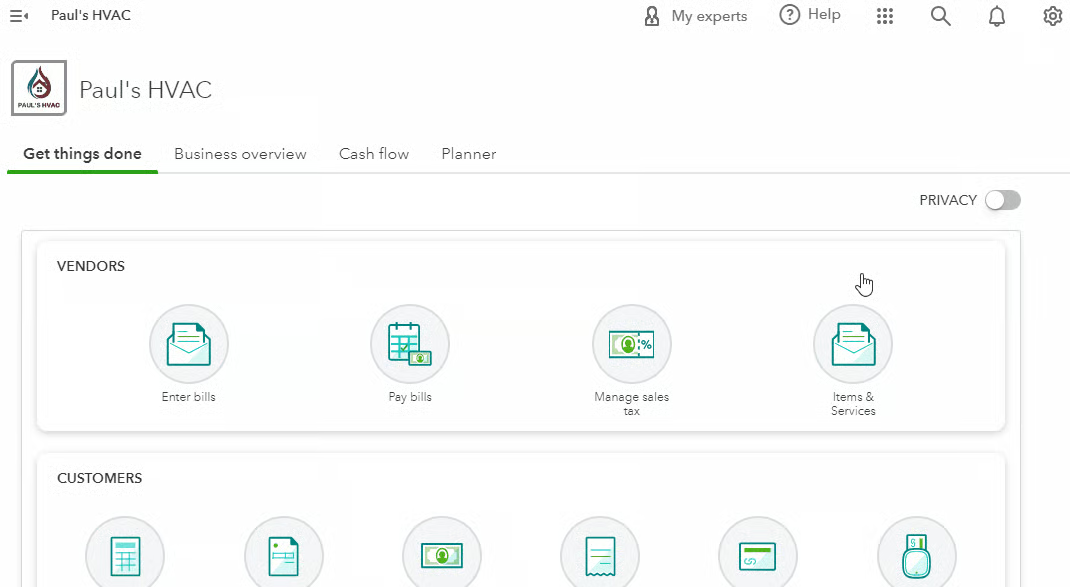
Admin users can hide the information displayed on the Get things done and Business Overview sections by turning the Privacy toggle on. This hides the entire page, allowing you or your accountant to work on your data in “privacy” mode.
Turn this on in situations where there are people walking by or potentially glancing at your screen. Your information won’t show up to you until you toggle it back to off.
3. Customize the Business Overview
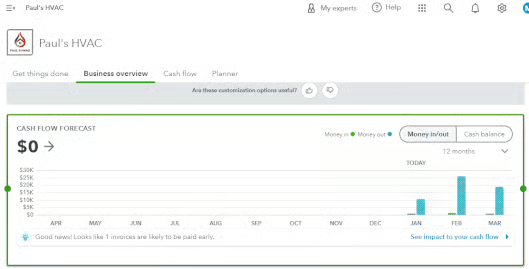
The Business Overview tab is where you’ll find the summary of your company’s financial health, showing key performance indicators (KPIs), charts, and graphs. You can customize this tab by rearranging the order the reports are displayed. This means you can prioritize and display the most important reports at the top of the Business Overview tab.
To do this, click on a chart or graph and drag it to the order you desire.
4. Update Company Name & Logo Straight From Your Dashboard
If you didn’t finalize your company name and logo during the initial account setup or there are changes to your business structure, then you can update them easily by clicking the displayed company name or logo on your dashboard.
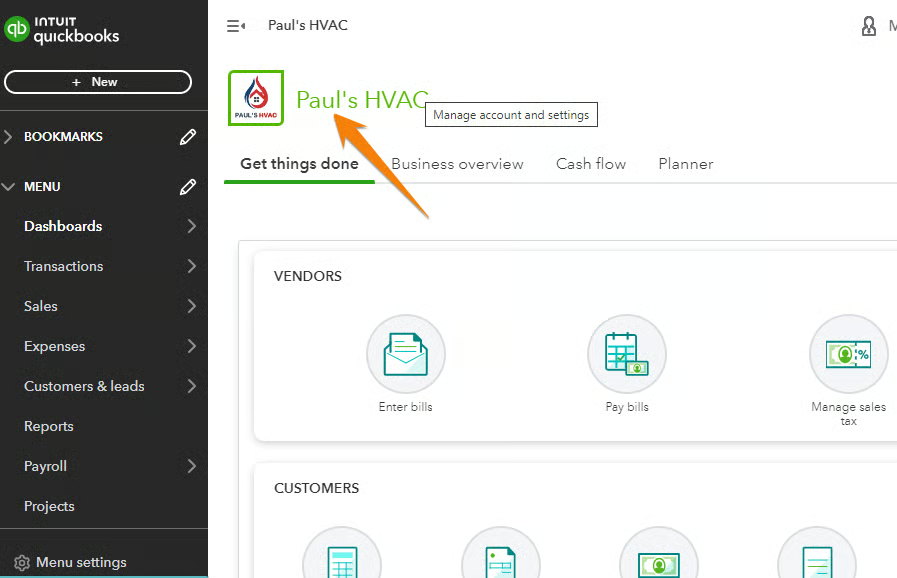
By doing so, QuickBooks will take you automatically to the Company tab under Account and Settings, where you can update the company name and logo easily.
This guide is focused mostly on how to customize the appearance of the QuickBooks Online dashboard. If you need to customize the other aspects of your QuickBooks Online experience, you may be interested in our tutorials on:
- How To Set up Advanced Settings in QuickBooks Online
- How To Customize Expense Settings in QuickBooks Online
- How To Customize Invoices in QuickBooks Online
Why Customize the QuickBooks Online Dashboard?
- Quick access to important features: By customizing the side navigation menu and adding bookmarks, you can access features that you use frequently. For instance, if you often use the Payroll feature, then you can display it on top of the menu for easier access.
- Efficient task management: Since you can remove unnecessary or less frequently used features from your dashboard, you can focus on the most relevant information and tasks.
- Personalized insights: By rearranging the order of the reports in the Business Overview tab, you can see the most important information first.
- Improved visual representation: By arranging data in a way that makes sense to you, reports become more visually appealing and easier to read.
Frequently Asked Questions (FAQs)
How do I customize my dashboard in QuickBooks Online?
You can customize your QuickBooks dashboard by reorganizing the left navigation menu, adding bookmarks, hiding your financial information, and updating your company name and logo.
Can I rearrange the order of items on the left-side navigation menu?
Yes, you can drag and drop items to rearrange their order on the dashboard. You can also select which items to include and exclude.
Can I customize the dashboard in all QuickBooks Online plans?
Yes, all QuickBooks Online plans have customizable dashboards.
Can I customize the color scheme of the dashboard?
No, you can’t. QuickBooks currently doesn’t provide options for customizing the color scheme of the dashboard.
Wrap Up
You’ve just learned how to customize the QuickBooks Online dashboard. If you need help learning how to use the other features of the platform, you may check out our free QuickBooks Online tutorials.
