





How To Void a Check in QuickBooks Desktop

Transcription

hi this is tim yoder with fit small business today i'm going to teach you how to void a check in quickbooks desktop i'll be using quickbooks premiere but the process is the same in quickbooks pro and quickbooks enterprise so so we'll talk about two types of checks first let's talk about how to avoid a regular check like you would use to either pay a bill or to pay an expense directly and then we'll talk about how to avoid paychecks which are a little bit more complicated so let's look at regular checks first so from our dashboard in quickbooks desktop let's go to our check register and find the check that we want to void okay so let's pick one that's already been printed here and we want a regular one how about the account here okay so i'm gonna make some notes so we can find this bill so notice this is a bill payment so this is not an expense that was paid immediately with a check this is one where we received a bill from the vendor entered the bill and then later paid the bill so we are going to void the check that paid that bill so this is to oliveri for 563 dollars on december 10th okay so to avoid it first let's open it so we can just double click anywhere on that line and here we have the check to the accountants now notice there is another bill outstanding on 114 but this is paying the bill on 12 15. so to avoid it very simple we just go up here to instead of delete we want to click the down arrow and we want to go to void okay and it turned the amount to zero and we can now save and close okay get a little warning here um about avoiding a check so this was used to pay a bill and so it's basically telling us that now the bill is going to be open again so let's hit save and there we go so in our check register we can see check 2345 has been voided and so there's zero amount okay so that's voiding the check but i'm going to assume when you avoid a check you're generally going to want to reissue the check as well perhaps it was just like a stop payment but generally when you want to avoid a check it got destroyed and so you're trying to reissue it so let's reissue this check so to do that i'm going to close my check register and i'm going to go to pay bills because this was a bill payment and here we should be able to see yes there's the bill from 1215 to the accountants for 563. so by voiding the check the bill is now open and needs to be paid again so we marked it and now we just go through our normal bill payment process and so we can say paste selected bills okay and here's our payment summary we can print the checks okay you want to make sure that the first check number is correct uh these other checks are things that have been entered in the system that have never been printed we just want to print our new check it'll assign it this first check number so obviously make sure that matches the printed checks you're sticking in your printer and there you go you'll hit ok and you have reprinted the check okay so that's how we void and reissue a general check the more difficult one are the paychecks employee paychecks so somebody's dog gets their paycheck and they need a new check not unusual so let's go to our check register again and this time let's pick a paycheck so just you know these are all fictional people this is uh this is sample data from quickbooks that helps accountants evaluate their software um so let's pick uh damon levy okay so we'll open his paycheck by double clicking okay so the issue with paychecks is that you don't want to actually void the original entry in quickbooks and the reason being is that it'll mess up your payroll reports right so this paycheck showing all these earnings and all these taxes being withheld these are being reflected in your fourth quarter 2025 payroll tax reports and if you change that after those payroll tax reports are filed or even after you've been making payroll tax deposits it can mess things up and make things really complicated so we don't want to change this actual check and that's what makes us a little bit more complicated we're still in compliance with the law right we need to report these payments on the date of the payday whether they actually cashed the check or not so we're not doing anything wrong we just need to reissue a new check but keep the check on in the current payroll tax report okay so we can see that this was number 2346 so i need to note that so after we make this change we're going to want to go back and create a new check for 2346 and void it okay but this check we're not going to void this check instead we are going to change the number on the check and actually what we can do is we can go up here and we can do a print later and so now it's set to print we can go to print check actually let's do print uh yeah let's do print check okay do you want to record the changes yes okay make sure you know the correct check number that's going to go into your printer enter that check number there hit ok and here we go once you hit print it's going to print the check and i will go ahead and print it even though i don't have any actual checks in there okay good now we can see that damon's paycheck is still there has the same date it just has the new check number of 2354 and so this hasn't affected our payroll tax reports which is what we're really looking for okay now we can save and close we can see here it's 23.54 but the problem is now we have no check 2346 anymore and that's a problem because we always want to make sure we're keeping track of our blank checks right you don't want blank checks floating around somewhere so we need to see what happened to 2346 when we look at this so the easiest thing to do is let's just go down here and on 12 let's put in check 23 46 and we'll we can actually still say it was to damon levy and we are going to just i don't give it a miscellaneous expense account and we're going to say voided 12 15 20 25 paycheck okay and there we go and so it has a zero amount and i'm just gonna head and go in and void it huh okay well it's having trouble there we go okay had trouble figuring out which field to click to get it to open up the check window so here we have the check now i'm just going to avoid it wouldn't even really have to do this since we have a zero amount but i may as well okay there we go so now we can save this and close it and now we have 2346 okay and it is avoided check okay great so that's how you void a payroll check you don't want to actually void the actual paycheck that'll create havoc with your payroll tax report so simply change the check number to the new number and then go back and create a new check and void it with the old check number so that you keep track of that great so that's how you void checks in quickbooks desktop i hope you found that useful you have a great day

This transcript was generated automatically from the video's captions and may contain errors.

Published: Aug 5, 2022
Updated: Jun 16, 2025
5 minute read

In this tutorial, you’ll learn how to void a check in QuickBooks Desktop for bill payment checks and payroll checks already issued but not yet cashed or deposited. We’ll also cover the instances when you should void a check.

This tutorial is more useful if you follow along in your QuickBooks Desktop account. If you don’t have one, you can purchase QuickBooks Desktop, one of our best small business accounting software, with a 60-day money-back guarantee.

How To Void a Bill Payment Check in QuickBooks Desktop

Step 1: Navigate to the Check Register

From your QuickBooks Desktop home page, click on the Banking menu and then select Check Register. You can also click on the Banking menu on top of the screen, and then choose Use Register from the drop-down list, as shown below.
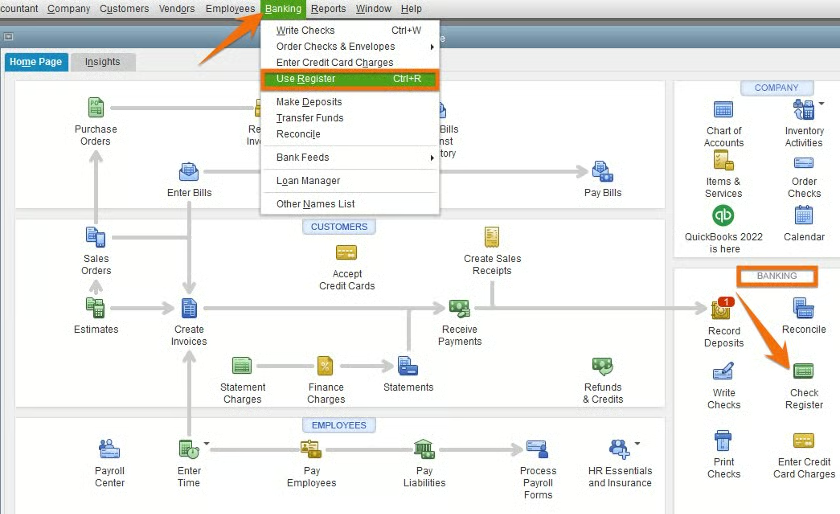
Arrow pointing on Two ways to navigate to the check register in QuickBooks Desktop.
Two ways to navigate to the check register in QuickBooks Desktop

Step 2: Select the Check to Void

Choose the bank account from which the check that you want to void was issued. In our example below, we used Company Checking Account.
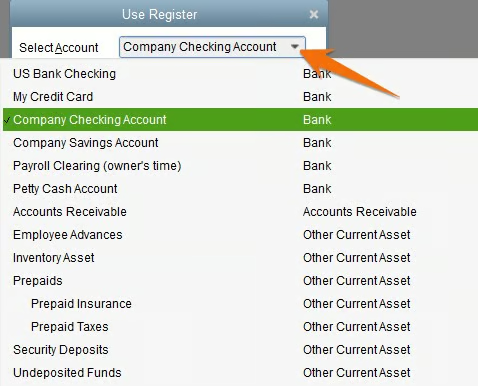
Selecting the bank account from which the checks were issued.
Select the bank account from which the checks were issued

A window displaying all the checks that have been created will open. Select the check you want to void by double-clicking anywhere on the line. In our example below, we want to void a bill payment check (check #5314) issued to “Printing Shop” worth $340.
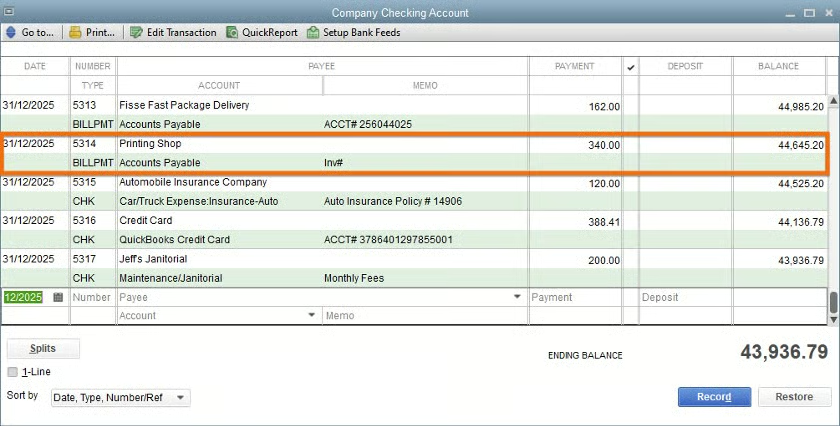
Selecting the Check to Void.
Select the check to void

Step 3: Void the Check

After selecting the check from the list, your check will appear, as shown below. You’ll notice that the list also includes the outstanding bills owed to the vendor you’re issuing the check to. Click on the small drop-down under the Delete button on top of the check screen, and then select Void.
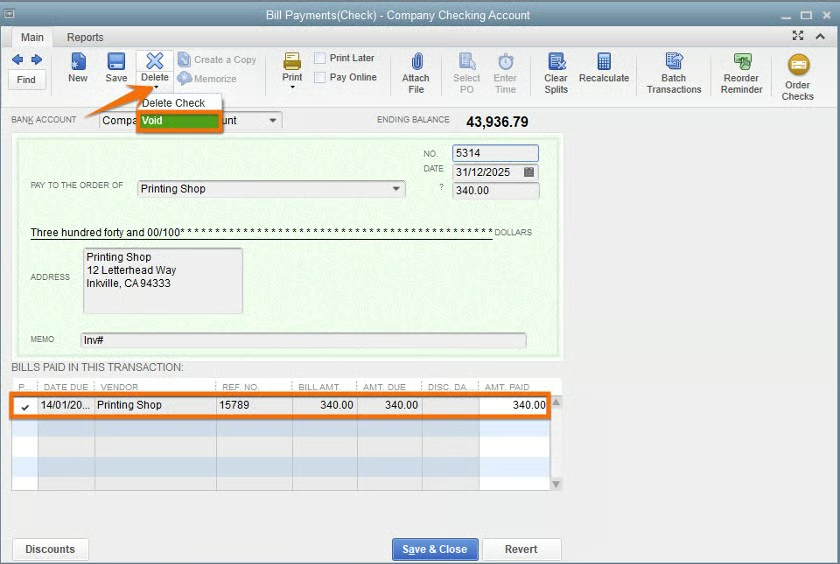
Voiding a check in QuickBooks Desktop.
Voiding a check in QuickBooks Desktop

After clicking on Void, you’ll notice that the amount turns to zero, which is an indication that the bill was reverted to open. You’ll also see “VOID” in the memo field. Click the Save & Close button to void the check.
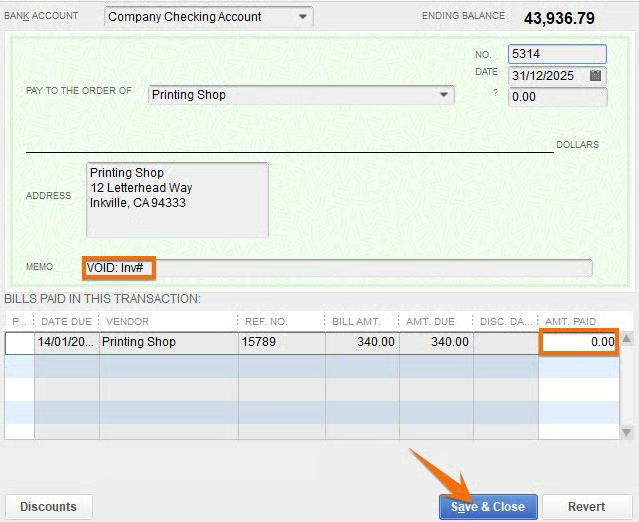
A check that is about to be voided in QuickBooks Desktop.
Check about to be voided in QuickBooks Desktop

When you click Save & Close, you’ll be prompted with a message asking whether you want QuickBooks to record the changes. Click Yes to proceed.
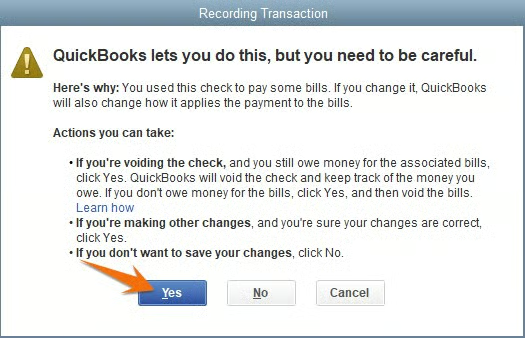
Clicking Yes to save your changes,
Click Yes to save your changes

If you need to reissue and reprint the check, follow the instructions on how to pay bills as discussed in our tutorial on printing checks on QuickBooks Desktop.

How To Void a Payroll Check in QuickBooks Desktop

Voiding a payroll check is a bit more complicated than voiding general checks, especially if all payroll tax returns have been filed. Doing this can have a significant effect on your books and payroll records. The best way to reissue a payroll check isn’t to void it but to reprint it with a new check number. You can then create a new check, assign it the old check number, and void it to leave a paper trail.

Step 1: Navigate to Check Register

Navigate to the check register, as shown above for voiding a general check.

Step 2: Find the Payroll Check

From the check register, select the payroll check you want to void. To illustrate the next steps, let’s void the paycheck (check #3006) issued to Jeannette Deen.
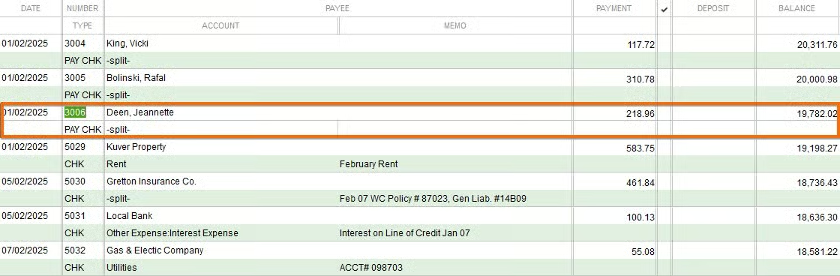
Selecting the payroll check to void in QuickBooks Desktop.
Select the payroll check to void in QuickBooks Desktop

Double-click anywhere on the entry line to display your paycheck. Take note of the existing check number of the check you want to void. In our example, the check number is 3006.
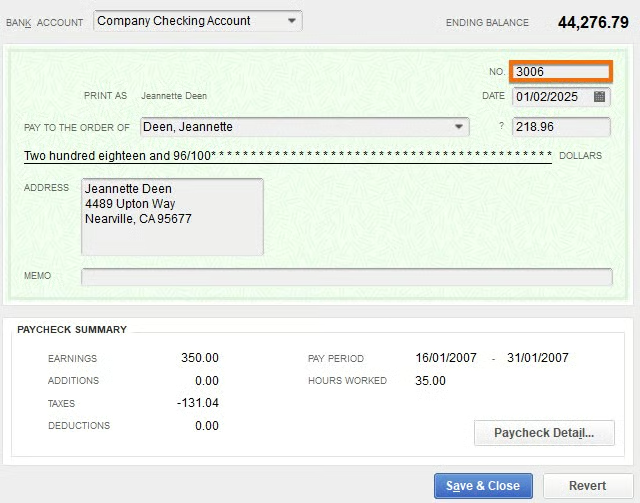
Preparing to void a check in QuickBooks Desktop.
Prepare to void a check in QuickBooks Desktop

Step 3: Reprint With a New Check Number

To change the check number, click on the Print menu on top of the payroll check window, and then choose Check from the drop-down list, as shown below.
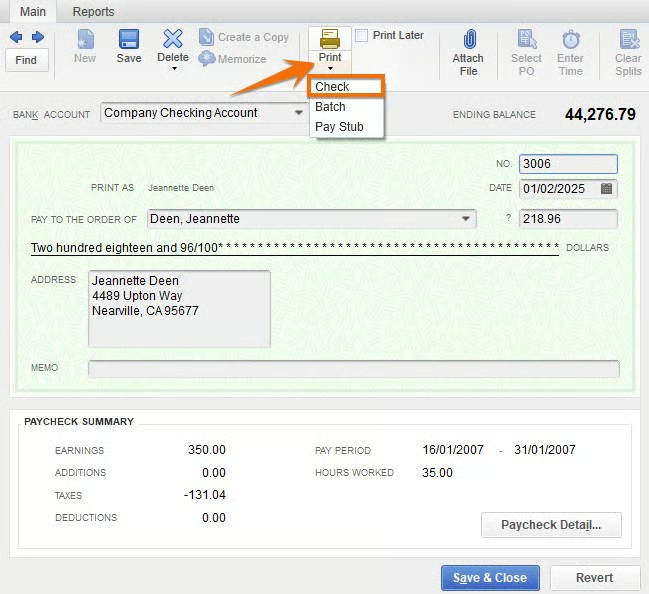
Reprinting the check with a new check number.
Reprint the check with a new check number

QuickBooks Desktop will then generate a new check number automatically. Make sure to verify that this number matches the check in your printer—or change the number, if needed—and then print the new check.
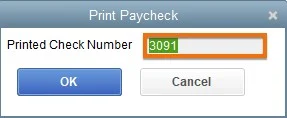
New check number to be used.
New check number

Once the check with the new number is printed, it’ll be recorded in the check register automatically. As shown below, the old check number 3006 is now listed as check number 3091. You can find the new check in the register, and you won’t see the old check.

Step 4: Assign the Old Number to a New Check and Void It

This step isn’t absolutely necessary, but it’s a good idea to show the old check number as voided in your check register. To do this, click on the bottom-most line in the register, enter the old check number, and then set the details.

For instance, in the animation below, we entered check number 3006 (the old check number), selected “Jeannette Deen” as the Payee, and left a note in the memo field saying it was voided. Click Record to save the changes.
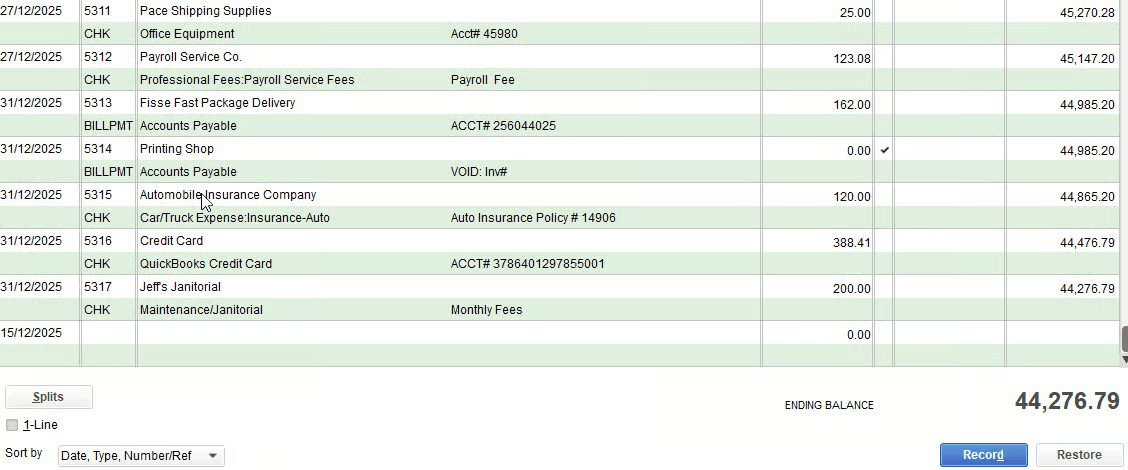
Short video on Recording the old check in the check register.
Recording the old check in the check register

Then, you will want to find the old check in the register and then follow the steps for voiding a check.

When To Void a Check in QuickBooks Desktop

You’ll need to void a check in QuickBooks Desktop when

  • A check was issued to the wrong person
  • A check is lost or stolen
  • Incorrect details, like in the amount or date, were entered
  • Incorrect work locations (tax jurisdiction) for paychecks were input
  • There are duplicate checks

Other than for duplicate checks, you’ll generally want to void checks and then issue a corrected replacement. As stated above, doing this can be straightforward for regular checks, but reissuing paychecks can be tricky.

Wrap Up

You now know the process for voiding a bill payment check, as well as how to void and reissue a payroll check in QuickBooks Desktop. If you’re considering a switch to QuickBooks Online, check out our tutorial on how to convert QuickBooks Desktop to QuickBooks Online.

Mark Calatrava

Mark Calatrava

Accounting Expert at Fit Small Business

Mark Calatrava is an accounting expert for Fit Small Business. He has covered more than 50 accounting software for small businesses and niche industries and has developed an in-depth knowledge of the important features of accounting software, including how the importance of these features vary by business. As a QuickBooks ProAdvisor, Mark has extensive knowledge of QuickBooks products, allowing him to create valuable content that educates businesses on maximizing the benefits of the software.

Fit Small Business Logo

Our mission is to provide small business owners with the information you need to succeed. Learn how to start, market, run, and grow your business today!

Property of TechnologyAdvice. © 2026 TechnologyAdvice. All Rights Reserved

Advertiser Disclosure: Some of the products that appear on this site are from companies from which TechnologyAdvice receives compensation. This compensation may impact how and where products appear on this site including, for example, the order in which they appear. TechnologyAdvice does not include all companies or all types of products available in the marketplace.