







QuickBooks Ledger is an accounting solution designed for accounting professionals using QuickBooks Online Accountant. Rather than serving as a full business management platform, it focuses on after-the-fact accounting for write-up, tax-only, and year-end clients. You can import and categorize transactions, reconcile bank accounts, generate financial reports, and prepare books for tax filing without business management features like invoicing, bill payment, or inventory tracking.
In this QuickBooks Ledger review, I’ll cover its key features, ease of use, limitations, and ideal use cases to help you decide whether it’s the right fit for your accounting practice.
Deciding Factors
| Pricing | $10 monthly per company file |
|---|---|
| Discount | ✕ |
| Free Trial | ✕ |
| Payroll | Through QuickBooks Workforce integration; from $45 plus $5 per employee, per month (read our QuickBooks Workforce review) |
| Standout Features |
|
| Ease of Use | Easy to use; interface is similar to the other versions of QuickBooks Online |
| Customer Support | Live chat, phone support (callback only), community forum, and a few blogs |
Use Cases
- Accountants handling tax-only clients: If you have clients who only require assistance with annual tax filings and don’t need ongoing bookkeeping or financial management, then QuickBooks Ledger is a great choice. It can be used to categorize transactions, reconcile accounts, and generate basic reports necessary for tax preparation and filing.
- Firms providing after-the-fact accounting services: QuickBooks Ledger might be suitable for accountants who are focused only on compiling your client’s income and expenses and don’t need to send invoices or pay bills on their behalf.
- Accountants managing basic write-up clients: If you offer basic write-up services for sole proprietors and freelancers needing help with organizing their records and preparing basic financial statements, then QuickBooks Ledger might be sufficient.
- Accountants converting QuickBooks Desktop clients: If you have after-the-fact or tax-only clients using QuickBooks Desktop, then you can easily bring them into QuickBooks Ledger using the built-in data migration tool.
- QuickBooks Ledger alternatives
- QuickBooks Ledger reviews from users
- QuickBooks Ledger pricing
- QuickBooks Ledger features
- QuickBooks Ledger vs QuickBooks Simple Start or Higher
- QuickBooks Ledger ease of use
- QuickBooks Ledger customer support
- How I evaluated QuickBooks Ledger
- Frequently asked questions (FAQs)
- Bottom line
QuickBooks Ledger alternatives
| Monthly Pricing | Bank Reconciliation | Invoicing | Expense and Bill Management | |
|---|---|---|---|---|
 QuickBooks Ledger | $10 per company file | ✓ | ✕ | Expense only |
QuickBooks Simple Start | $38 | ✓ | ✓ | Expense only |
| Visit QuickBooks Online | ||||
 Starter | $30 | ✓ | ✓ | ✓ |
| Visit Wave | ||||
QuickBooks Ledger reviews from users
QuickBooks Ledger doesn’t currently have enough standalone user reviews on major software review platforms like G2 or Capterra to establish a reliable user rating. Because it’s available only through QuickBooks Online Accountant and is designed specifically for accounting professionals, most user feedback is grouped with reviews of QuickBooks Online rather than the Ledger product itself.
QuickBooks Ledger pricing
QuickBooks Ledger costs $10 per company file per month and is available only to accounting professionals using QuickBooks Online Accountant. Subscriptions are billed through firm billing, meaning the accounting firm purchases and manages the subscription on behalf of its clients. Each QuickBooks Ledger subscription includes two accountant users and one client user.
If you don’t have QuickBooks Online Accountant, check our QuickBooks Online Accountant review to see what it can do for you. It’s one of our best accounting practice management software solutions, particularly for accountants managing QuickBooks Online clients.
QuickBooks Ledger features
QuickBooks Ledger provides the necessary tools to manage after-the-fact accounting tasks without the need for typical business management features, like invoicing and bill payment. Here are some of its most notable features:
Banking
Like other QuickBooks Online versions, QuickBooks Ledger allows you to connect your bank accounts to automate transaction import. Alternatively, you can opt to manually upload your transaction file in a .qbo or .csv file.
You can also create bank rules to automate the process of categorizing transactions, reconcile bank and credit card accounts, and print checks if needed. The only difference is that you can’t upload a paper receipt into Ledger and attach it to a transaction like in other QuickBooks Online plans.
Books review & client overview
QuickBooks Ledger includes the full Books review and Client overview sections found in QuickBooks Online Accountant. These tools make it easy for accountants to effectively review transactions, reconcile accounts, and identify discrepancies, helping them ensure the accuracy of their clients’ data.
Expense entry
While QuickBooks Ledger has no bill management features, you can manually enter expenses or import expense transactions from bank feeds. You can also categorize expenses by assigning them to specific accounts or categories. This makes QuickBooks Ledger suitable for accounting professionals needing to compile and manage clients’ expenses efficiently.
Recurring transactions
If you have transactions that occur regularly—particularly expenses, checks, or journal entries—then you can set them up as recurring transactions in QuickBooks Ledger. For instance, if your client has fixed monthly expenses, like rent payments and insurance premiums, then you can specify the frequency and amount of the transaction in QuickBooks Ledger, and the software will automatically record them every month.
Chart of accounts
Just like Simple Start and higher QuickBooks Online versions, QuickBooks Ledger provides a default chart of accounts that covers essential categories, like income, expenses, assets, and liabilities. You can also create a new chart of accounts or import an existing chart of accounts using QuickBooks Online Accountant’s chart of accounts import tool.
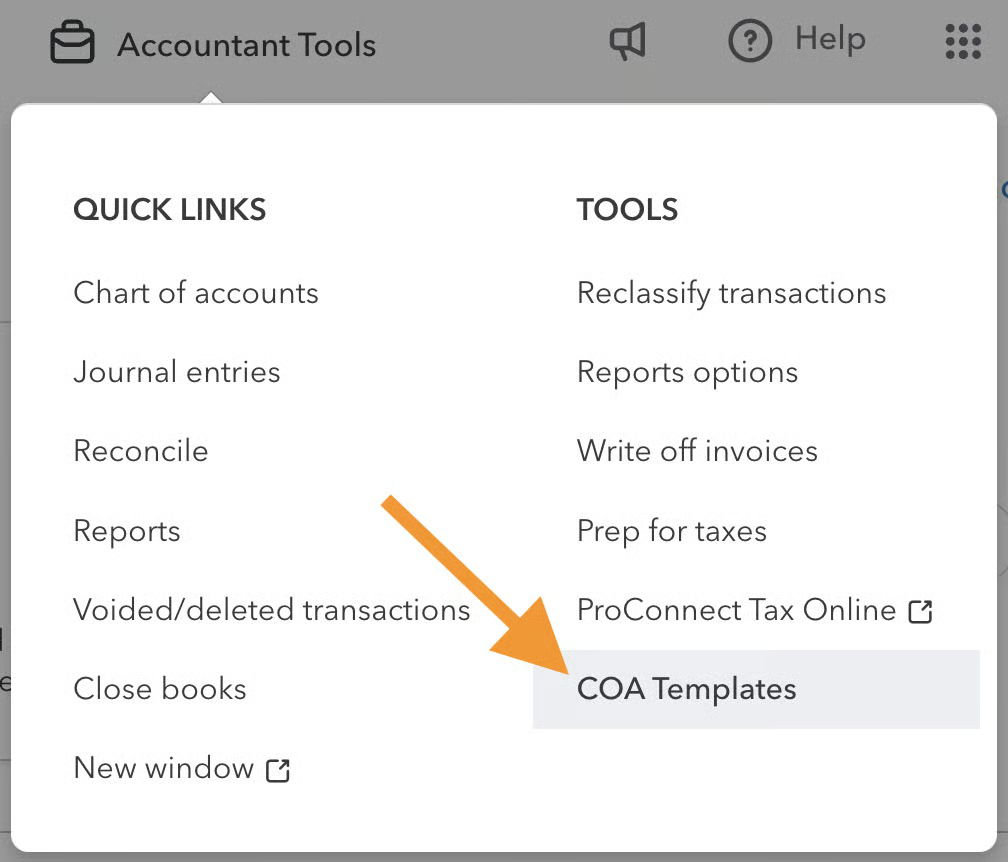
From your QuickBooks Online Accountant portal, click on Accountant Tools and then select COA Templates. You can create multiple charts of account templates and then add them to your QuickBooks Ledger account.
Journal entries
If needed, you can create journal entries in QuickBooks Ledger to manually record financial transactions like accruals and deferrals, depreciation, and error correction.
1099 tracking
QuickBooks Ledger lets you add vendors as contractors and manage and track payments made to those contractors. The software categorizes these payments accordingly and aggregates the totals for each vendor, making it easy to track 1099 reporting thresholds. QuickBooks Ledger also supports preparing and filing 1099 forms through QuickBooks’ 1099 workflow for eligible contractors.
Basic reports
QuickBooks Ledger provides basic reports, including profit and loss (P&L), cash flow statements, balance sheet, and trial balance. However, since it has no invoicing and bill management features, you won’t find any accounts payable (A/P) or accounts receivable (A/R) reports, like A/R and A/P aging reports.
Client access
As mentioned earlier, you have the option to give your clients access to Ledger by adding them as a primary admin. This allows them to review transactions, collect documents, connect bank feeds, and generate reports within QuickBooks Ledger.
Desktop data import
If your clients currently use QuickBooks Desktop, you can migrate eligible company data to QuickBooks Ledger using Intuit’s supported migration tools. This can be helpful for accounting firms moving after-the-fact, tax-only, or basic write-up clients from Desktop into a QuickBooks Online Accountant workflow.
ProConnect tax integration
QuickBooks Ledger connects to ProConnect Tax, a tax preparation software, to help you simplify tax filing. Trial balances created in QuickBooks Ledger can easily be transferred to ProConnect Tax, making it easy for accountants to prepare tax returns for their clients.
To see how ProConnect Tax works with QuickBooks Online or as a standalone tax prep software, head to our detailed ProConnect Tax Online review.
QuickBooks Ledger vs QuickBooks Simple Start or Higher
To help you understand how this new plan differs from the higher versions of QuickBooks Online, here’s a comparison of QuickBooks Ledger vs QuickBooks Online Simple Start.
| QuickBooks Ledger | QuickBooks Online Simple Start or Higher | |
|---|---|---|
| Connect to Bank Accounts | ✓ | ✓ |
| Reconcile Bank Transactions | ✓ | ✓ |
| Print Checks | ✓ | ✓ |
| Manage 1099 Contractor | ✓ | ✓ |
| Enter Expenses | ✓ | ✓ |
| Create & Send Invoices | ✕ | ✓ |
| Enter & Pay Bills | ✕ | ✓ |
| Upload Receipts | ✕ | ✓ |
| Create Purchase Orders (POs) | ✕ | ✓ |
| Create Products & Services | ✕ | ✓ |
| Create Estimates & Projects | ✕ | ✓ |
| Manage & Track Inventory | ✕ | ✓ |
| Track Receivables | ✕ | ✓ |
| Add Vendor | ✕ | ✓ |
| Track Sales Taxes | ✕ | ✓ |
| Track Mileage | ✕ | ✓ |
| Reporting | Basic | Advanced |
QuickBooks Ledger ease of use
QuickBooks Ledger is easy to use, especially for accountants already familiar with QuickBooks Online. It shares the same interface as other QuickBooks Online products, including the left-hand navigation menu and transaction entry workflow.
You can easily switch between client files in QuickBooks Online Accountant, and setting up a QuickBooks Ledger company follows a similar process to creating other QuickBooks Online subscriptions.
Setting up QuickBooks Ledger
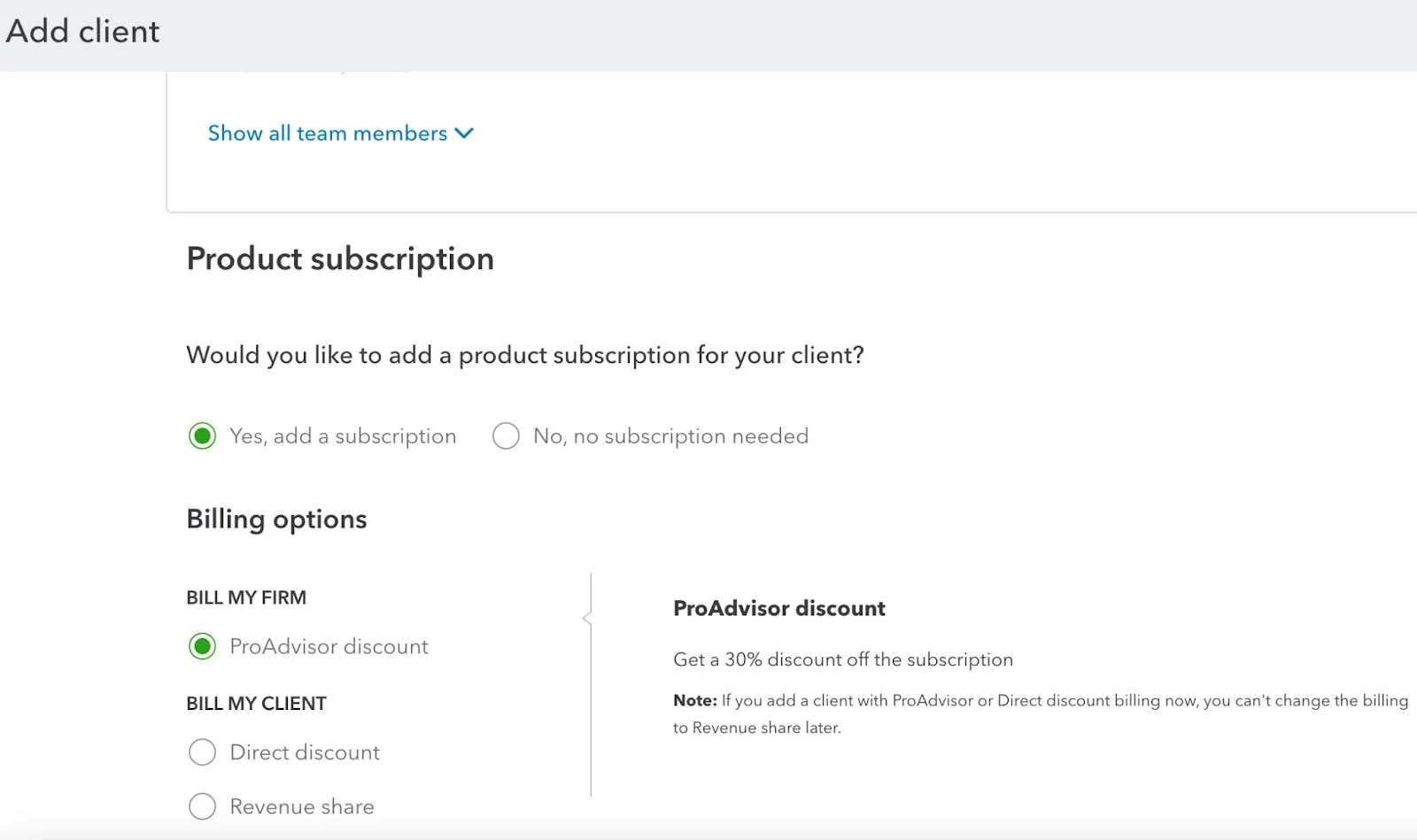
To set up a QuickBooks Ledger file for a client, you must add a new client from the Client tab in your QuickBooks Online Accountant portal. During the client setup process, select Yes, add a subscription under the “Would you like to add a product subscription for your client?” section and then select “ProAdvisor discount.”
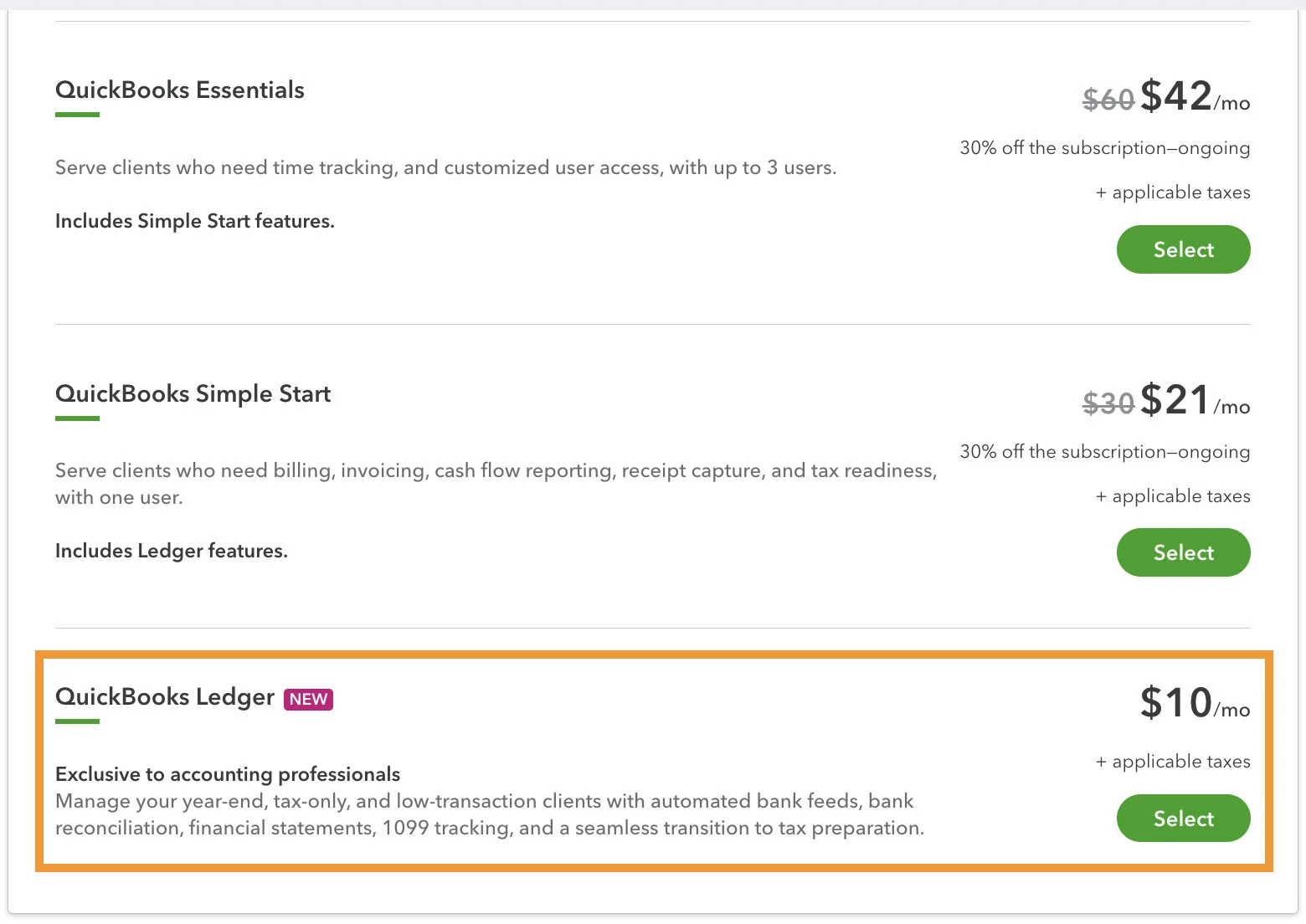
Then, QuickBooks will display a list of available products. From here, select QuickBooks Ledger.
If you wish to grant your clients access to QuickBooks Ledger, you can add them as primary admin.
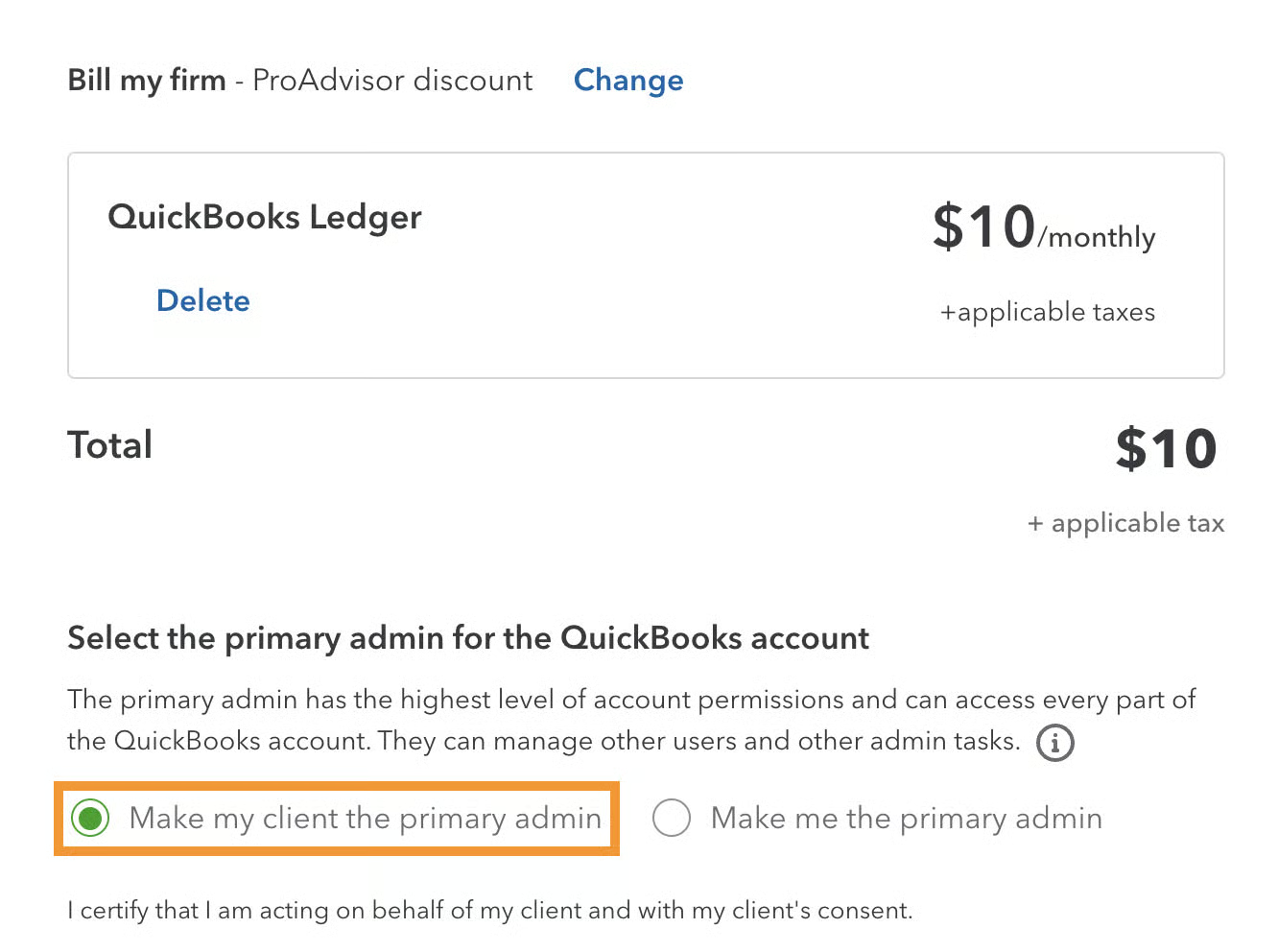
By doing so, your clients will be able to connect bank feeds, review transactions, and run reports. When you add your client as an admin, you will still be part of the Ledger subscription as one of the QuickBooks Online Accountant admin users.
To complete the purchase, follow the on-screen prompts. Once your first client ledger is set up, you can access it from the client list in QuickBooks Online Accountant by selecting the company name or the QuickBooks logo—and you’ll be logged into the company file. You’ll then be able to set up the company information as you would in any other QuickBooks Online version.
QuickBooks Ledger customer support
QuickBooks Ledger users receive the same customer support options available to QuickBooks Online Accountant users. Support is available through live chat, callback phone support, the QuickBooks Community, and Intuit’s online Help Center, which includes product guides, tutorials, and troubleshooting articles.
How I evaluated QuickBooks Ledger
I evaluated QuickBooks Ledger using the following criteria:
- Pricing: I considered the monthly subscription cost, overall value, and whether the features justify the price for accounting firms managing after-the-fact clients.
- Ease of use: I evaluated how easy QuickBooks Ledger is to set up, navigate, and use, particularly for accountants already familiar with QuickBooks Online.
- Core accounting features: I assessed the tools available for importing transactions, reconciling accounts, recording journal entries, managing 1099 contractors, and generating financial reports.
- Workflow efficiency: I looked at how well QuickBooks Ledger supports common accounting workflows, including after-the-fact bookkeeping, write-up work, tax preparation, and collaboration with clients.
- Integrations and limitations: I considered how well Ledger integrates with other Intuit products, such as QuickBooks Online Accountant and ProConnect Tax, while also evaluating the impact of missing features like invoicing and bill management.
Frequently asked questions (FAQs)
Is QuickBooks Ledger an accounting system?
Yes, but it is a very basic one. It will track your transactions and produce financial statements, but it doesn’t offer any features to help manage your business like invoicing, bill pay, or inventory management.
Can my clients access QuickBooks Ledger?
Yes, they can. To make this possible, add them as a primary admin on the subscription page.
Can I upgrade from QuickBooks Ledger to any higher versions of QuickBooks Online?
Yes, you can. However, note that you can’t downgrade from any higher plans to QuickBooks Ledger.
Is QuickBooks Ledger a year-end product only?
No, it’s not. It can be used to prepare your client’s financial information for any period—such as month, quarter, or year—as part of the closing process.
Bottom line
QuickBooks Ledger is a good option for accounting professionals using QuickBooks Online Accountant who manage after-the-fact, tax-only, or basic write-up clients. It includes the core tools needed to import transactions, reconcile accounts, prepare financial reports, and support tax preparation without the added cost or complexity of a full QuickBooks Online subscription. However, businesses that need day-to-day accounting features like invoicing, bill management, inventory tracking, or sales tax management should consider one of the standard QuickBooks Online plans instead.
