





To properly manage uncollectible accounts in your bookkeeping, it’s important to understand how to write off bad debt in QuickBooks Online.
- Step 1: Identify the bad debt.
- Step 2: Create a bad debt expense account.
- Step 3: Create a bad debt item.
- Step 4: Create a credit memo for the bad debt.
- Step 5: Review the payment.
- Step 6: Run a bad debt report.
Editorial note
My guide walks you through how to write off bad debt in QuickBooks Online and covers how bad debt write-offs affect your financial statements. Note that this tutorial focuses on the direct write-off method, which is a simple way to write off uncollectible amounts when they occur. Businesses that follow GAAP
- Step 1: Identify the bad debt.
- Step 2: Create a bad debt expense account.
- Step 3: Create a bad debt item.
- Step 4: Create a credit memo for the bad debt.
- Step 5: Review the payment.
- Step 6: Run a bad debt report.
- Why should you write off bad debts?
- What if a customer pays after the debt was written off?
- Frequently asked questions (FAQs)
- Wrap up
Step 1: Identify the bad debt.
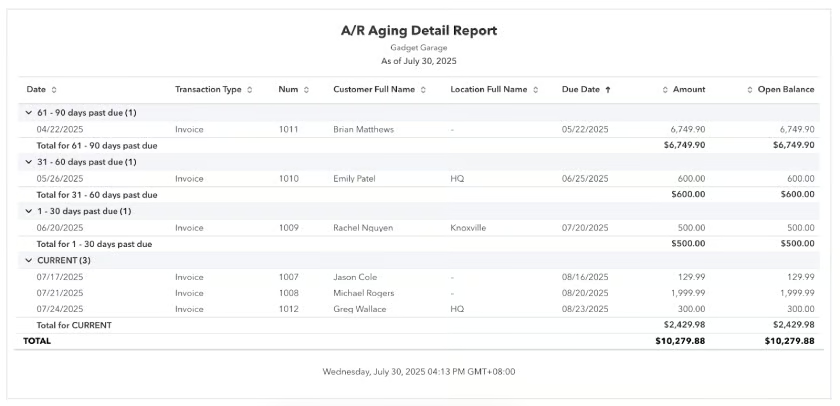
If you already know which account to write off, proceed to Step 2. Otherwise, click on Reports in the left-side menu and find and run the Accounts Receivable Aging Detail report to see all customer accounts.
Let’s say that I am the accountant of Gadget Garage. I noticed overdue accounts from Brian Matthews, Emily Patel, and Rachel Nguyen. I contacted all of them, but only Emily didn’t respond. After speaking with the business owner, I decided to declare Emily’s account as bad debt.
Step 2: Create a bad debt expense account.
If you haven’t, you’ll need to create a Bad Debt Expense account to track uncollectible amounts correctly.
Here’s how to set it up:
- Click the gear icon (⚙︎) in the top right corner of your dashboard.
- Select Chart of accounts under YOUR COMPANY.
- Click the New button.
- For Account Type, choose Expenses.
- For Detail Type, select Bad Debts.
- Name the account Bad Debt (or something similar).
- Other terms for bad debts are doubtful accounts expense or uncollectible accounts expense. I prefer bad debts because it’s easier to understand.
Step 3: Create a bad debt item.
Next, you’ll need to create a bad debt item to use as a line item when recording bad debt transactions.
Follow these steps:
- Click the gear icon (⚙︎) in the top right corner of your dashboard.
- Select Products and services under LISTS.
- Click the New button.
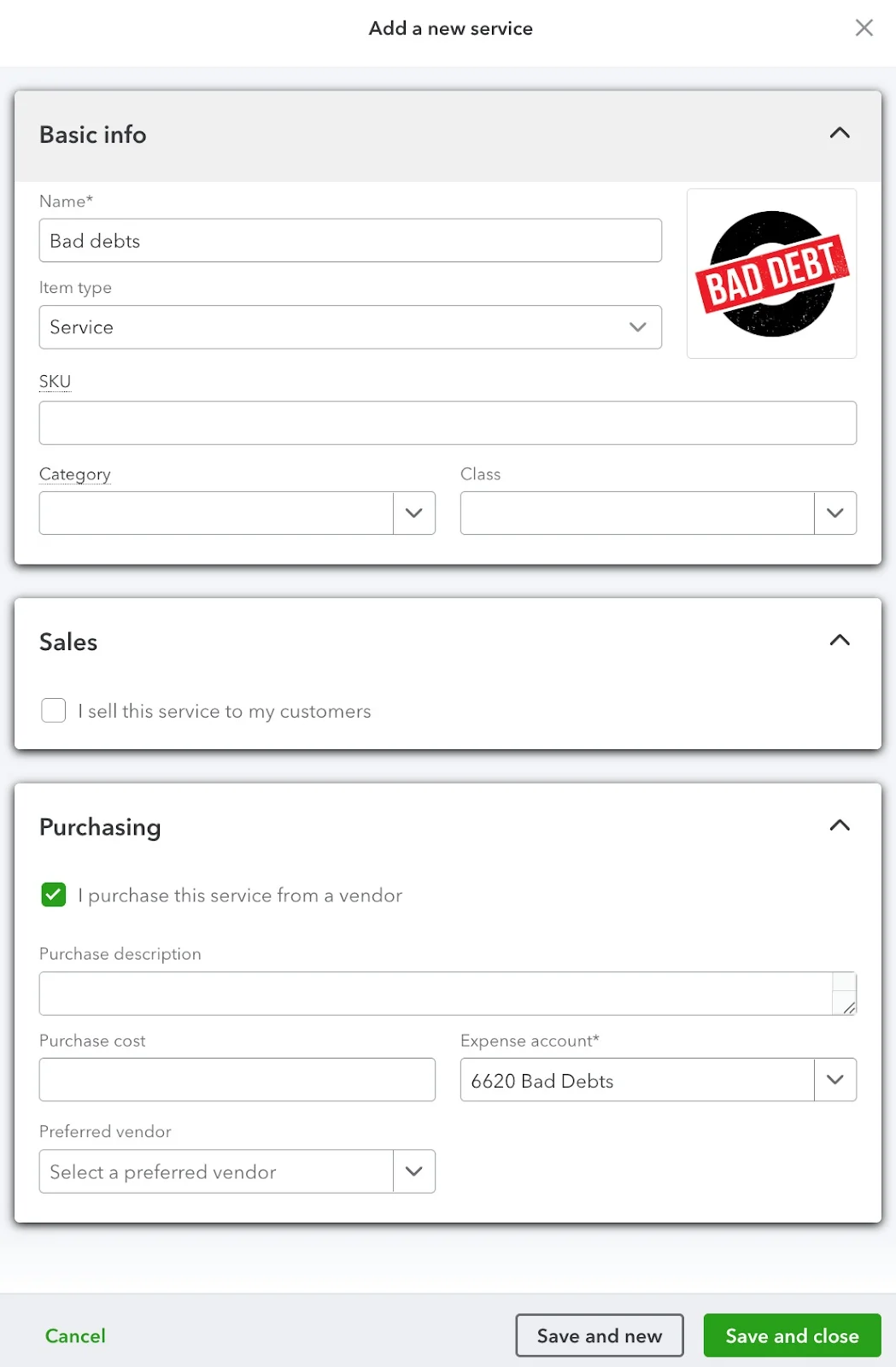
- Choose Service as the item type.
- Name the item (e.g., Bad Debt).
- Ensure the checkbox saying “I sell this item to my customers” is unchecked.
- Select the Bad Debt expense account you created in Step 1 in the Expense account field under Purchasing.
This links the item to the correct account, so QuickBooks will automatically apply it when you use a credit memo on the overdue invoice. When you’re done, click Save and close.
The image below shows what the item creation screen looks like.
Step 4: Create a credit memo for the bad debt.
Now you’re ready to write off the bad debt using a credit memo. Follow the steps below.
- Click + New in the upper right corner of your dashboard.
- Select Credit memo under the CUSTOMERS category.
- Choose the customer (i.e., Emily Patel) in the credit memo form.
- In the Product/Service field, select the Bad Debt item you created earlier.
- Enter the amount to write off (i.e., $600).
- Click Save and send or Save and close to finish.
This applies the credit to the customer’s balance and records the loss in your Bad Debt account. Once you hit Save, QuickBooks will automatically apply the credit memo to Emily’s account.
Step 5: Review the payment.
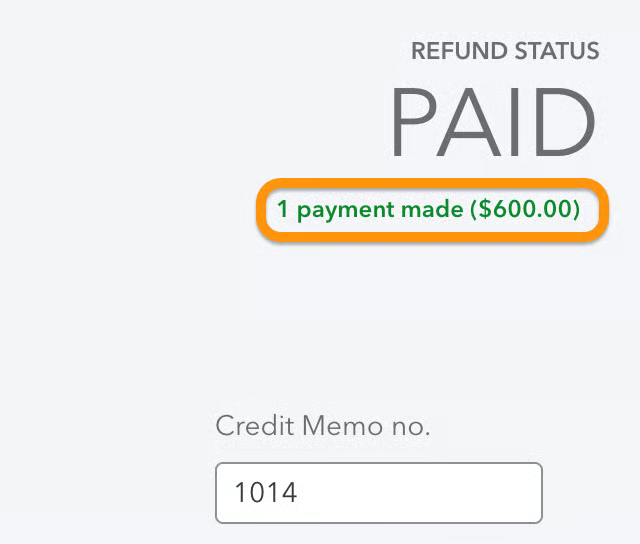
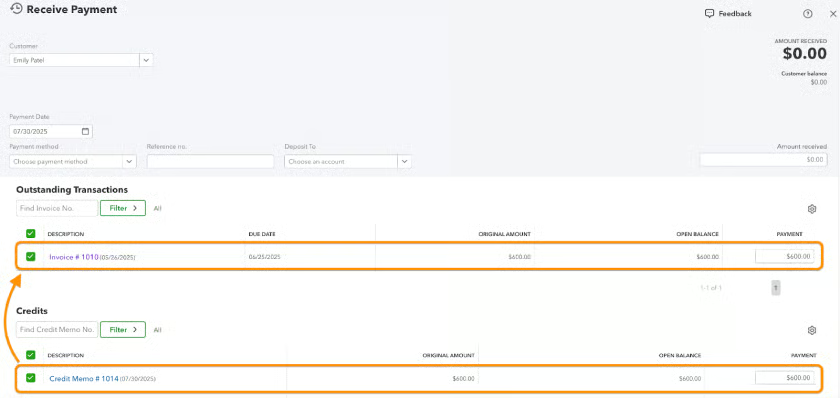
After saving the credit memo, you’ll see “PAID” appear under the Refund Status column. Just below that, there will be a green hyperlink. Click on it to open the payment record.
This will show how the credit memo was applied to the invoice and confirm that the balance has been cleared.
Step 6: Run a bad debt report.
Go to the Chart of accounts, then look for the Bad debts account. Click the dropdown icon (⌄) and then select Run report.
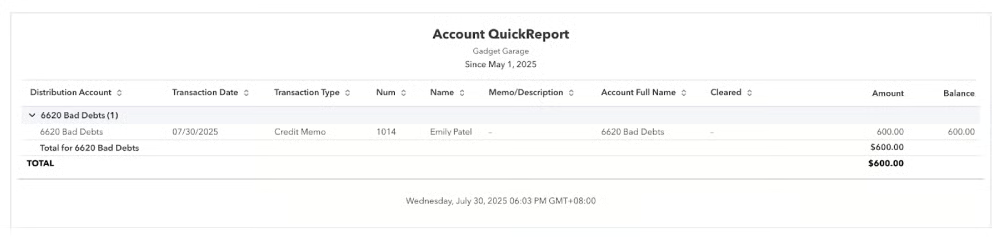
As mentioned earlier, bad debt write-offs are reflected in your P&L statement, and you’ll see them under the expenses section.
Why should you write off bad debts?
It keeps your accounts receivable valuation reflective of what you
’
ll likely collect.
It gives you a tax benefit since tax rules allow bad debt deductions.
It ensures compliance through proper use of bad debt allowances and write-offs — if you
’
re required to follow GAAP.
What if a customer pays after the debt was written off?
Well, if that’s the case, congratulations! It’s rare, but it does happen. That said, don’t jump in too fast. Always check with your accountant first, since they know your books best.
Here’s what I would do in case of a bad debt recovery:
- Go to the credit memo and void it. Do not delete it because that would remove the audit trail. Once the credit memo is voided, the invoice will be reinstated.
- Record the payment via Receive payment. Treat it as if a customer paid the invoice, only this time it was a bad debt.
Again, your CPA might recommend a different method, so it’s best to confirm with them before making any changes.
Frequently asked questions (FAQs)
How to write off an invoice in QuickBooks Online?
You must identify the specific invoice to write off, create a credit memo, and apply it to the invoice. Additionally, ensure you have created a bad debt expense account and a bad debt item.
Should I use the direct write-off method in QuickBooks?
Yes, especially if you are a small business with occasional bad debts. Larger businesses may use the allowance method for GAAP compliance.
How does writing off a bad debt affect my financial statements in QuickBooks?
It reduces your accounts receivable and impacts the income statement by recognizing the bad debt expense. In your P&L report, the uncollectible receivable is shown under the bad debt expense account.
Wrap up
You’ve just learned how to write off an invoice in QuickBooks Online. Hopefully, you won’t encounter many bad debts, but at least now you know how to manage them properly so that your financial information stays accurate.
If you need additional help learning how to use QuickBooks, you may appreciate our free QuickBooks Online tutorials.
