







QuickBooks Online Plus and Advanced let you organize and analyze your financial data using classes and locations, which you can enable in account settings. Once active, you can create categories tailored to your business structure and assign them to transactions like invoices, expenses, and bills. This allows you to generate detailed reports, including P&L by class or location and segmented balance sheets, giving you clearer insights into business performance and helping you make more informed decisions.
Step 1: Enable class and location tracking.
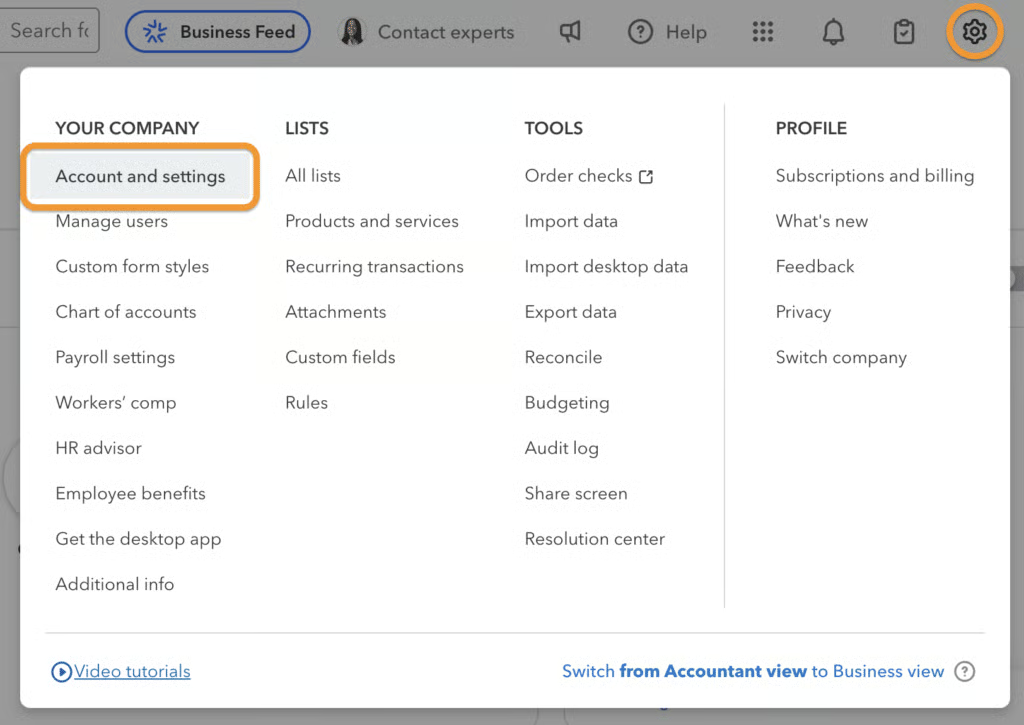
Click on the cog wheel (⚙︎) in the upper right corner of your dashboard and then click Account and settings under the YOUR COMPANY column.
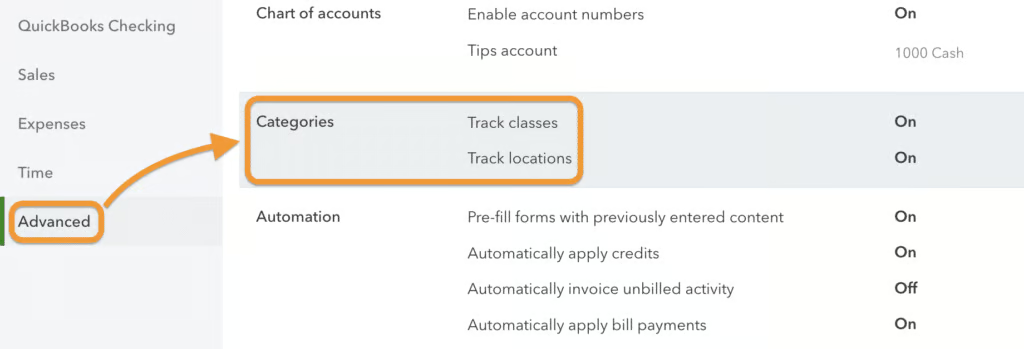
From Account and settings, select Advanced in the left menu bar and then click on the Categories section. From here, you can turn on both class and location tracking in QuickBooks Online or activate only one, depending on your requirements.
Turning on class tracking
To turn on class tracking, switch on the toggle button next to “Track classes.” When turned on, you can tick the “Warn me when a transaction isn’t assigned a class” checkbox if you want QuickBooks to alert you if a transaction is entered without being assigned to a class.
Also, QuickBooks will provide additional options to assign classes to your transactions.
- One to entire transaction: The class you set up will be assigned to the entire transaction, regardless of the number of products or services included. Choose this if you don’t need to track each product or service you sell by class.
- One to each row in transaction: This allows you to assign different classes to individual products or services included in the transaction. This is beneficial when you want to track different parts of a transaction under separate classes. For instance, you might want to assign various products appearing on the same bill to different classes.
Turning on location tracking
To enable location tracking in QuickBooks Online, simply toggle on the “Track locations” option and choose a label that fits your business, like store, department, or property. Unlike class tracking, you can assign only one location per transaction. After setting up class and location tracking, click Save to apply your changes.
Step 2: Create classes and locations.
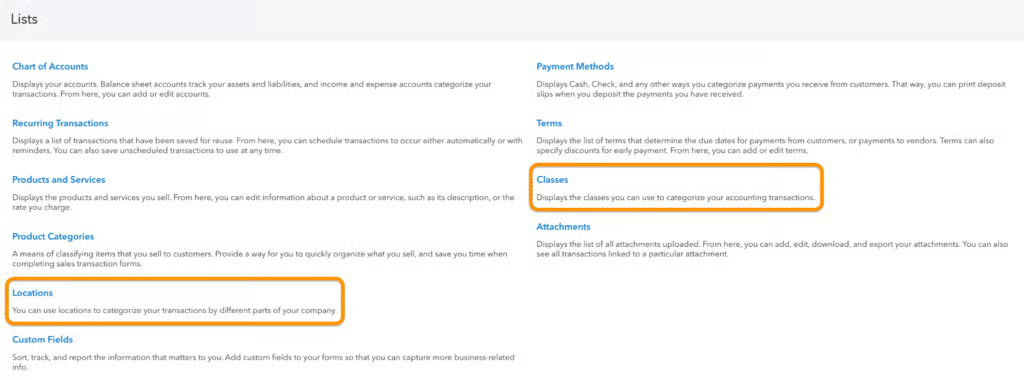
To create classes and locations in QuickBooks, click on the cog wheel (⚙︎) and then select All lists under the LISTS column. Next, select Classes or Locations from the screen.
Creating classes
Click on the New button on the Classes screen and then proceed to add a new class. A small window will appear, and you’ll have to enter the name of the class. In the example below, I created a class called Contract Client Repairs so that I can track repairs from contract clients, not walk-in customers.
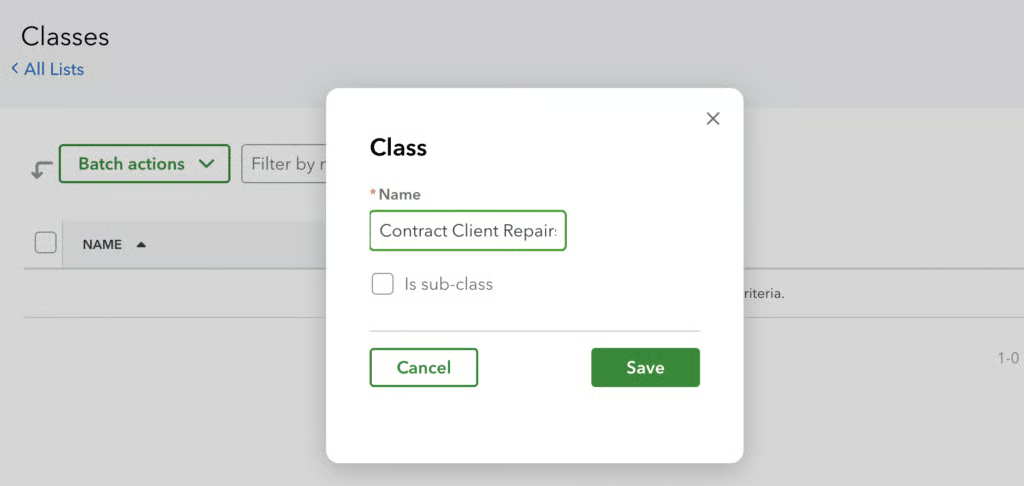
Once done, click the green Save button.
Creating locations
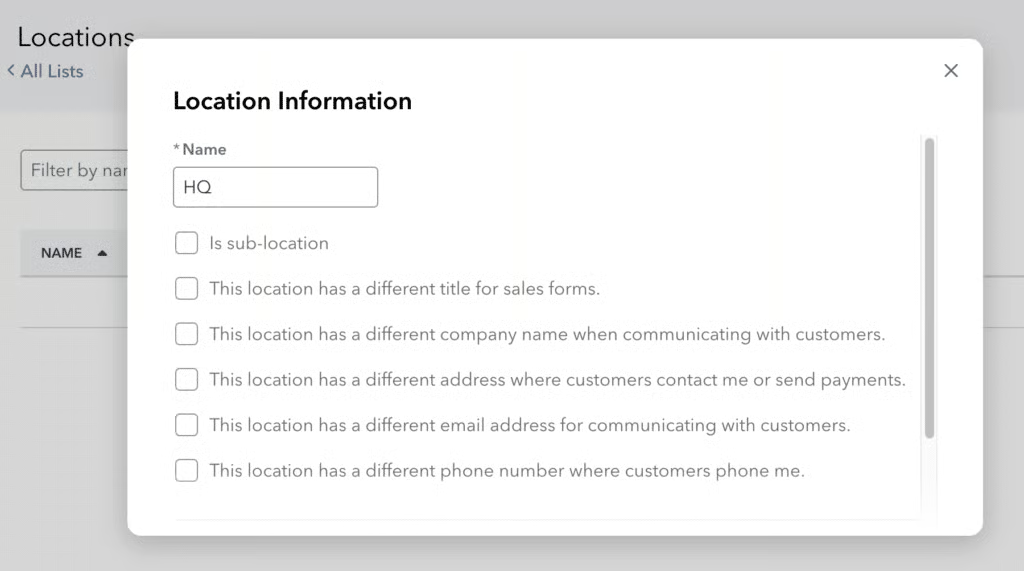
Similar to adding classes, click the green New button to enter a new location. You can customize the location with several options. For instance, you can add a parent location by ticking the “Is a sub-location” option in the checklist. Once done, click the Save button.
In my example below, I created a location called HQ. In our fictitious company Gadget Garage, I can use the HQ location to track transactions performed in the main office.
Editing and inactivating classes and locations
You can update an existing class or mark it inactive if it’s no longer relevant to your business. To do this, go to the Class or Locations screen, click the dropdown arrow in the Action column, and choose either Edit or Make inactive (reduces usage).
While you can’t permanently delete classes or locations, you can reactivate them at any time. Inactive items will still appear in historical reports for reference.
Step 3: Assign classes and locations to transactions.
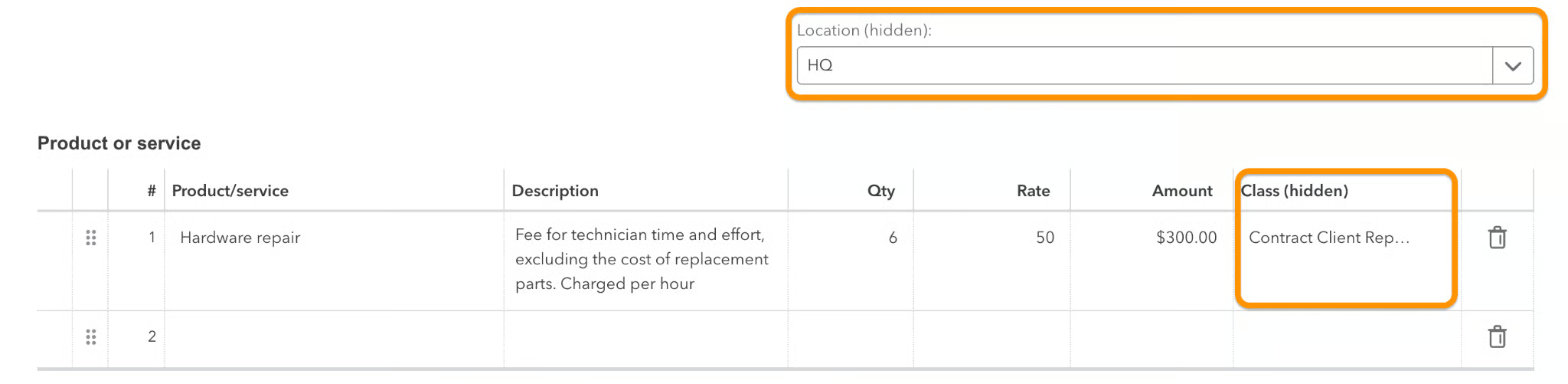
When creating a transaction, you’ll see fields for both class and location, allowing you to assign each to the transaction. In the invoicing example below, I’ve enabled the global setting “One to each row in transaction” for classes, so each product or service line includes its own Class field. This lets you assign a specific class to every item or service within the transaction.
The image below shows how classes and locations appear when assigned to a transaction. In this sample invoice, the location is set to HQ and the class to Contract Client Repairs. These fields are for internal tracking only and won’t be visible on the customer’s invoice.
Similarly, when creating other types of transactions — like expenses, bills, or checks — you’ll see the Class and Location fields available in the form for easy assignment.
Step 4: Use classes and locations on reports.
Click on Reports in the left-side menu and then type the supported report in the search bar.
Here are sample reports on P&L by class and by location:
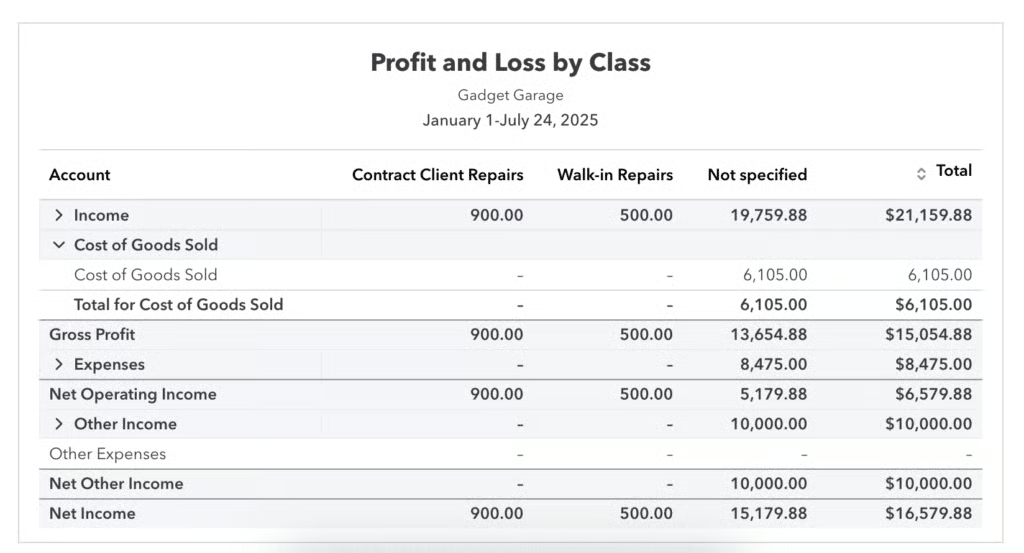
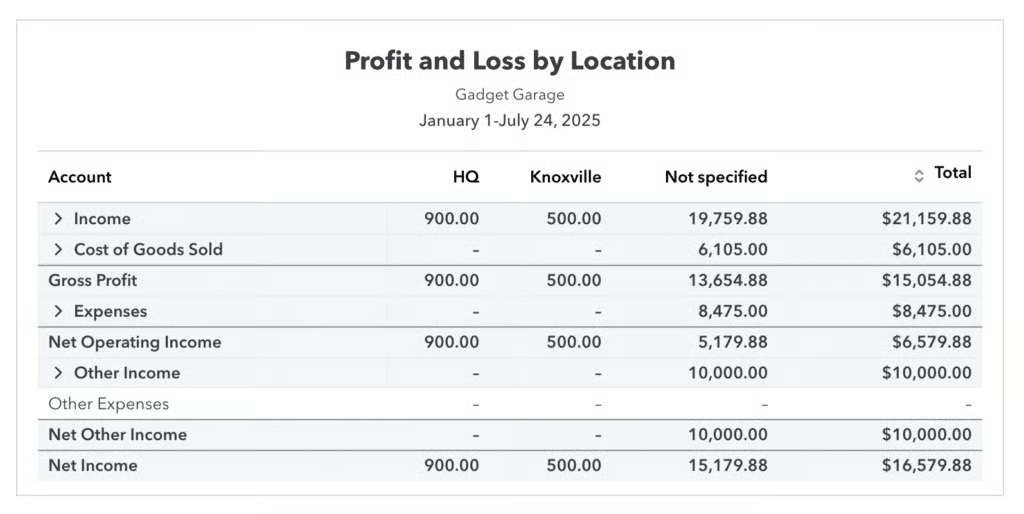
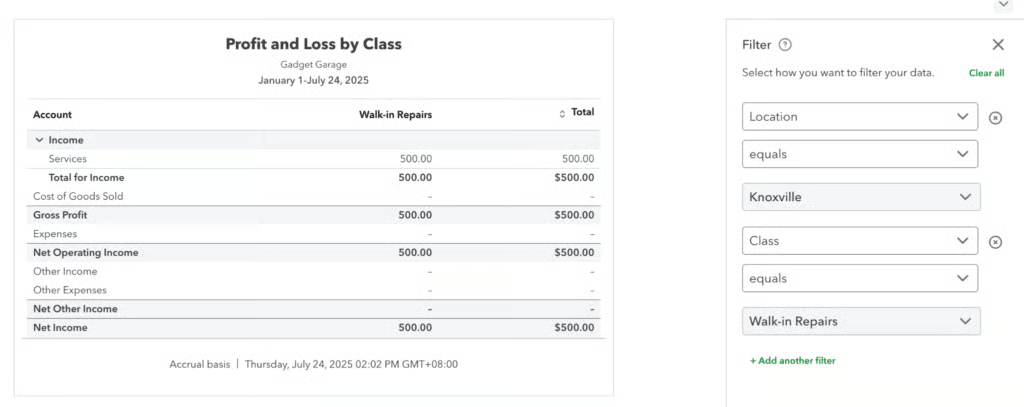
QuickBooks doesn’t let you run a P&L report by both class and location at the same time, but you can work around this by customizing a single report. Start by opening the P&L by Class report, then use the filter settings to add location details for a more comprehensive view.
The image below shows how I modified the P&L report to use data only for the Knoxville location and Walk-in Repairs class.
Real-world uses for classes and locations in QuickBooks Online & my tips
- HVAC or plumbing companies offering multiple services: I suggest setting up a class for each service, like A/C installation, repair, or maintenance, to help evaluate which services bring in the most revenue or carry higher costs. It’s a great way to fine-tune pricing and allocate resources more effectively.
- Catering businesses managing different types of events: I recommend using classes to separate event types, such as weddings and corporate functions. This makes it easier to compare profitability and adjust marketing or staffing as needed.
- Cleaning companies providing residential and commercial services: It makes sense to use classes to track residential versus commercial jobs. This kind of insight helps guide where to focus business development and advertising efforts.
- Nonprofits running multiple programs: I find it helpful to assign classes to each program area, like education, outreach, or fundraising, to improve reporting clarity and show how funds are distributed across mission-driven activities. Read our guide on setting up QuickBooks Online for nonprofits to learn more.
- Property management companies with multiple locations: I recommend making each property its own location so that you can track income, maintenance costs, and profitability separately. It gives you a clear comparison across properties and helps guide investment decisions.
- Retail stores with multiple locations: Setting up each store as a separate location is the most practical setup here. This lets you evaluate sales performance and expenses by store, helping you fine-tune operations and marketing.
- Wholesalers with various warehouses: You may treat each warehouse as its own location to monitor inventory flow, storage costs, and distribution efficiency. It helps you stay organized and identify which facilities are most cost-effective.
- Consulting firms with regional offices: I suggest assigning each office a separate location so that you can track revenue, payroll, and overhead by region. This gives you better insight into office performance and supports smarter resource planning.
- Restaurants with multiple branches: I recommend using a different location for each branch to track food sales, labor costs, and daily expenses. It helps you identify your top-performing locations and spot areas where improvements are needed.
Frequently asked questions (FAQs)
Can I assign both classes and locations to the same transaction?
Yes, you can. Doing so provides a more detailed tracking of your transactions.
What types of transactions can I assign classes and locations to in QuickBooks?
You can assign classes and locations to various transactions, such as invoices, expenses, bills, checks, and deposits.
Can I run a P&L by class and by location reports?
Yes, you can. You can also use both class and location in a single report by running a standard P&L by class or P&L by location report and adjusting the filter settings based on a specific class and location.
Wrap up
Congratulations on learning how to use classes and locations in QuickBooks Online. If you want to learn more about using QuickBooks, you can check out our other free QuickBooks Online tutorials, which cover both basic and advanced features.
