







The QuickBooks Online desktop app is a standalone software that you can install directly on your Mac or Windows desktop or laptop computer. Similar to the browser version, it offers all the core features of QuickBooks. However, it comes with added flexibility, such as the ability to stay logged in for six months, switch to an interface similar to QuickBooks Desktop, and access multiple companies within a single session. It is free for all QuickBooks Online subscribers.
If you don’t have QuickBooks Online, visit the provider’s website and request a 30-day free trial. You can also sign up right away to get a 50% discount for three months.
Desktop App vs Web Browser Version: Dashboard
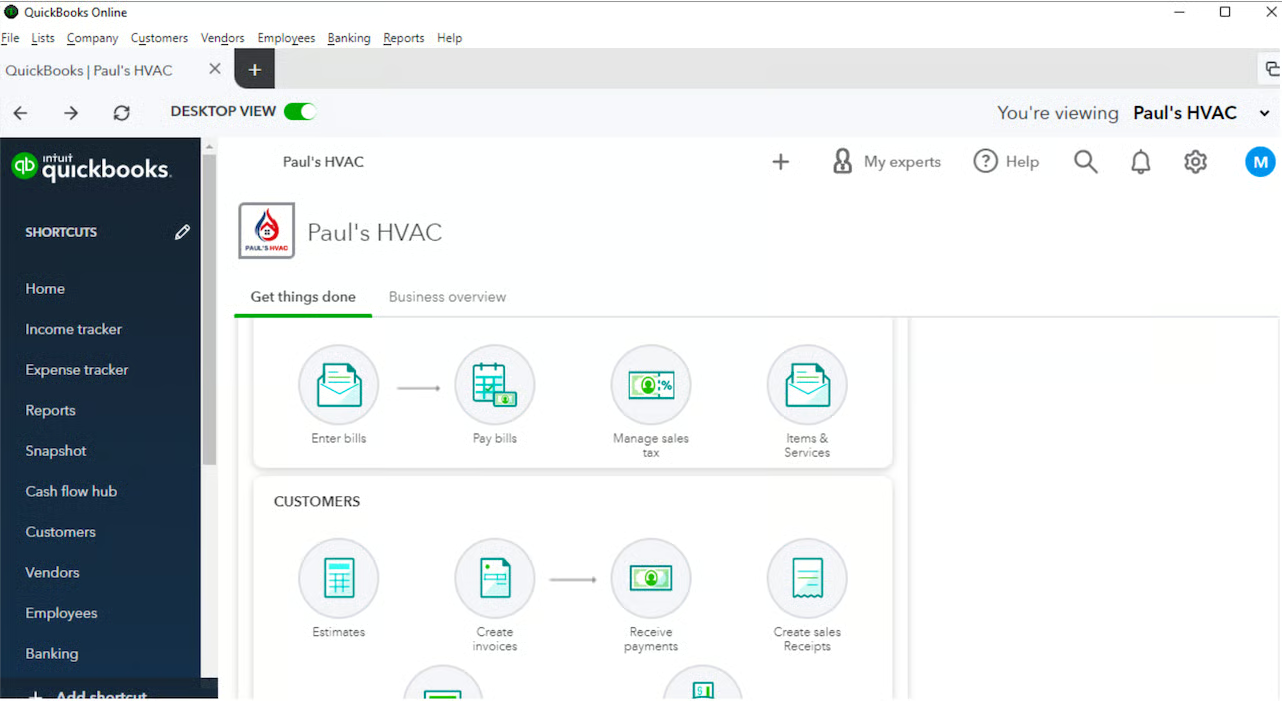
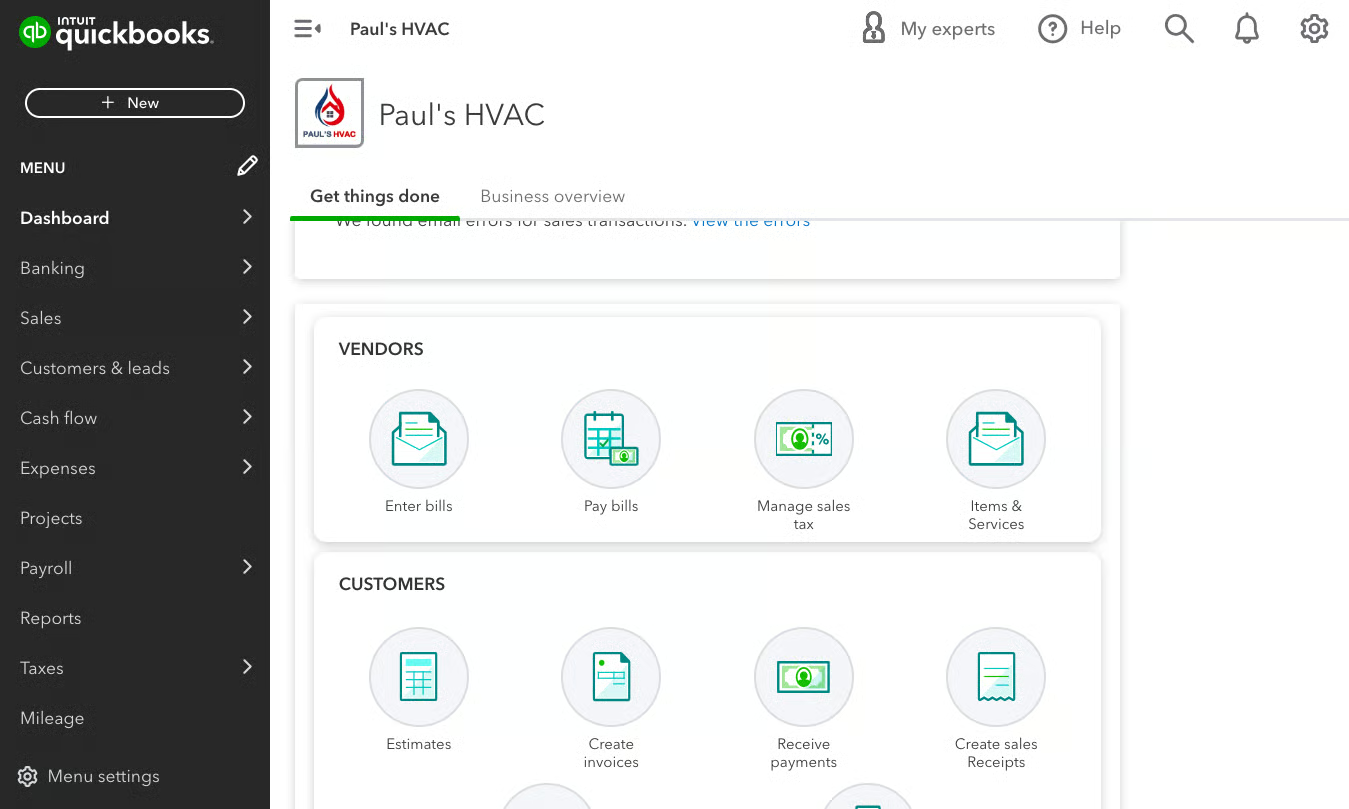
The QuickBooks Online desktop app, when displayed in the standard view, is essentially the same as the browser version. However, when you switch the desktop app to the desktop view, you’ll see notable differences, such as a workflow-based navigation and a left-side menu bar similar to QuickBooks Desktop.
Desktop App vs Web Browser Version: Features
| Features | QuickBooks Online Desktop App | QuickBooks Online Web Version |
|---|---|---|
| Access Core Features of QuickBooks | ✓ | ✓ |
| Requires Internet Connection | ✓ | ✓ |
| Requires Installation | ✓ | |
| Compatibility | Platform-dependent(Windows and Mac) | Windows, MacOS, Linux, and ChromeOS |
| Option to Stay Logged in for Up to Six Months | ✓ | ✕ |
| Option to Switch to QuickBooks Desktop View | ✓ | ✕ |
| Switch Between Multiple Companies Within a Single Session | ✓ | ✕ |
| Use Add Shortcut Button to Customize Sidebar | ✓ | ✕ |
| Automatic Updates | ✕ | ✓ |
To learn more about the features available in QuickBooks Online, read our detailed review of QuickBooks Online.
Benefits of the QuickBooks Online Desktop App
Stay Logged In
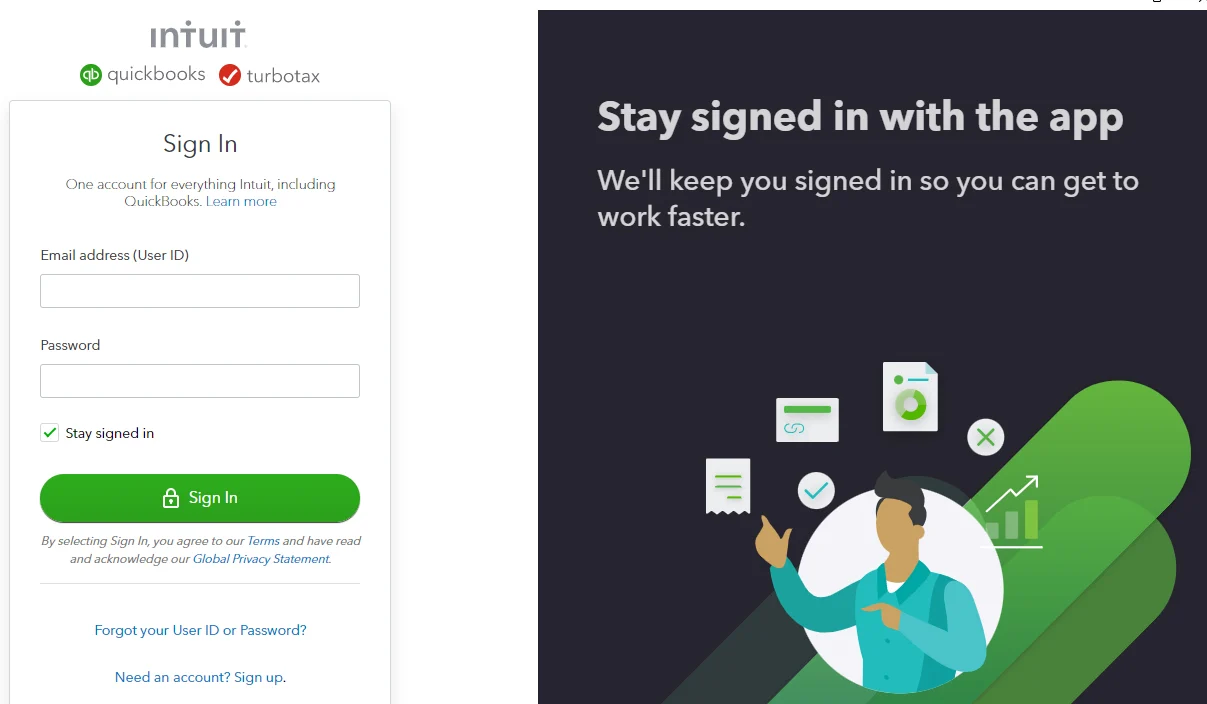
When you click the Stay signed in checkbox during initial login, the QuickBooks Online desktop app will remember your login credentials for future use. This means you will be signed in automatically whenever you launch the app or open it after a period of inactivity—unless you choose to log out manually. This unique feature comes in handy if you need to use QuickBooks frequently.
In contrast, the web browser version of QuickBooks Online requires you to enter your login details every time you want to access your account. Also, if you become inactive for a while, you will be logged out automatically. When you return to the website or attempt to access the application again, you will need to reenter your login credentials.
Switch to QuickBooks Desktop Pro or Premier View
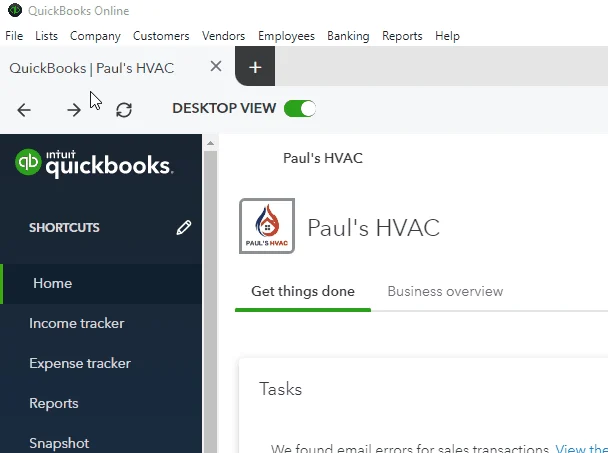
You can always stick with the standard view if you are already comfortable with the web version. However, you have the option to switch to a desktop view with an interface similar to QuickBooks Desktop Pro or Premier. To do this, toggle the Desktop View option to on, as shown below. Toggle off to switch to standard view.
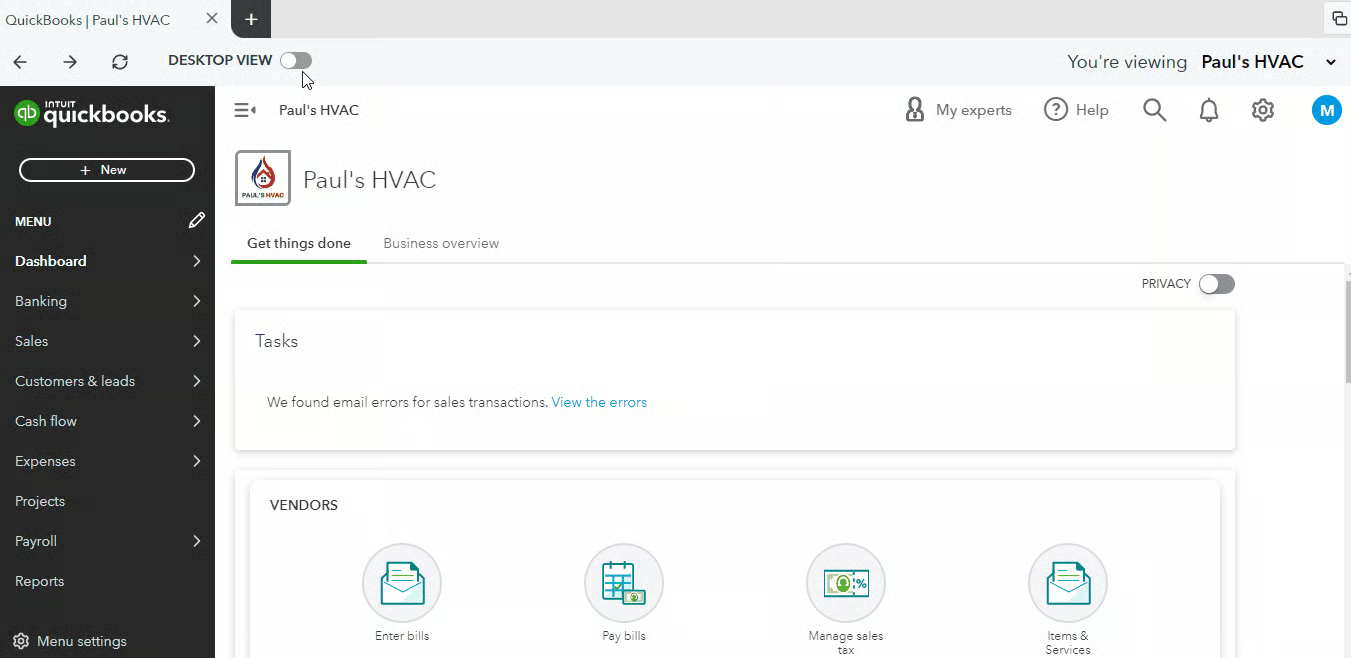
The desktop view uses workflow-based navigation that provides a roadmap or a series of related steps and processes to guide you through various workflows. This approach is designed to speed up your work as you can move through the necessary steps to complete a task easily.
For instance, in the Vendors section, you will notice an arrow between the Enter bills and Pay bills options, which serves as a visual cue and indicates the logical flow of steps. Additionally, when you’re on desktop view, the left navigation menu includes options that you commonly see in QuickBooks Desktop, including Income Tracker, Expense Tracker, and Cash Flow Hub.
Open & Manage Multiple Tabs or Windows Easily
For power users and multitaskers, the QuickBooks Online desktop app allows you to open multiple tabs or windows easily. Let’s say you’re creating invoices in one tab—you can open another tab to review customer payment history or check inventory levels.
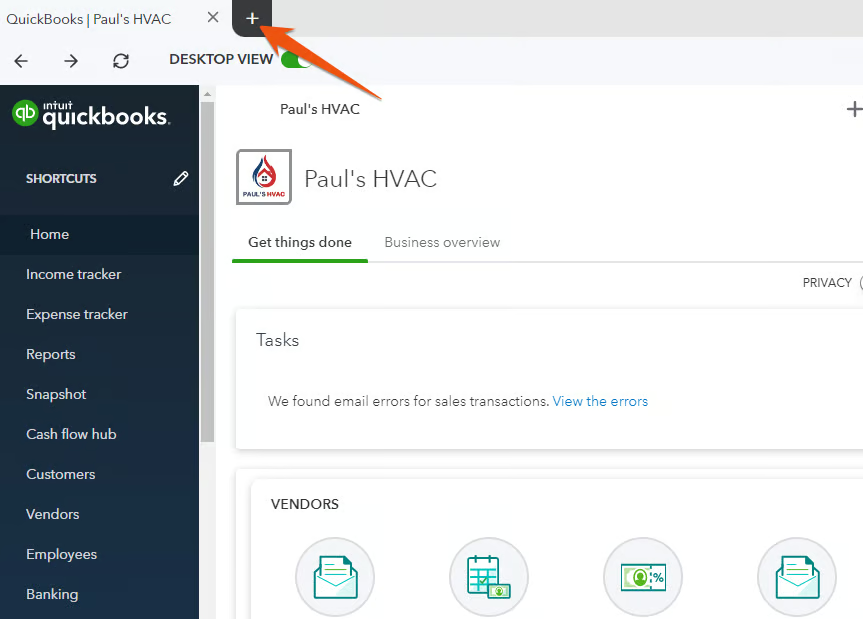
To open a new tab, you click on the + button on the grayed menu bar at the top of your QuickBooks dashboard.
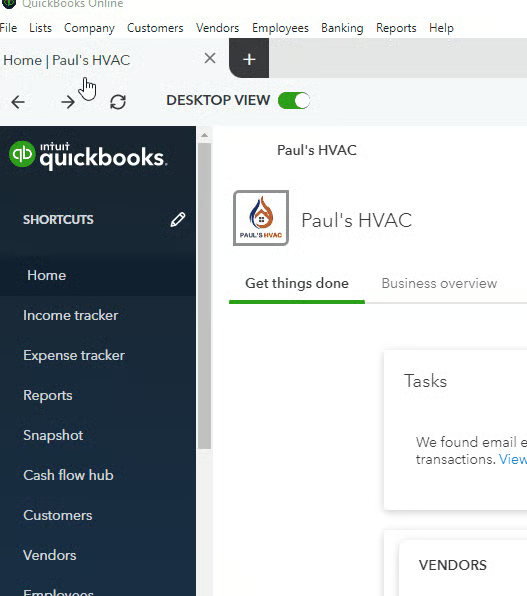
To add a new window, select File on the horizontal menu bar on top of your homepage, and then click Open new window, as shown below.
The desktop app also enables you to manage and navigate between the open tabs. When you click the minimize button in the upper right section, the app displays all open tabs and windows in a condensed format, allowing you to switch to a tab or window you want to work on easily.
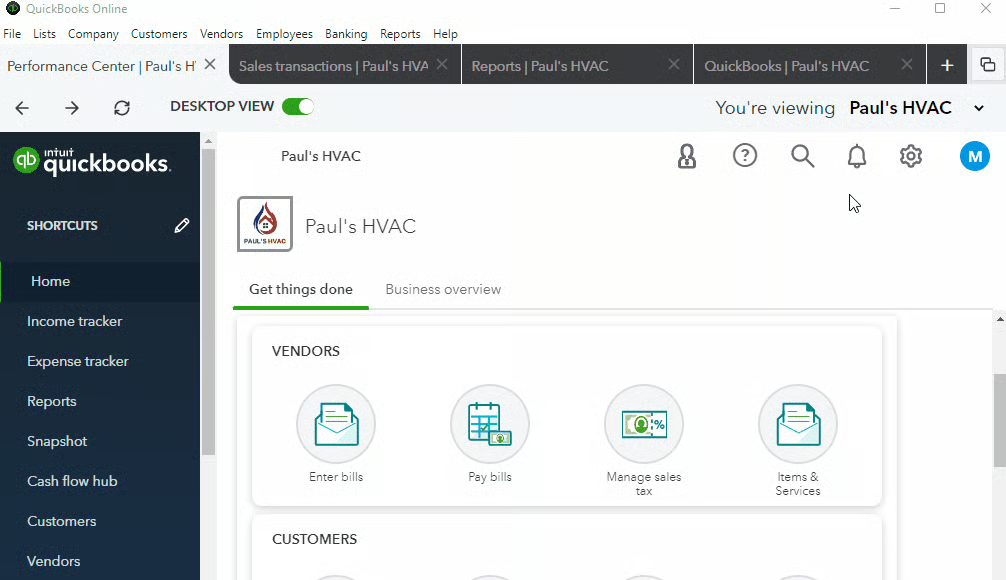
Note that the web version also allows you to open a new tab to access different features and perform separate tasks. However, you need to manually click on the tab you want to work on to switch between tabs, which is not as convenient as with the desktop app.
Switch Between Multiple Companies Within a Single Session
In the upper right section of your QuickBooks dashboard, you’ll find a You’re viewing option, indicating which company you are currently on. When you click on the small drop-down arrow next to the company name, QuickBooks Online will provide a list of all the companies associated with your QuickBooks account. This allows you to switch between different company files without the need to log out and log back in.
In the screenshot below, we only have one company added to our QuickBooks Online account, Paul’s HVAC.

In comparison, the web browser version requires you to log out of one company file before accessing another. While this approach works for those who manage a single company, it can become cumbersome and time-consuming when working with multiple entities or clients.
Customize the Sidebar Easily
When you’re on desktop view, you can add a shortcut menu easily to your left navigation bar by clicking on the +Add shortcut button found below the menu bar. For instance, if you frequently use the Performance Center, you can add it to your navigation menu. After clicking the +Add shortcut button, enter the feature name (e.g., Performance Center), and then select Done.
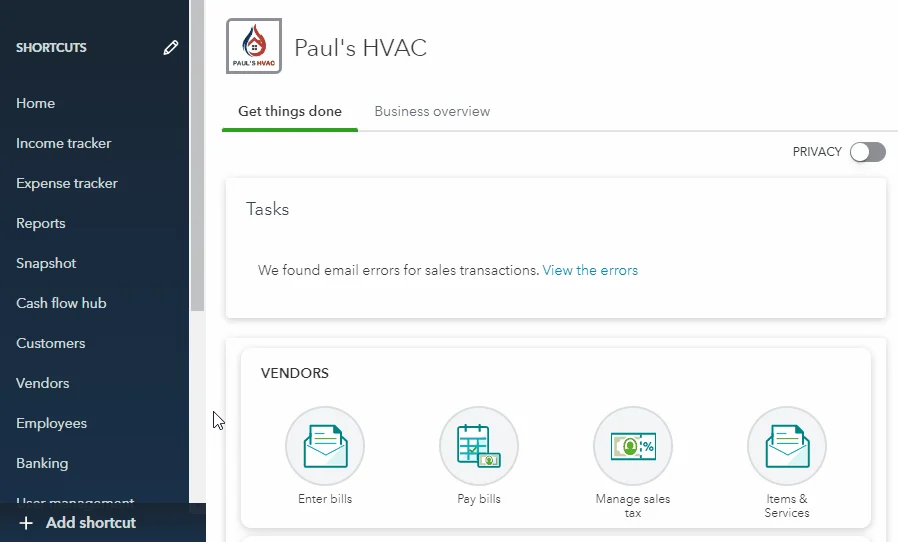
Meanwhile, when you’re on the browser version, you have to go through a series of steps to customize your left navigation menu bar.
Horizontal Menu Bar Similar to QuickBooks Desktop
In addition to the workflow-based navigation and left sidebar, the desktop app includes a horizontal menu bar similar to QuickBooks Desktop. It contains items such as File, Lists, Company, Customers, Vendors, and Employees.
We found this useful as it provides quick and easy access to essential functions and features. Case in point, you can access the vendor center easily from the Vendors menu and create a new inventory item by clicking on Lists.
Disadvantages of the QuickBooks Online Desktop App
Platform-dependent
The desktop app is designed to run on specific operating systems, specifically Windows and macOS. That said, if you are a Linux or ChromeOS user, you have no option but to use QuickBooks via a web browser.
Manual Updates
The QuickBooks Online desktop app requires manual updates to be installed on your computer. This means you may have to contact Intuit to request a new link to the latest version. For instance, in our case, we found a download link in a community forum that turned out to be an outdated version with many missing features. We then had to contact Intuit to obtain the link to the updated version.
In comparison, the web browser version typically is updated automatically—meaning you get the latest features every time you log in to your QuickBooks Online account.
Security Risks
Just like any other locally installed software, the QuickBooks Online desktop app may be susceptible to security risks, especially if your computer has many users. When you choose to stay signed in, other people may accidentally or intentionally access your account and make unauthorized changes or view sensitive information. That being said, we recommend installing the desktop app only on trusted and secure devices or computers that are not used by others.
Limited Accessibility
You need to install the app on a specific computer, meaning you can only access your account from that device. If you need to work on your financial data using a different computer, then you can’t access the app if it isn’t installed on that device. In this case, however, you can always use the web-based version to access your account.
When To Use
- QuickBooks Desktop users who want to switch to QuickBooks Online: The desktop view offers an interface similar to QuickBooks Desktop. This offers QuickBooks Desktop users an easier transition to the online version, reducing the learning curve.
- Those using QuickBooks Online frequently: If you use QuickBooks a lot throughout the day, it can be inconvenient to re-enter your login details every time you sign in to your account. When you use the desktop app, you can save time and effort that would otherwise be spent on entering login credentials repeatedly because it lets you stay logged in for up to six months.
- Those who manage multiple companies: With the desktop app, you can conveniently access and work on different company files without needing to log in and out repeatedly.
- Those who want to use QuickBooks immediately: Once you create your QuickBooks Online account, you can access and use its features right away using a web browser. Meanwhile, the desktop app requires additional steps, such as obtaining the download link and installing the app.
- Users who are uncomfortable with installing updates manually: You have to seek and install the latest version actively to keep your desktop app up-to-date. This requires additional time and effort compared to the web browser version, where updates are applied automatically.
How To Install the QuickBooks Online Desktop App
Step 1: Download the Executable File
The executable file is the installation file for the QuickBooks Online desktop application. For new users, look for a popup notification in your QuickBooks Online dashboard. If you don’t see it, you may need to contact Intuit directly to obtain the download link. You may need to contact directly to ensure that you’re using the latest version because it frequently receives updates.
For QuickBooks Online Advanced users, you can directly install the app within the web browser version. To do this, click on the gear icon, and then select Get the desktop app under Your Company.
Step 2: Install the App
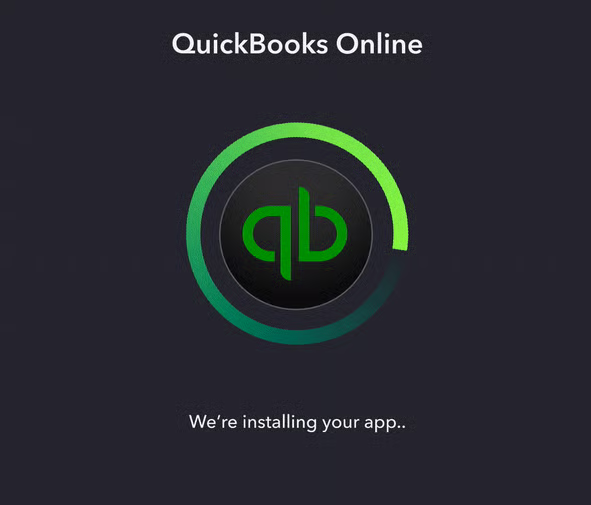
Locate the downloaded file; it is typically saved in your default downloads folder—unless you specified a different location. Run the file to start the installation process. You will then see a message indicating that the app is being installed.
Step 3: Launch the App & Sign in to your QuickBooks Account
Once the installation is complete, you should see the QuickBooks Online desktop app installed on your computer. Launch the app, and you will be prompted to sign in using your QuickBooks Online account credentials.
Frequently Asked Questions (FAQs)
What is the QuickBooks Online desktop app?
The QuickBooks Online desktop app is an installable app that lets you use QuickBooks Online directly from your laptop or desktop computer without opening a browser window.
How do I use the QuickBooks Online desktop app?
To use the desktop app, you must download and install the app on your computer—you need to obtain the executable file from Intuit and ensure you download the latest version, as it is regularly updated. Then, log in using your QuickBooks Online credentials, and use the features as you normally would in the web browser version.
What are the benefits of using the QuickBooks Online desktop app?
The desktop app offers several benefits, such as faster and more responsive performance, the option to stay signed in for up to six months, a workflow-based navigation system similar to QuickBooks Desktop, and the ability to access multiple companies from just one screen.
Does the QuickBooks Online desktop app run without internet?
No, the app requires an internet connection to work.
Is there an additional fee to use the QuickBooks Online desktop app?
No, it’s free for all QuickBooks Online users.
Is the QuickBooks Online desktop app available for Mac users?
Yes, the desktop app is available for both Mac and Windows users.
Does the desktop app sync automatically with the web browser version?
Yes, everything you enter in the desktop app syncs automatically with the web browser version.
Bottom Line
The QuickBooks Online desktop app provides a convenient and flexible way to use the solution outside of a web browser. It’s particularly beneficial for those who prefer a desktop experience while still leveraging the features and advantages of QuickBooks Online.
