







While you can’t undo an entire month’s bank reconciliation in QuickBooks Online, you can undo and edit individual transactions. To do this, you need to find the account that has the transaction (in your chart of accounts) and then fix the error by undoing the transaction in question and adding the correct one to the reconciliation.
- Step 1: Navigate to the chart of accounts.
- Step 2: Find the account with the transaction.
- Step 3: Locate the transaction you wish to unreconcile.
- Step 4: Fix the error.
- Step 5: Confirm the action.
- When to undo reconciliation in QuickBooks Online
- How to avoid the need to undo reconciliation in QuickBooks Online
- Common problems when undoing a reconciliation in QuickBooks Online
- Frequently asked questions (FAQs)
- Wrap up
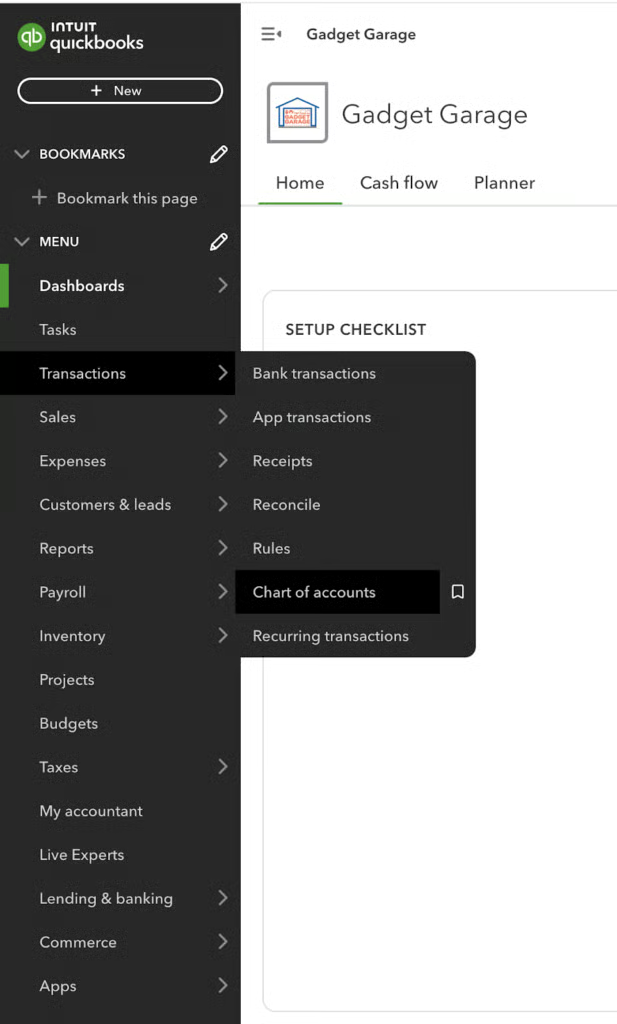
Step 1: Navigate to the chart of accounts.
Click on Transactions in the left navigation menu and then select Chart of accounts.
Note: QuickBooks is continuously improving the QuickBooks Online experience, so your screen may look slightly different from the image below. In some cases, you may need to click on Accounting in the left menu bar.
Step 2: Find the account with the transaction.
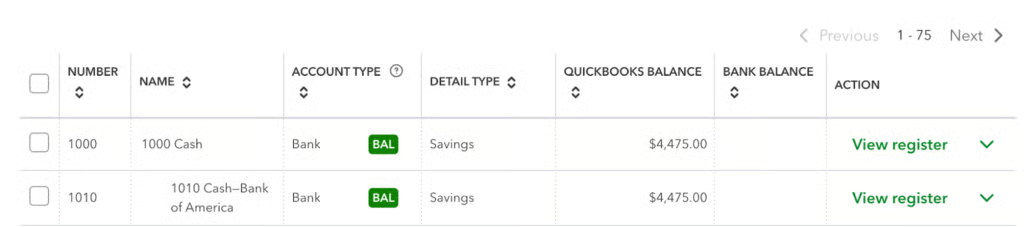
From the chart of accounts, locate the account that has the reconciled transaction. Based on the sample scenario above, let’s find the Bank of America checking account and then click View register under the ACTION column. This will open the bank register, displaying all the transactions recorded for that account.
Step 3: Locate the transaction you wish to unreconcile.
Next, locate the transaction in question in the bank register.
For instance, I realized that there was actually no June service charge of $25 in my account. In addition, my utilities expense was actually $1,525, not $1,500. Before any changes are made, I’ll need to make a note of the reconciliation status of each transaction.
Under the reconciliation status (✓) column, you may see the following notations:
- “C”: Cleared transactions mean they have been matched to corresponding entries on your bank statement but are not reconciled yet.
- “R”: Transactions are reconciled.
- Unmarked: Transactions aren’t cleared or reconciled.
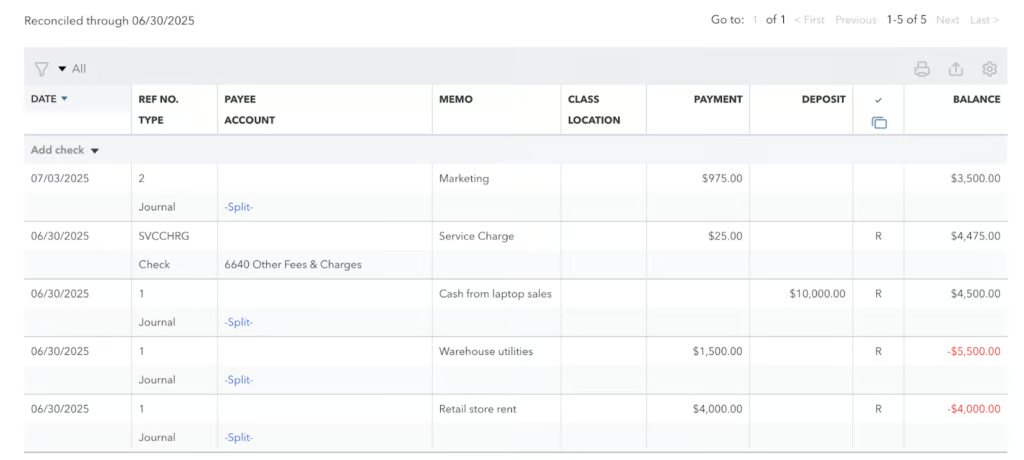
By comparing the screenshot above with the notations previously referenced, you’ll see that all of the activity above, except for the $975 transaction, have been reconciled and marked with “R.” Also note that the July $975 marketing transaction has not been cleared or reconciled and thus has no letter notation.
Step 4: Fix the error.
To fix the error, let’s undo the $25 service charge and $1,500 utilities payment. To unmark a reconciled transaction, click anywhere on the entry, click R until it’s blank, and then click the green Save button, as shown below.

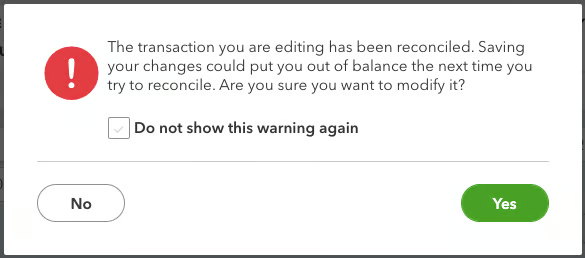
QuickBooks will then display a pop-up warning that the action might put your account off balance. Click the green Yes button to proceed with removing the transaction from the reconciliation.
Step 5: Confirm the action.
After fixing the errors, verify that the action was successful by checking the status of the transactions in question.
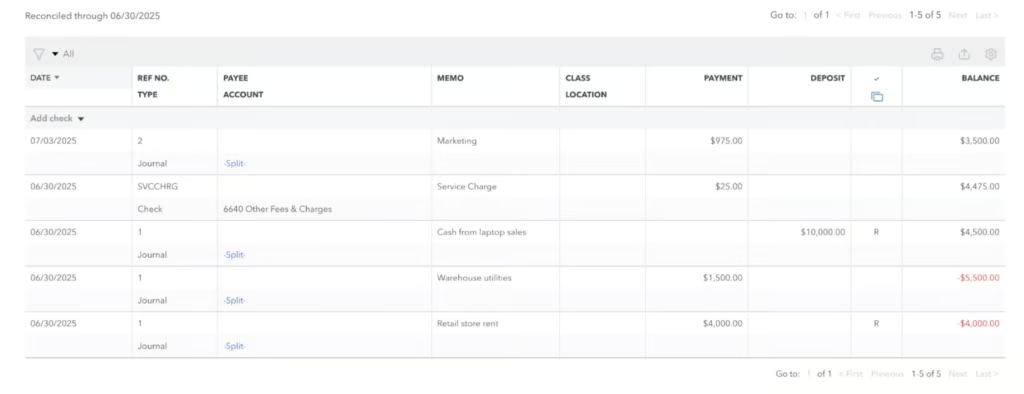
Another way to confirm the action is to click on the Reconcile button in the bank register. QuickBooks should allow you to reconcile the account, and there should be no error message related to your beginning balance. However, if you do have an error, it may be because a modified transaction is showing as not yet cleared, and that can be resolved by redoing the reconciliation for the period that was originally revoked.
When to undo reconciliation in QuickBooks Online
While it’s recommended to avoid unreconciling transactions unless necessary, there are situations where you might need to unmark a previously reconciled transaction in QuickBooks Online.
- Data entry errors: You’ve entered incorrect details in your transactions, such as entering the incorrect amount or selecting the wrong account. These errors should have prevented you from finalizing your reconciliation, unless you allowed QuickBooks to make an adjusting entry. If you allowed QuickBooks to make this entry, you can later correct it by unreconciling the adjusting entry and making the necessary corrections to the reconciled entries.
- Duplicate transactions: If a transaction was entered twice accidentally and both entries were reconciled, you should unmark one of them to avoid inaccuracies in your reconciliation. This error should have prevented you from finalizing your reconciliation, so there must be an offsetting error or QuickBooks made an adjusting entry you’ll need to unreconcile.
- Uncleared transactions: You reconciled a transaction accidentally that didn’t clear the bank during the statement period. As such, you need to unmark the transaction and include the correct one in the reconciliation.
How to avoid the need to undo reconciliation in QuickBooks Online
- Leverage bank feeds in QuickBooks. Bank feeds are among the reasons QuickBooks Online is our overall best small business accounting software. I recommend using this feature to import transactions automatically as it can help reduce manual data entry errors.
- Review transactions regularly. Review and categorize transactions in QuickBooks frequently to catch errors early on. Businesses with high-volume transactions may review transactions daily, while those managing few to moderate transactions may want to do it weekly or every two weeks.
- Reconcile your accounts regularly. For most businesses, I recommend reconciling your transactions monthly. However, for those managing a high volume of transactions, you may need to reconcile accounts more often, such as every two weeks or even weekly.
- Perform reconciliations carefully. Take your time when reconciling accounts. Carefully match each transaction in QuickBooks Online with the corresponding entry on your bank statement.
- Track all changes. See that you are aware of all changes made to accounts and transactions. This will help you better understand changes during the reconciliation process.
Common problems when undoing a reconciliation in QuickBooks Online
Even when following the correct steps, you can run into unexpected issues while editing reconciled transactions. Here are some common problems and how to solve them:
1. Changes don’t reflect in the Reconcile window
- Issue: After unreconciling or reconciling a transaction, the change doesn’t appear in the Reconcile window.
- Solution: Refresh the register and reconcile page. If that doesn’t work, log out and then log back in. There may be delays due to syncing or cache issues.
2. Beginning balance warning still appears
- Issue: After fixing your reconciliation, you still receive a beginning balance error.
- Solution: Check for any opening balance adjustments. If an adjusting entry was automatically made during the original reconciliation, you’ll need to find and edit or delete that entry manually to restore your true beginning balance.
3. Account balance is off after undoing
- Issue: After removing or adjusting reconciled transactions, your bank balance no longer matches your bank statement.
- Solution: Re-run your bank reconciliation report and then compare it to your bank statement. Look for missing transactions, duplicates, or incorrect dates. You may need to redo the reconciliation for the affected period.
Frequently asked questions (FAQs)
Can you track who unreconciled a transaction in QuickBooks Online?
Yes. QuickBooks Online keeps a log of user activity, including when someone edits or unreconciles a transaction, but only if audit logging is enabled in the Audit Log.
What happens if you undo a transaction that's already been matched with a downloaded bank feed item?
If a transaction was previously matched to a bank feed and is unreconciled, the matching status remains cleared but not reconciled. You will need to verify whether the transaction still matches the bank feed entry. If not, you may need to unmatch and rematch it to ensure reconciliation accuracy.
Can unreconciling a transaction affect previous tax filings in QuickBooks?
Yes, unreconciling a transaction can affect tax reporting, especially if the transaction was used in sales tax calculations or payroll tax reporting. QuickBooks does not automatically adjust historical filings. You’ll need to amend filings manually or consult a tax advisor if a tax-related transaction is changed after reconciliation.
Can rules or bank feed automations cause reconciled transactions to be overwritten or duplicated?
Yes. If you use bank rules or auto-categorization, a transaction might be re-entered or modified after reconciliation. That can result in duplicated or altered entries appearing in future reconciliation windows.
Wrap up
You’ve just learned how to undo a bank reconciliation in QuickBooks Online by making corrections to the individual transactions that were reconciled. However, while it’s possible to unmark transactions included in the reconciliation and include the correct ones, I advise that you take proactive measures to ensure smooth reconciliation from the start.
To learn more about QuickBooks, check out our free QuickBooks Online tutorials.
