







If you’re new to ADP RUN payroll, you can get started quickly with the right preparation. Once your account is set up and your information is loaded into its platform, running payroll becomes a repeatable process that involves a few simple steps.
In this guide, I’ll walk you through how to use ADP for payroll so you can have more control over your process and avoid mistakes. I’ll also share tips on how to easily set up your ADP RUN account.
Other ADP payroll products you might see
Before we begin, I’d like to outline some of ADP’s payroll products to help clarify the different pay processing functionalities each offers. ADP has an extensive product list, but I’ll only cover ADP RUN, Roll by ADP, and ADP Workforce Now here.
I won’t go into detail on how you can process payroll using Roll by ADP and ADP Workforce Now. Instead, I’ll provide tips on choosing the right product, as some may be a better fit in certain situations.
- ADP RUN: Ideal for small businesses, typically those with under 50 employees, that want a full-service payroll solution without the complexity of large enterprise systems. It also has built-in compliance support and a scalable platform for those with plans to grow.
- Roll by ADP: This chat-based, mobile-only app is optimal for very small companies or business owners who want quick payroll runs. It costs less than ADP RUN but does not include extensive HR tools.
- ADP Workforce Now: Best for businesses with 50 or more employees and complex HR needs. It’s more customizable than ADP RUN and comes with a higher cost and more involved setup, but offers advanced reporting, workforce management, benefits administration, and recruiting features.
ADP payroll product comparison
For a quick peek at the pay functionalities that ADP RUN, Roll by ADP, and ADP Workforce Now provide, check out the table below.
| ADP RUN | Roll by ADP | ADP Workforce Now | |
|---|---|---|---|
| Best for | Small businesses with under 50 employees | Companies with very small teams | Businesses with 50 or more employees |
| Platform type | Web and mobile dashboard | Mobile app only (chat-based) | Web and mobile dashboard |
| Payroll automation | ✓ | ✓ | Highly configurable |
| HR features | Basic | Employee database for pay runs | Full HR suite |
| Time tracking tool | ADP + third-party integrations | Via manual data input | ADP + third-party integrations |
| Monthly Pricing | Call for quote | $39 base fee + $5 per employee | Call for quote |
| Learn more | Read our ADP RUN review | Read our Roll by ADP review |
Most of the top payroll services offer an intuitive platform that makes setup and running payroll easy. The same goes for ADP RUN. In this ADP payroll tutorial, I’ve enumerated seven steps to help you create your account, add employees and contractors, and process payroll.
Step 1: Set up an ADP RUN account
When it comes to setting up an account, ADP RUN shines compared to other payroll services because it does the setup for you. If you are wondering how ADP payroll works from day one, it starts with requesting a quote based on your needs, followed by a structured client onboarding process.
1.1 Speak with an ADP representative
You can directly call ADP’s sales team or submit a quote request via its website. An ADP representative will send you an email to schedule a call to discuss your payroll requirements and help you select the best plan, plus any add-ons like time tracking. The representative will also ask which accounting software you use so ADP can configure integrations from the start.
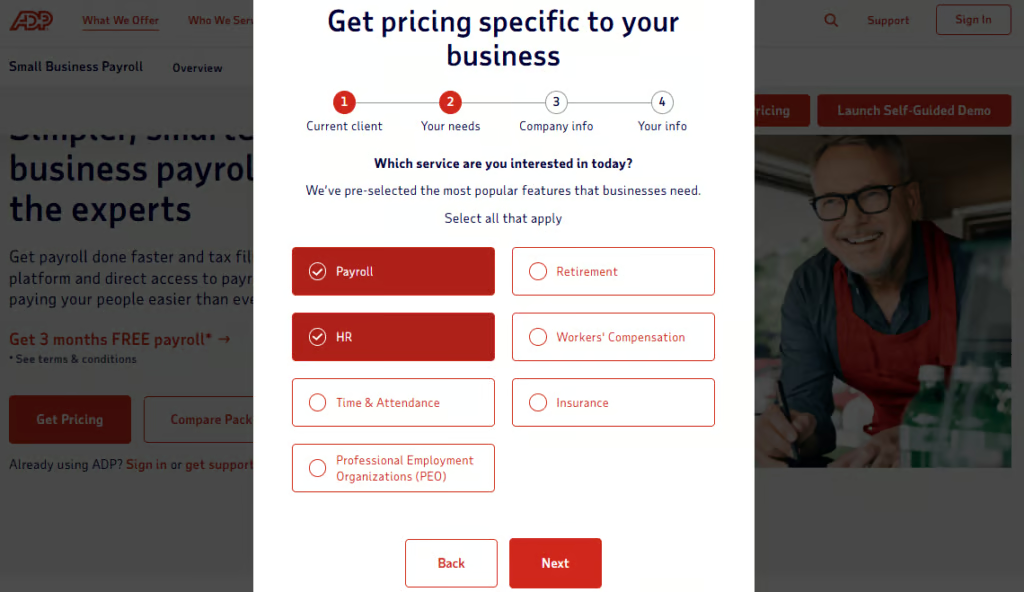
1.2 Provide employee and business details
Once you’ve signed the contract, your ADP rep will send you a list of the information they need for each employee. It’s as easy as completing the spreadsheet they send you, or you can send copies of employee W-4s and I-9s (but these are not required).
ADP will also need your bank information (such as your routing and account numbers) for setting up direct deposit. It will handle the rest, including configuring pay rates, payroll periods and schedules, taxes, and deductions.
When you first sign up, ADP will add all your employees for you. But what happens when you have future hires or contractors? It’s simple — follow these steps:
Adding Employees
1. Hover over “Employees” in the top menu, and click on “Add Employee.”
2. Fill in the basic information, including their Social Security number, and ADP will send them an email inviting them to onboard and enter their payroll and tax information.
ADP also sends new hire reports to the state, taking another task off your plate. Once it gets the information, it will add the employee to your payroll list.
Adding Contractors
1. When adding contractors, choose “Add Contractor” from the menu.
2. Fill in the information as directed. Note that ADP does not onboard contractors, so you’ll be adding all of the information, including account details and deductions.
1.3 Complete prior payroll amounts
If you already paid employees for the current calendar year, ADP will prompt you to provide year-to-date wages, taxes, and deductions. This step ensures pay computations, tax limits, and year-end forms, such as W-2s and 1099s, are accurate.
You can get the details needed from your previous payroll provider. If you calculate payroll yourself, gather your payroll registers for the current calendar year to find the required information.
Once setup is done, you’re ready to run ADP payroll and pay employees. Don’t forget to take note of ADP’s timelines for processing direct deposits or preparing checks if you opted for paper check payouts. Pay runs must be completed prior to these timelines.
Step 2: Sign in & click “Run Payroll”
After signing in, select Payroll in the left menu of your dashboard and click the “Run Payroll” button. For easier navigation, you can also click the “Run Payroll” button on ADP Run’s home page.
💡 2025 Update: ADP has introduced Lyric HCM with the ADP Assist copilot, designed to help HR teams work more efficiently. In addition, the RUN & Done feature can now automatically process recurring payroll when there are no changes—reducing the need for manual runs. If your business is impacted by tax updates under the One Big Beautiful Bill Act (effective July 4, 2025), be sure to review your ADP tax settings before approving your next cycle.
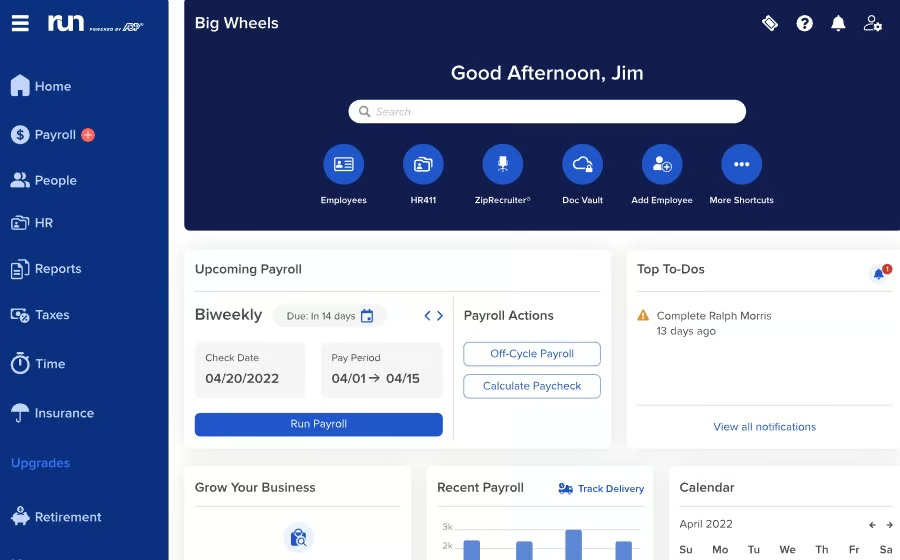
Both options will lead you to the payroll page, where you can see the frequency and pay period you are running payroll for. It also contains a list of employees and their corresponding salary details, such as the base rate and bonus amount, including attendance-related information like hours for regular work, overtime, sick leave, and other time off types.
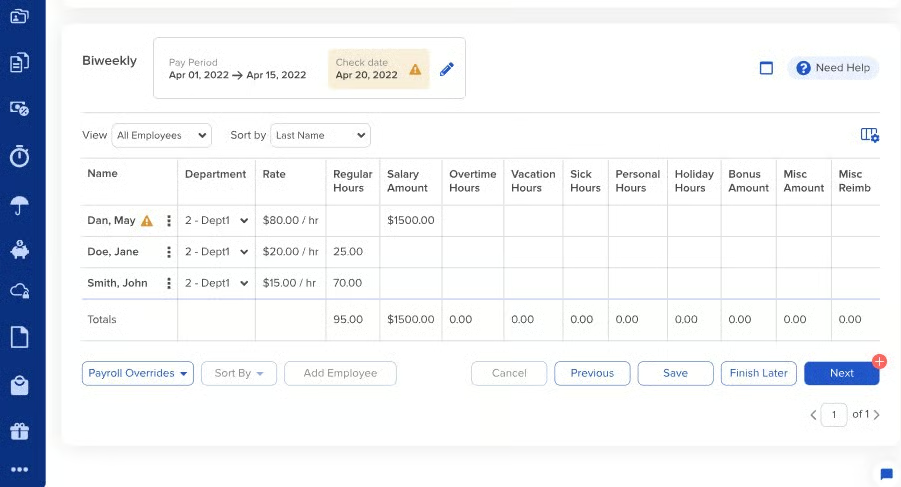
The system prepopulates some of the payroll data fields based on the salary details in your employee database. It even computes the applicable salary amounts, and allows you to manually input time and pay data like adjustments to overtime hours and adding bonus payments to specific employees.
Step 3: Import & review hours
Your employees’ actual hours worked and overtime, including PTO hours for the pay period, will automatically appear in ADP RUN — provided you use ADP’s timekeeping solution, which costs extra. However, if you use a third-party time tracker, you can import the time data manually.
You can also ask ADP if a custom sync between its system and your timekeeping tool is possible. Note that you might be charged additional fees for this.
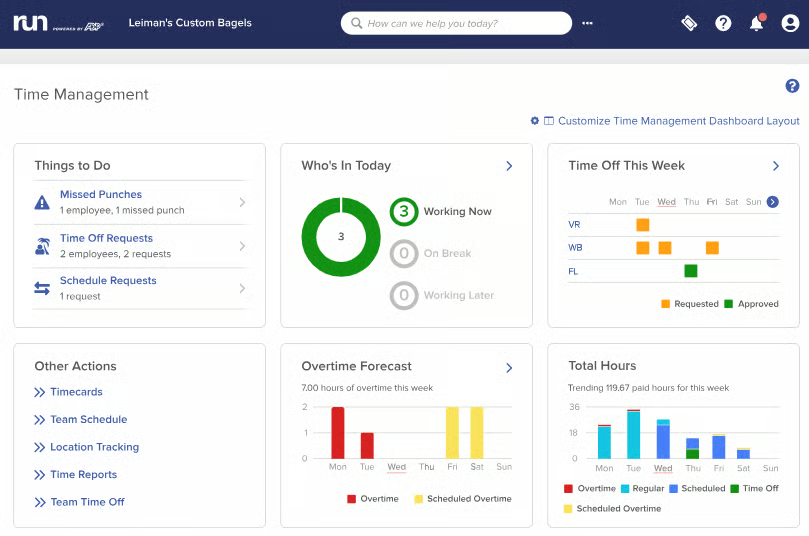
Review the attendance data and if you spot errors, double-click on the applicable item (e.g., regular, overtime, or PTO hours of the affected employee) to manually input the information. But if you’re using ADP’s time tracking add-on, I suggest checking its “Time Management” page before every pay run to see if there are missing time punches and time-related requests that need approval.
To navigate to that module, choose the “Time” option located on the left-hand menu and click “Manage my team.” Then, look for the “Things to Do” widget and select the applicable task (e.g., missed punches) to correct the issue.
Step 4: Resolve payroll issues
After reviewing the time-related details and pay amounts, click the “Next” button at the bottom right of the screen to proceed to the next step. ADP RUN uses artificial intelligence (AI) to scan payroll data in real time and highlight anything unusual, like missing deductions or bonus amounts that seem out of range.
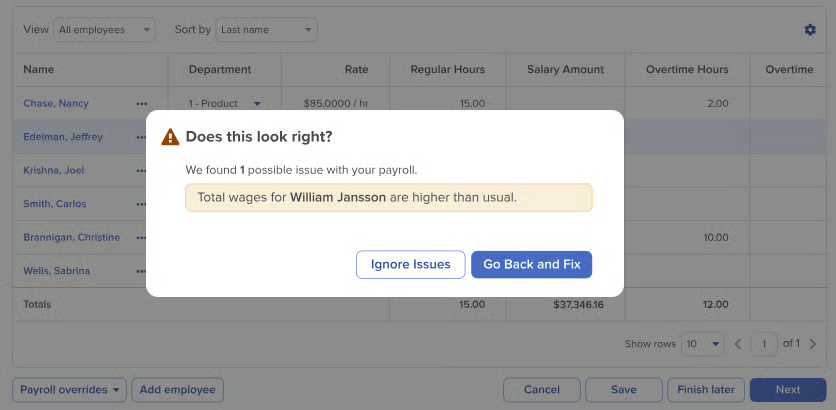
Select the “Go Back and Fix” button to resolve the issues. In case you need more information to fix it, click the “Finish later” button at the bottom right of the page. ADP RUN will save your progress, allowing you to gather the details you need and resume the pay run once you’re ready. After making the corrections, simply click the “Next” button.
Step 5: Pay contractors
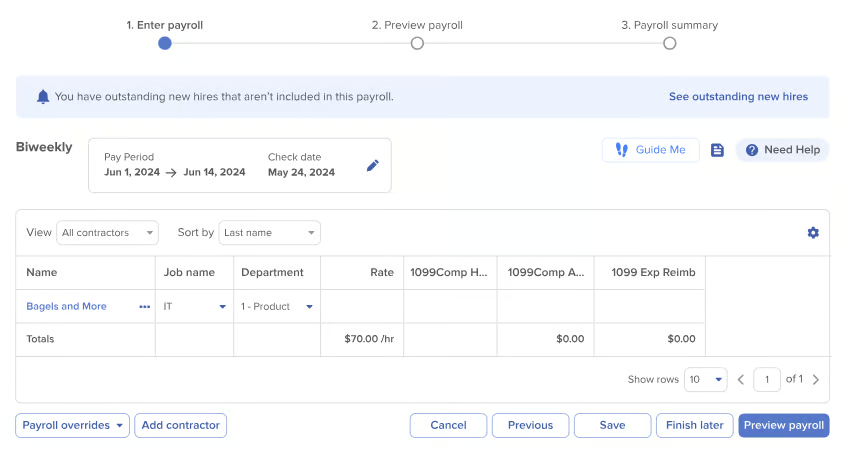
ADP RUN enables you to process contractor payments with your employee payroll, provided the workers’ details are already loaded into the system. In this step, the system will add active workers to the contractor payroll page. Review the pay entries, and if all the information is correct, click the “Preview payroll” button at the bottom right of the screen.
Step 6: Approve payroll
On the Preview Payroll page, you’ll see all of your payroll details listed. Take a minute to confirm that the pay period, check date, and total hours are correct. ADP handles the deductions and taxes, but it’s always a good idea to make sure they are included. If there are errors, click “Previous” to go back.
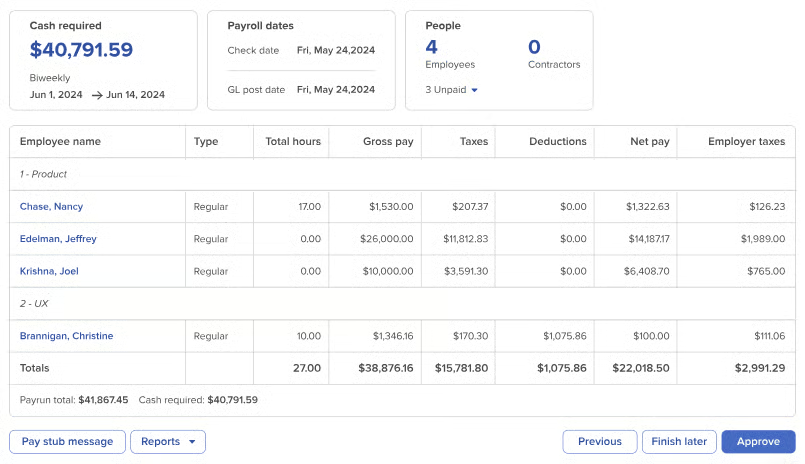
At this point, you can also enter a message on the check stubs by clicking the “Pay stub message” button at the lower-left corner of the screen. If you have to stop the process for whatever reason, such as attending a meeting, click the “Finish Later” button. The system will save all the changes you made, and you can resume the payroll review at a later time.
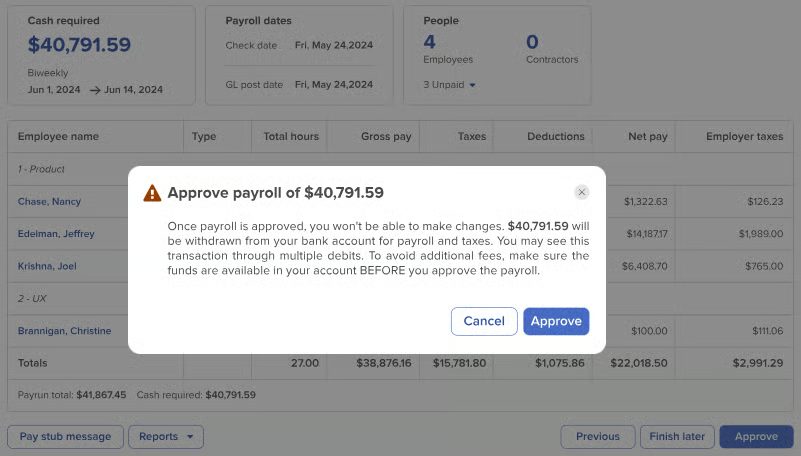
After you’re done with the payroll review, click the “Approve” button. A window will appear with the total cash required to fund payroll. Select “Cancel” if you have to make last-minute changes. If everything is in order and your payroll funds are ready, click “Approve.” Take note that once you give the final payroll approval, you cannot go back to it.
Step 7: Review the payroll confirmation
You’ve now run your payroll — review the final screen, and you’re good to go. ADP takes it from here, from filing federal, state, and local taxes to depositing employee wages to bank accounts or the Wisely paycard, and sending out checks ― or you can print them yourself if you did not get this service.
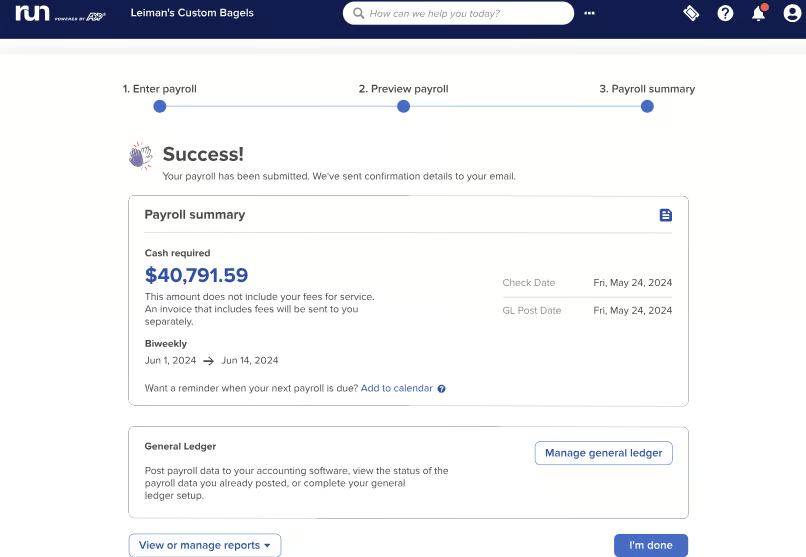
If you have your accounting system integrated with ADP RUN, click the “Manage general ledger” button to allow ADP to send the applicable payroll information to your system’s general ledger. This data import feature removes the need to manually transfer files.
The platform also has a “View or manage reports” option if you want access, print, or download ADP RUN reports, such as the payroll summary and earnings record. It has more than 40 reports for payroll and HR, and you can create custom ones if needed.
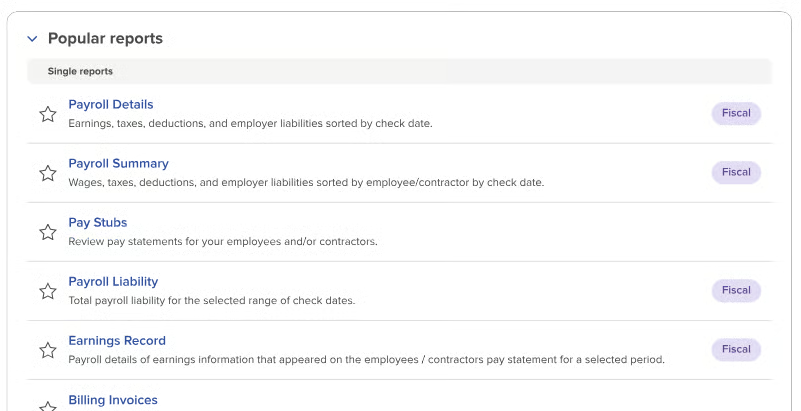
If you don’t need to import payroll details to an accounting system or access pay-related reports, you can select “Done” to end the pay run. The system will close the payroll page and bring you back to the home page.
Also read: For more help understanding the payroll process, take a look at our payroll training guide for tips on getting the best training for you.
Frequently asked questions (FAQs)
Is ADP RUN easy to set up and use?
ADP is relatively simple to set up, learn, and use. Aside from how-to articles, it offers 24/7 live customer support if you need help navigating through its features. New clients even get onboarding and setup assistance.
How much does ADP RUN cost?
ADP doesn’t publish its pricing on its website, but you can easily request a quote online or by calling its sales team.
How long does ADP RUN payroll take?
While ADP Runs calculates payroll in a matter of minutes, the time it takes to complete the entire process, including the payroll review, depends on the number of employees you have, the time data corrections are needed, and the manual data inputs for contractor payments (if any).
Bottom line
Whether you’re searching for an ADP payroll tutorial, trying to understand how ADP payroll works, or simply learning how to use ADP for payroll, this guide walks you through the process from setup to approval.
If you haven’t signed up for ADP RUN, call the provider to request a quote.
