


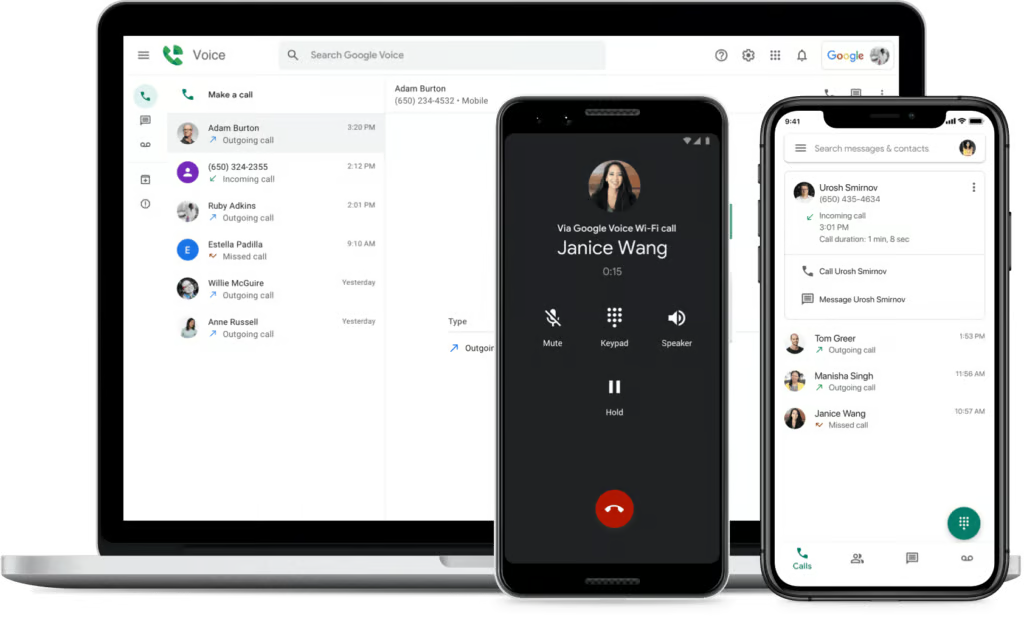
Using Google Voice for business is quick and easy as long as you have a stable internet connection and a Google account. It works seamlessly across iOS and Android devices, a web browser, or even a desk phone. Core functionalities include unlimited domestic calls, text messaging, voicemail transcription, and an auto-attendant. In this walkthrough, we explain how to use Google Voice and make the most of its features.
1. Getting started on Google Voice
To start using Google Voice, you need to sign up for a Google account. After logging in, open voice.google.com in your web browser. You’ll be prompted to choose between using Google Voice for personal or business purposes. Below, we provided separate steps to set up Google Voice for both options:
Step 1: Select the For personal use button and choose your preferred device from iOS, Android, or the web. If you want to use your mobile device, we suggest you install the Google Voice app. For this walkthrough, we’ll go with the web option.
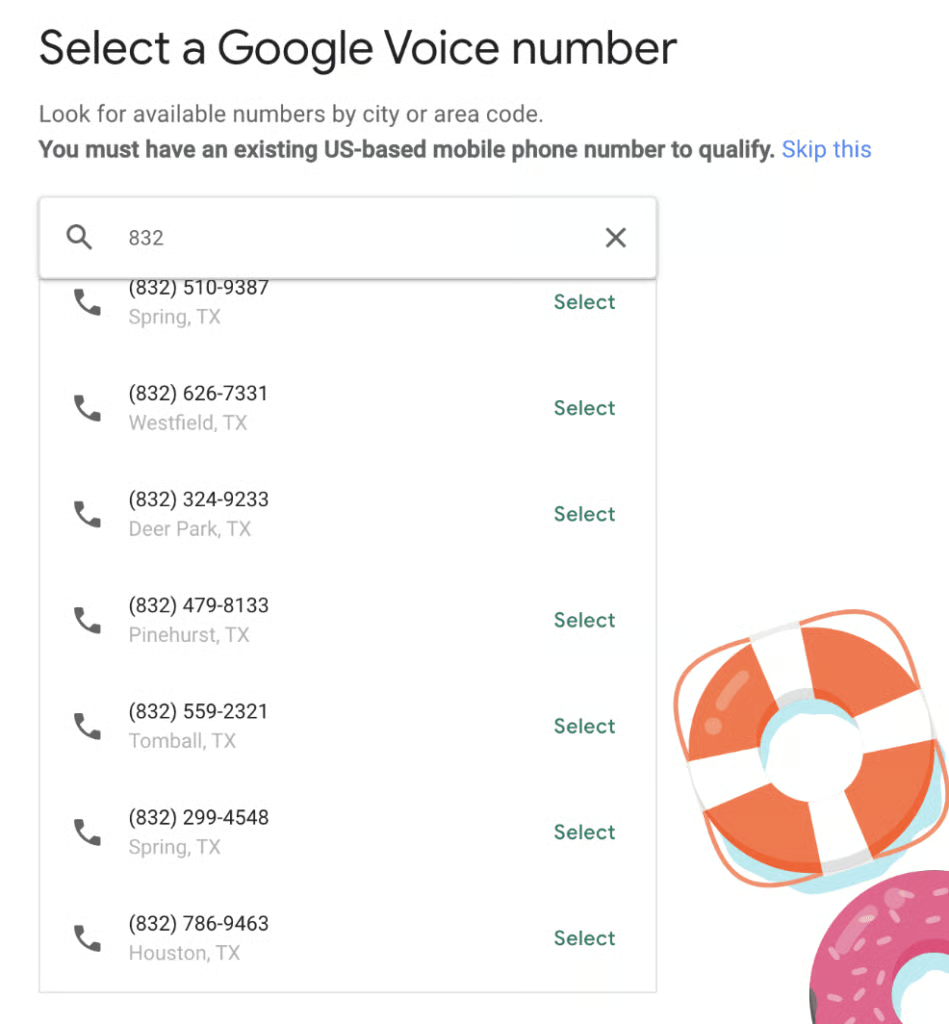
Step 2: Enter your city or area code to see which numbers are available, then select the phone number you want to use.
Step 3: Click the Verify button to enter your US-based phone number, then select Send code. Next, enter the six-digit code sent to your phone via SMS.
Step 4: Tap the Finish button to complete the setup. From here, you will be directed to the Google Voice main dashboard.
Google Voice’s personal version is widely popular specifically among Google account users, but how does Google Voice work for business? Access to the business version of Google Voice requires a paid Google Workspace plan. Follow these steps to get started:
Step 1: Select the For business button to access the product page.
Step 2: Click the Get Started button on the next screen to see the subscription options. Select a plan from the three pricing tiers: Starter, Standard, and Premier.
Step 3: Register your Google Workspace account to start your Google Voice business plan. If you don’t have one, select the Sign up link from the pop-up. For those whose Google Workspace account is managed by an administrator, request access to Google Voice.
Step 4: After verifying your Google Workspace account, you will reach the information page explaining your selected plan. Make sure to read everything before clicking the Get Started button.
Step 5: Review your payment plan, then click Checkout. In the next window, provide your business address and credit card information. Double-check the accuracy of your entry before submitting your payment.
Step 6: Click the Get Started button to start configuring your Google Voice business account. You can now set your business location, add more users, and order phone numbers.
Google Voice only allows calls between US or Canada-based Google Voice phone numbers. It is also available in selected countries within Europe, including France, Germany, Italy, Spain, the U.K., Belgium, Denmark, Ireland, Portugal, Netherlands, Sweden, and Switzerland. However, Google doesn’t allow countries outside the US to make calls over Google Voice.
Making calls
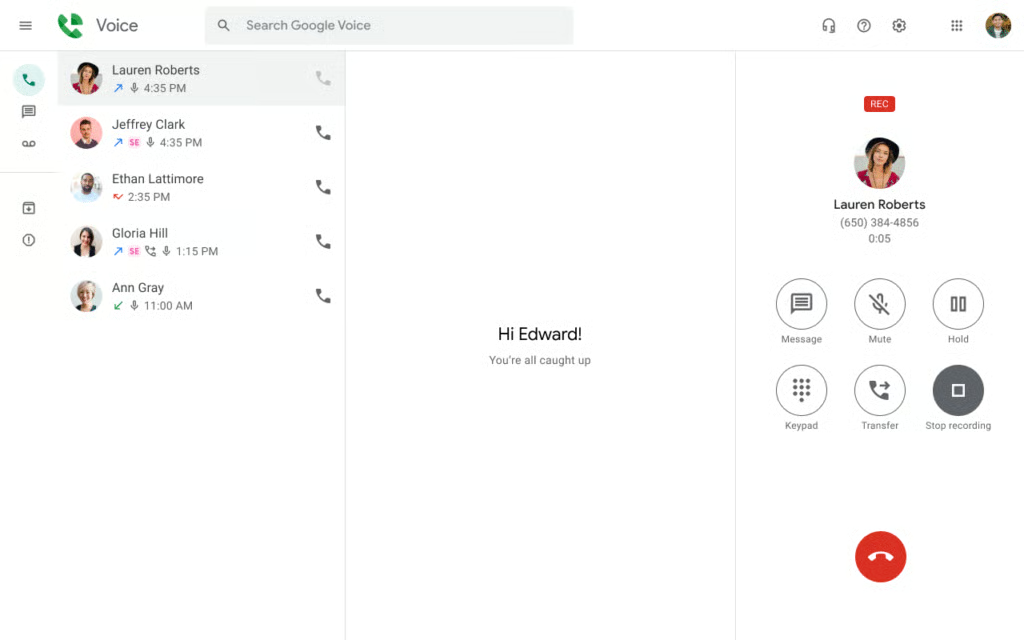
Make calls to domestic and international locations using your Google Voice number. Here are two ways to initiate a Google Voice call from your desktop or mobile device:
Step 1: Go to voice.google.com and select Calls .
Step 2: In the top search bar, enter the name of the saved contact you want to call. If the number isn’t a saved contact, tap the dial pad and enter the number.
Step 3: Select Call to initiate a phone call.
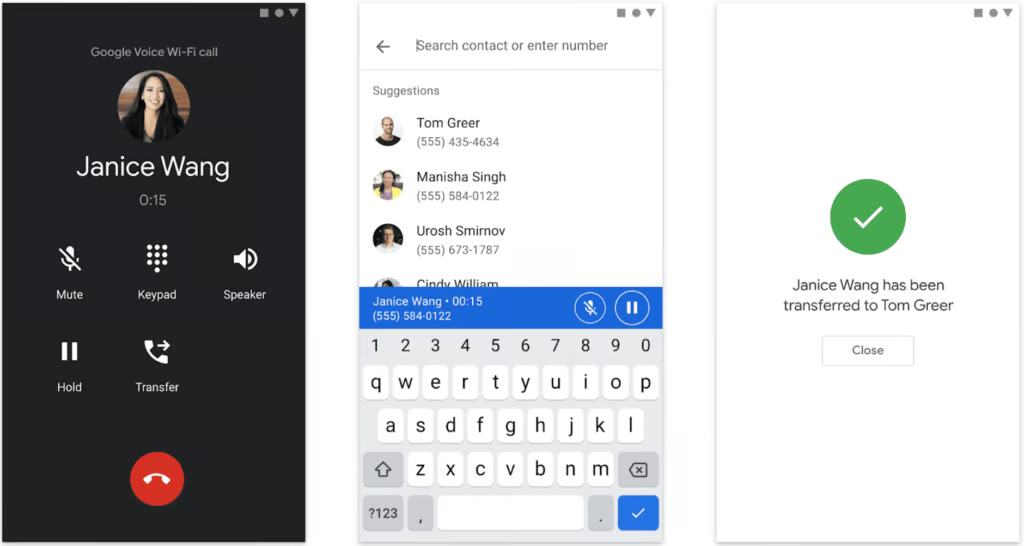
Step 1: Open the Google Voice app and tap Calls at the bottom left side of the screen.
Step 2: There are two ways to choose who to call:
- To enter a number, tap the dial pad .
- To call a saved contact, tap Contacts or enter the name on the top search bar.
Step 3: Tap Call.
To configure call handling features, go to Settings within the Google Voice app. Here, you can configure your preferences for call forwarding, call screening, missed call notifications, and incoming call options. You can also set up your Wi-Fi or mobile data to make and receive calls.
Sending text messages
Google Voice restricts text messaging to up to seven phone numbers due to carrier limitations and spam protection. You can use it to provide customer support, but it is not intended for bulk messaging. Follow the steps below to start sending SMS:
Checking voicemail
Using Google Voice for business enables teams to route calls to a voicemail inbox, ensuring more efficient communication. The steps for checking your voicemail are nearly identical on desktop and mobile devices. To check your voicemail, follow these steps:
Setting up the auto-attendant
Top virtual phone systems like Google Voice let you set up a multi-level auto-attendant for effective routing of incoming calls. This gives callers a menu that can respond to their queries when no one is available to answer. Here’s how to create an auto-attendant on Google Voice:
Creating ring groups
Google Voice lets you create ring groups or a shared mainline phone number where team members can answer calls from a single Google Voice number. An incoming call will ring all members of the ring group until someone picks up. Or, you could ring members sequentially in random order. Note that members added to a group must have a number assigned or a Voice license.
Viewing usage reports
Google Workspace administrators can access the audit and investigation page to monitor user activities in Google Voice. For example, you can view the details of calls and texts, including the cost, duration, and exact call times.
Best practices for using Google Voice
While Google Voice is incredibly easy to implement and use, there are a few strategies you can try to optimize Google Voice as a business phone system. Check out some of the best practices below:
- Create a detailed name for your auto-attendant: Be specific when creating a name and description for your auto-attendant. It will help you find a specific auto-attendant if you need to make changes later.
- Assign a Google Voice license to your team: Before using Google Voice for business, be sure to assign licenses to every team member.
- Use a country code: When calling abroad, enter the country code before the phone number. For example, for the United Kingdom, enter +44, followed by the phone number.
- Add a service address: Make sure to add a service address when assigned a Google Voice number. Remember, you can’t make calls without a service address.
- Use your carrier minutes: If your internet connection is unstable, Google Voice lets you use the minutes from your phone plan.
- Pin the Google Voice tab in your browser: If you’re using Google Voice on your desktop, pin voice.google.com in your Chrome browser to continue receiving calls even when working on other tabs.
- Link phone numbers: You can link up to six phone numbers to forward calls to if you don’t want to answer using Google Voice.
- Use custom call forwarding: Custom call forwarding lets you route calls from an individual or group of contacts to a specific phone number.
- Use Google Contacts: Manage your contact list at contacts.google.com. Make sure to update your rules for the new number if you change another user’s phone number.
Frequently asked questions (FAQs)
How does the Google Voice number work?
A Google Voice number works as a virtual phone number for calls, texts, and voicemails. You can also use it as a forwarding number if you want to direct incoming calls to another device.
How much does Google Voice cost?
Google Voice is free for anyone with an active Google account. Businesses with a Google Workspace subscription can purchase the Google Voice business add-on, which costs between $10 and $30 per user.
Can I use Google Voice without a phone number?
Yes, linking a phone number is optional once your Google Voice account is set up. However, incoming calls can only be answered through the Google Voice app.
Bottom Line
Using Google Voice for business is easy if you have a Google account and a US-based phone number. It is a great business phone solution for solopreneurs and small business owners with basic communication needs. It integrates seamlessly with Google Workspace apps and comes with a free phone number, a user-friendly interface, and a host of calling features.
