








Google ads can gain wide exposure for your business. But they can also lead traffic to a valuable page you want to promote, like your online store or a newsletter sign-up form. To learn how to add a landing page to Google Ads, open your ad campaign under the Campaigns tab in your Google Ads dashboard. Then, under Ads & Extensions, click the blue “+” button. Click on your ad, then paste your landing page link under the “Final URL” field.
Keep reading for more detailed steps on adding a landing page to your Google Ads:
Step 1: Create Your Google Ads Landing Page
The best way to create Google ads landing pages is to use a landing page builder like Wix or HubSpot. These platforms usually already have all the tools you need to build an effective landing page, and most have simple enough drag-and-drop platforms that even beginners can use.
When building your landing page, the three most important things to include are engaging copy, an effective call to action (CTA), and a good visual (for image ads). Find more about how to create good landing pages in our guide to building a landing page.

Here are some other Google Ads landing page best practices to keep in mind when building your landing page:
- Keep it simple and easy to understand
- Offer customers a solution to a specific problem
- Use visual and font hierarchy in your design to direct readers’ attention
- Give a preview of what you’re offering (e.g., a screenshot of a free e-book, an image of your product, etc.)
- Include keywords that match your Google ad
Find out more Google Ads landing page examples to take inspiration from.
Step 2: Start a New Ad Campaign
Once you’ve finalized your landing page, the next step is to add it to your Google Ad. Adding a landing page is part of the entire Google Ads setup process—it’s known as the “Final URL,” which we’ll walk through in more detail below.
First, inside your Google Ads dashboard, click on the Campaigns tab on the left-hand menu to start a new ad campaign. Or, if this is your first ad, Google will automatically prompt you to create a new campaign immediately after you’ve created your Google Ads account.
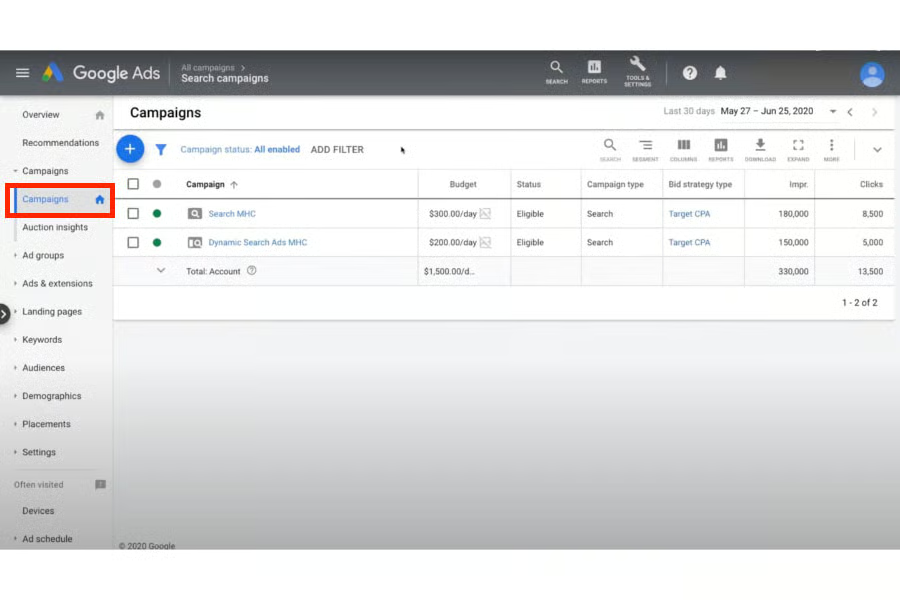
Click on the Campaigns tab on the left-hand menu to set up a new Google Ad campaign. (Source: Google) 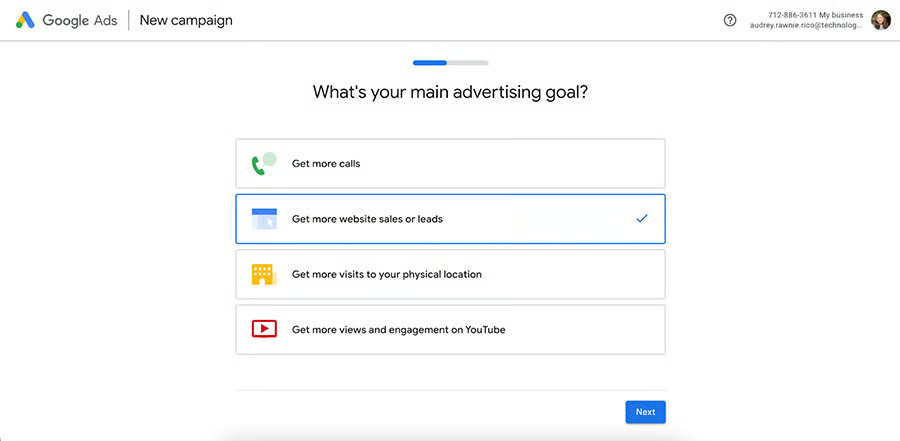
If this is your first Google Ad, Google will automatically direct you to this page after setting up your account.


Step 3: Set Up Your Google Ad
Before going into how to add a landing page to Google ads, you’ll first need to set up the rest of your ad, including your ad copy, keywords, target location, and budget. Here are the main steps for setting up your Google ad:
- Choose your ad objective: The first step to creating a Google ad is to define its objectives. Google gives four options: getting more calls, leads, in-store visits, or YouTube engagement.
- Fill in your ad copy and add keywords: After your ad’s objective, the next thing to add is its headlines and descriptions, aka the copy that’ll appear on your ad. You’ll also need to choose keywords you want your ad to appear for (keyword research tools can help here).
- Choose your ad’s target location: Then, choose the location your ad will target. You can target a specific address, e.g., if you have a physical store and only want to advertise to your local community. Or, you can also advertise to specific ZIP codes or cities.
- Set your ad budget: After choosing your target location, you’ll also need to set your ad budget. Similarly, choose from Google’s recommended daily budgets, or set your own. If you need help setting up your ad budget, read our guide to Google advertising costs.
- Review ad settings and confirm payment info: Finally, review all the details of your ad, then click “Next.” In the following screen, you’ll also need to add and confirm your payment details, after which Google will review your ad before it goes live.
Once Google has approved your ad, it’ll automatically go live. For a more detailed breakdown of the process, read our step-by-step guide on how to set up a Google Ad.
Step 4: Select Your Ad Campaign in Your Dashboard
Once your ad’s been set up and approved by Google, you’ll find it in your Google Ads dashboard when you sign in to your Google Ads account, along with its analytics like click rates, impressions, and cost. This step is where the process for how to change a landing page in Google ads will come in.
First, click on the Campaigns tab from the left-hand menu. This will display a list of all your Google Ad campaigns, both Search and Display. Then, inside the tab, click on the specific ad campaign where you want to add a landing page.
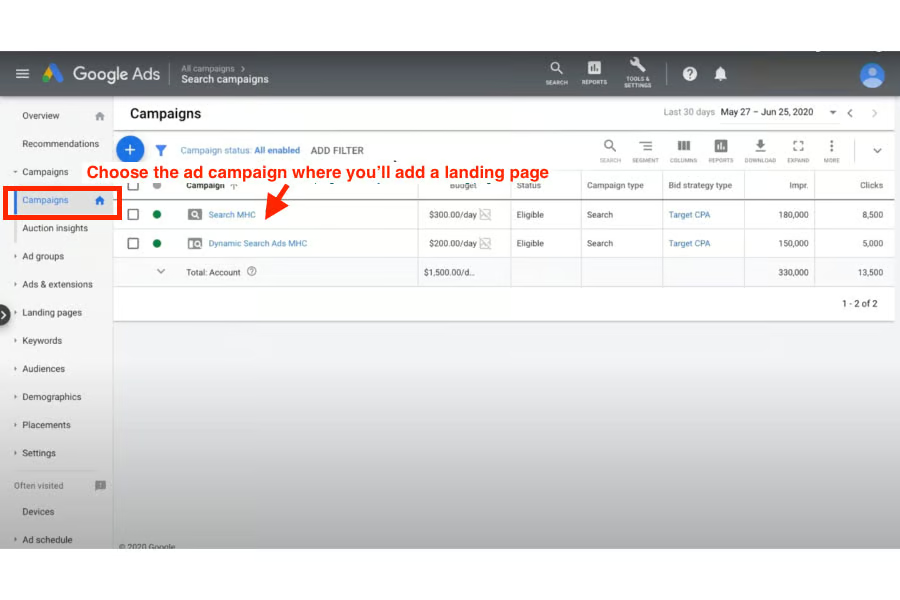
Open the Campaigns tab, then choose the ad campaign where you’ll add a landing page. (Source: Google) 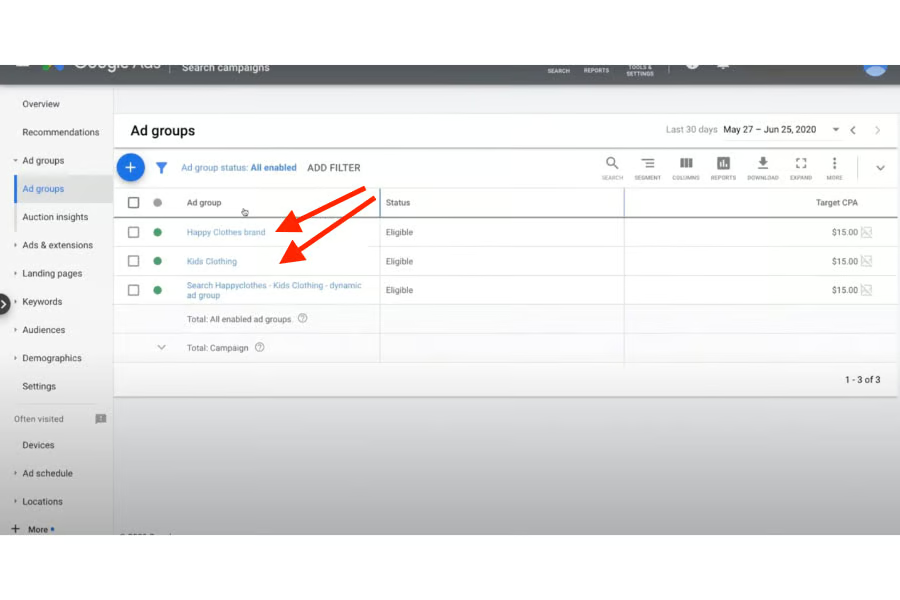
You’ll also see all your running ads under each campaign.


Step 5: Open Your Ad’s Settings
Once you’ve opened your ad campaign, click on the Ads & Extensions tab, which is also on the left-hand menu. This tab is where you’ll configure all your ad’s settings and details—including its landing page.
Inside the Ads & Extensions tab, click on the blue “+” button. In the following pop-up window, select your ad campaign and the specific ad group where you’ll add a landing page.
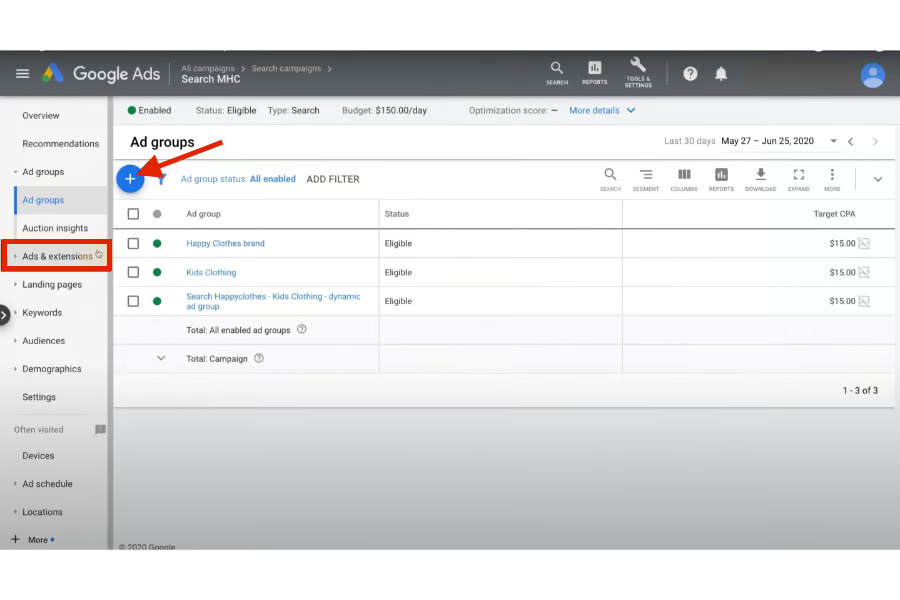
Open the Ads & Extensions tab from the left-hand menu. (Source: Google) 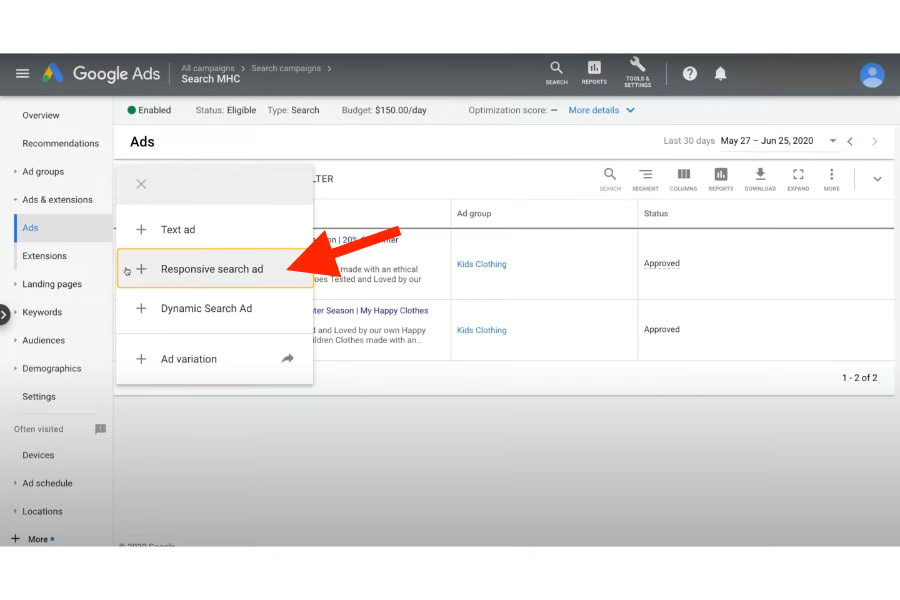
Select your ad campaign. (Source: Google) 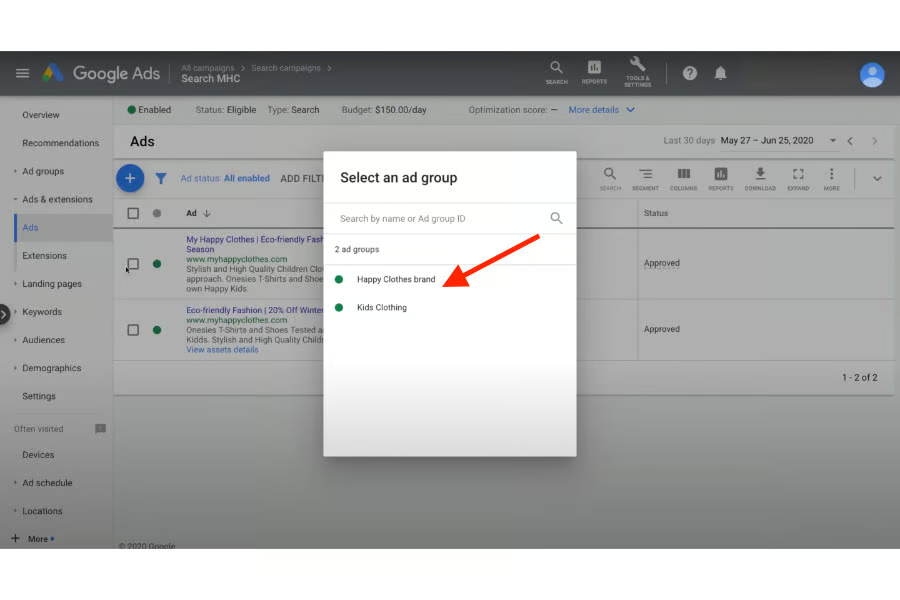
Then, click on the specific ad group where you’ll add a landing page. (Source: Google)


Step 6: Add Your Landing Page
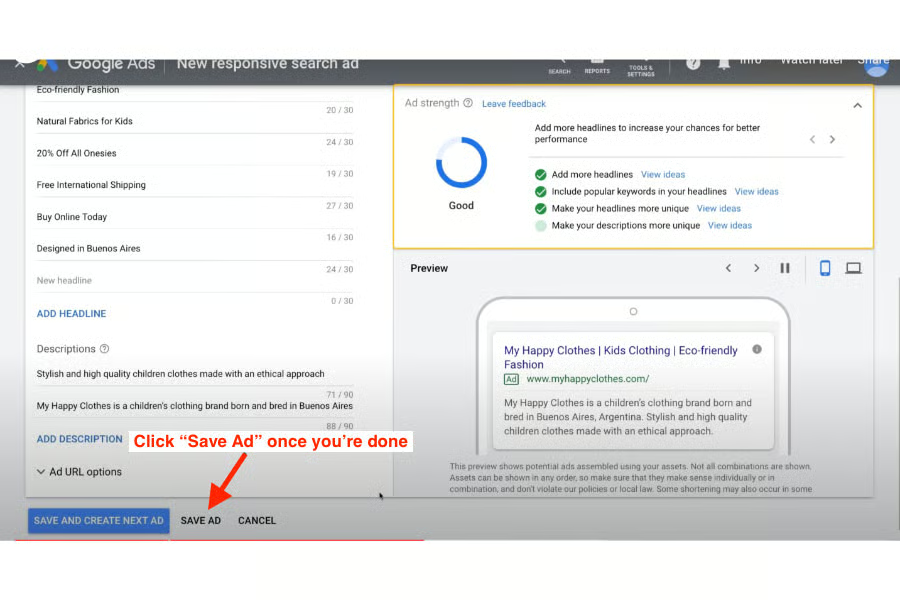
Once you’ve selected your ad, its settings window will automatically open, which is where you’ll be able to edit its specific settings, copies, and landing page, and which on Google is called its “Final URL.” Inside the window, paste the link to your Google Ads landing page in the “Final URL” field. You can also add a display URL, or the specific text you want your URL to display (so it doesn’t simply show up as “www.website.com”).
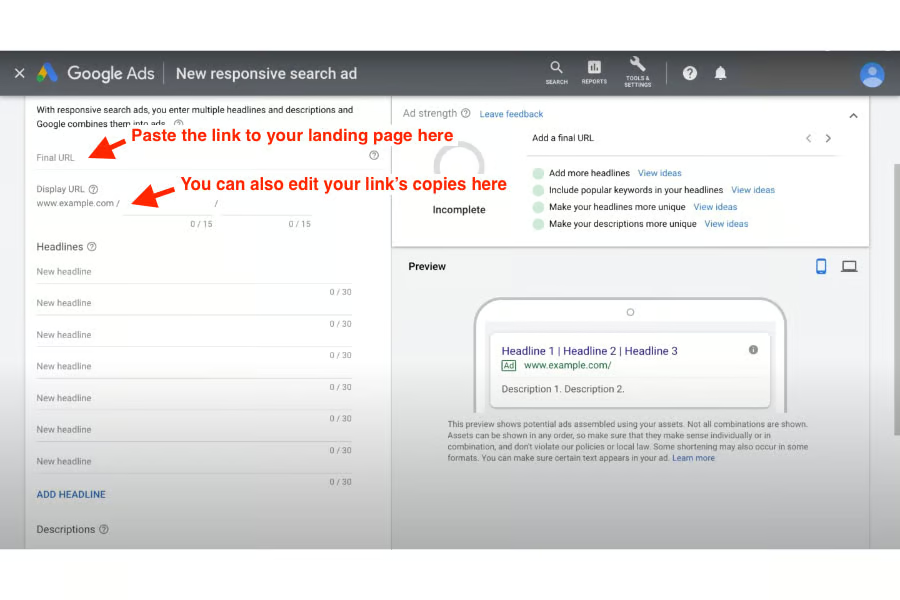
Inside this window, you can also edit your ad’s headlines and descriptions if you feel they need tweaking. Google also automatically picks the best headline and description combination that works for your ad.
Then, when you’re done, click on “Save Ad” at the bottom of the window. Your landing page will automatically be attached to your ad, and once it’s live, users who click on it will immediately be redirected to your landing page.
The steps above sum up the process for how to add a landing page to Google Ads. Adding a landing page can make your ad far more impactful, sending thousands in traffic, clicks, and leads to your business—ultimately increasing your brand presence.
Frequently Asked Questions
How do I create an effective landing page for Google Ads?
To create an effective landing page for your Google Ad, make sure it directly answers your target audience’s needs as addressed in your ad. For example, if your ad mentions plumbing problems, your landing page should offer plumbing solutions. In short, your landing page should offer a clear solution to your customers’ specific problems. It should also be concise and easy to understand, well-designed, and include keywords that match your ad copy.
Why do you need a landing page for Google Ads?
A dedicated Google Ads landing page increases your likelihood of converting customers. Any regular landing page can generate impressions and exposure for your business, but a custom landing page can help increase site traffic, generate leads, and even increase conversions more effectively. This is because landing pages offer many possibilities—you can use them to lead people to your online store, encourage newsletter sign-ups, scan a QR code, and so on.
Can you run a Google Ad without a landing page?
You can run Google Ads without a dedicated landing page, but you can’t run them without a Final URL, aka the final web page users will be directed to when they click on your ad. Google won’t let your ad go live if it doesn’t have a Final URL, whether it’s your website home page, Facebook profile, and so on. However, dedicated landing pages often perform better at generating leads and conversions.
Bottom Line
Learning how to add a landing page to Google Ads is simple enough. After creating your landing page, create a new Google Ad campaign, then open its settings under the Campaigns tab in your dashboard. Paste your landing page link under the “Final URL” field, and your landing page will immediately go live. It’s an easy enough process and can be well worth the investment for exponential increases in traffic, leads, or sales for your business.
