







LinkedIn is a top spot for job seekers and companies looking to hire new employees, with more than half a billion members (in more than 200 countries). Your first step to finding quality talent is learning how to post a job on LinkedIn. We will guide you through a quick step-by-step process to getting your jobs posted (for free). We’ve spelled out the steps below and in a short tutorial video.
- Step 1: Create a Company Page
- Step 2: Post a Job for Free
- Step 3: Create Your Job Details
- Step 4: Enter Applicant Options
- Step 5: Promote Your Posted Job
- Step 6: Process Payment
- Step 7: Improve Your Job Post
- Step 8: Manage Your Posted Jobs
- How to Post a Job on LinkedIn Frequently Asked Questions (FAQs)
- Bottom Line
Step 1: Create a Company Page
Before using LinkedIn to start hiring employees, you will have to create and set up a LinkedIn company page. To do so, you must first have a personal profile that includes your full name. You can set one up easily by clicking Join Now on the LinkedIn homepage and following the prompts. Once you have completed this, you can create a company page.
To set up your company page, follow these steps:
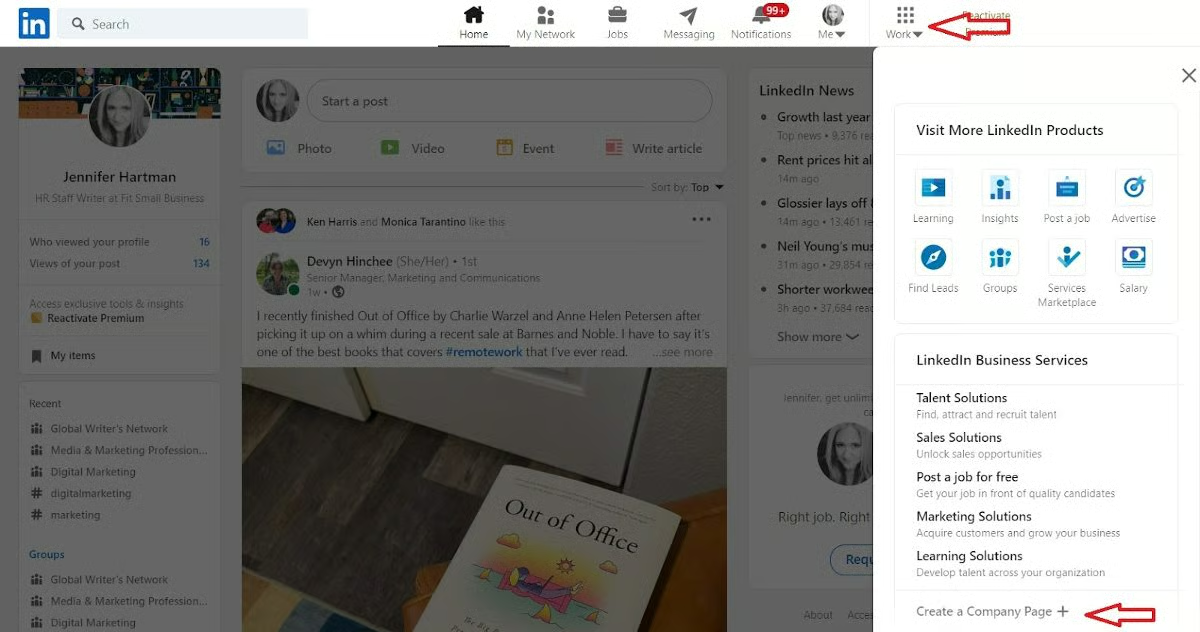
- Click the Work icon in the top right corner of your personal LinkedIn homepage. This will bring a drop-down menu where you can select Create a Company Page at the bottom of the list.
- Follow the guided prompts and select the type of page you wish to create:
- Company Page
- Showcase Page (for individual brands, initiatives, etc.)
- Educational Institution
- Once you choose the type of page you want (most likely a Company Page), you will be prompted to enter your company information. On this page, provide your company name, URL, and industry details; then, upload your business logo.
- After you have entered all company information, check the verification box at the bottom and click Create Page.
Step 2: Post a Job for Free
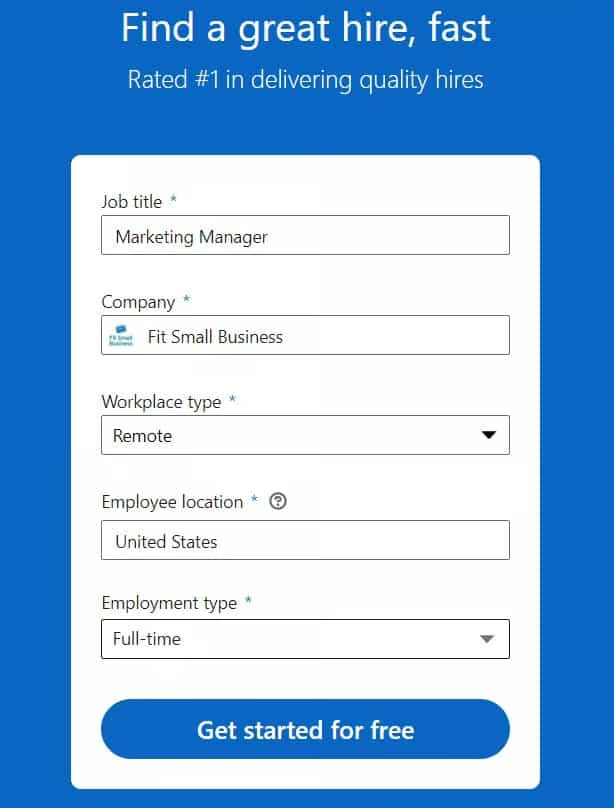
Posting a job on LinkedIn is free. From your personal LinkedIn profile’s dashboard, click the Work icon and then the Post a Job icon from the drop-down menu. This will bring you to a form to fill in your job information. Enter the job title, company name, workplace type (i.e., on-site, hybrid, or remote), employee location, and employment type. Once you fill in all the fields, click Get Started For Free.
Step 3: Create Your Job Details
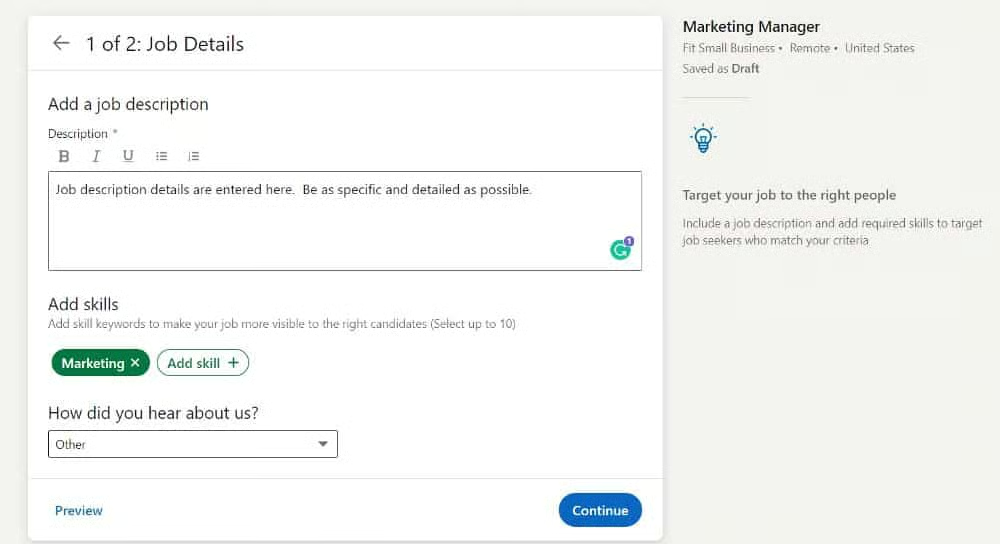
After entering your job information (e.g., title, company, and location), the next screen will prompt you to enter your job details, including the job description and any skills requirements. Once you have filled out this portion in detail, you can move to the next section by clicking Continue at the bottom of your screen. Enter the following information:
- Job description: Enter your job description (required) in the text box. Be as specific as possible and include job duties, skills, and education requirements.
- Skills: Specify the skills needed for the job by clicking the Add Skill icon.
Step 4: Enter Applicant Options
Once the job details are filled in, click Continue at the bottom right-hand corner of the page, and your applicant options page will appear. First, decide how you want to receive applications—either through email (recommended) or an external website (directs the candidate to apply outside of LinkedIn).
Choosing to receive applications by email will allow you to add screening questions, which can help weed out or identify the specific qualifiers you want candidates to confirm prior to submitting their resumes. LinkedIn will offer two recommended questions. You can choose to either keep those or click the X to remove them and then add your own or select from LinkedIn’s list of possible questions.
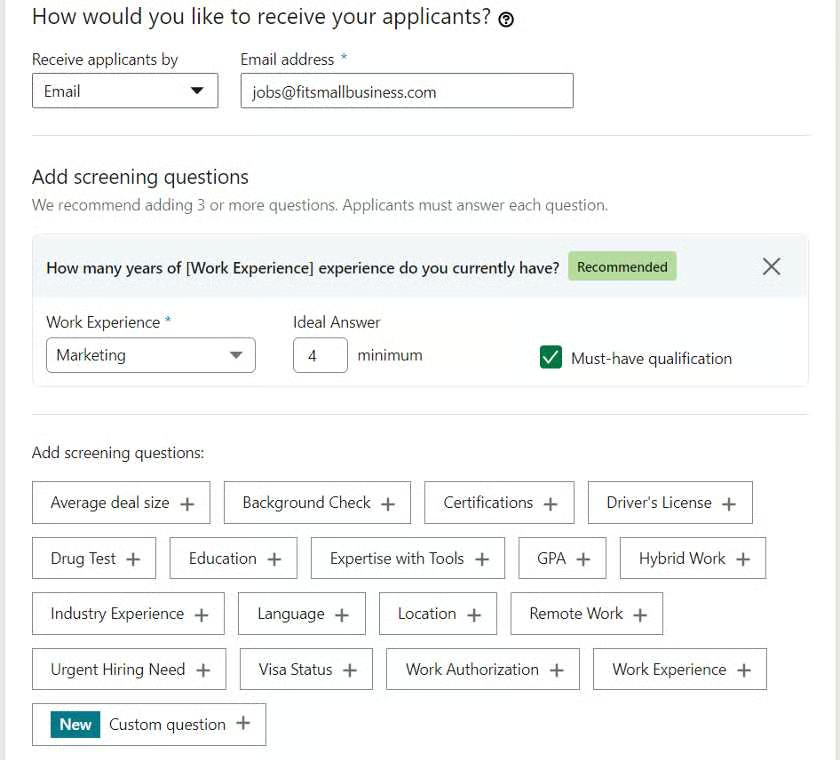
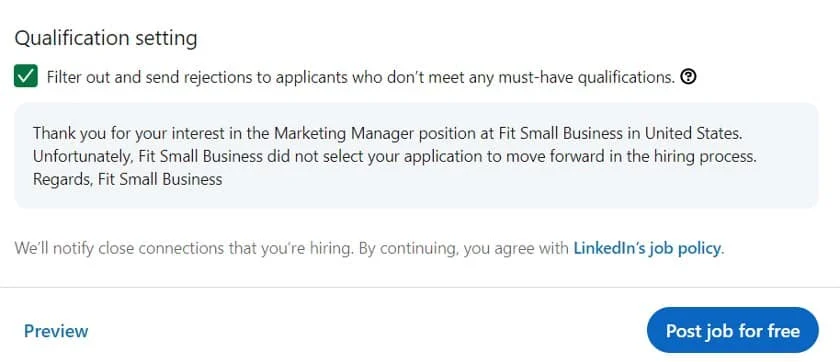
You can also make any screening question a must-have qualification. If you use this option, LinkedIn will automatically filter applicants out and send rejection emails to any who don’t meet those qualifications.
Step 5: Promote Your Posted Job
Following the completion of your job posting, you have the option to continue with a free post or set a budget for a promoted job post. Promoting your job post ensures a top position in search results, top placement in job recommendations, instant mobile alerts to qualified candidates, and a larger pool of estimated monthly applicants.
Your budget can be daily or total (the maximum amount you will spend). Your daily budget must be greater than $7 per day—LinkedIn will provide you with a recommended daily budget based on jobs with similar titles and locations so that you can get the most out of your job posting.
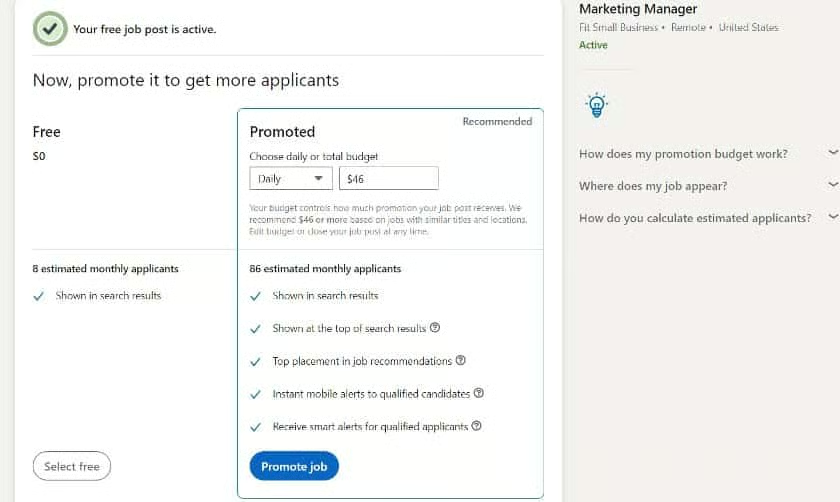
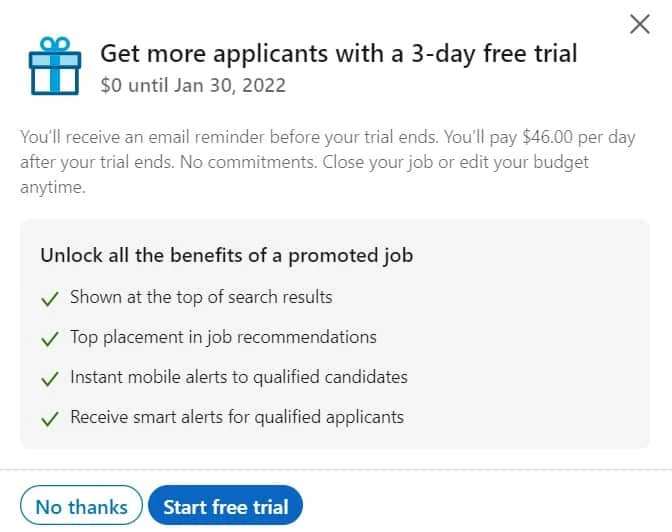
If you do not wish to promote your job, then simply click Select Free to post your free job listing. LinkedIn will then offer you a three-day free trial to promote your listing.
Step 6: Process Payment
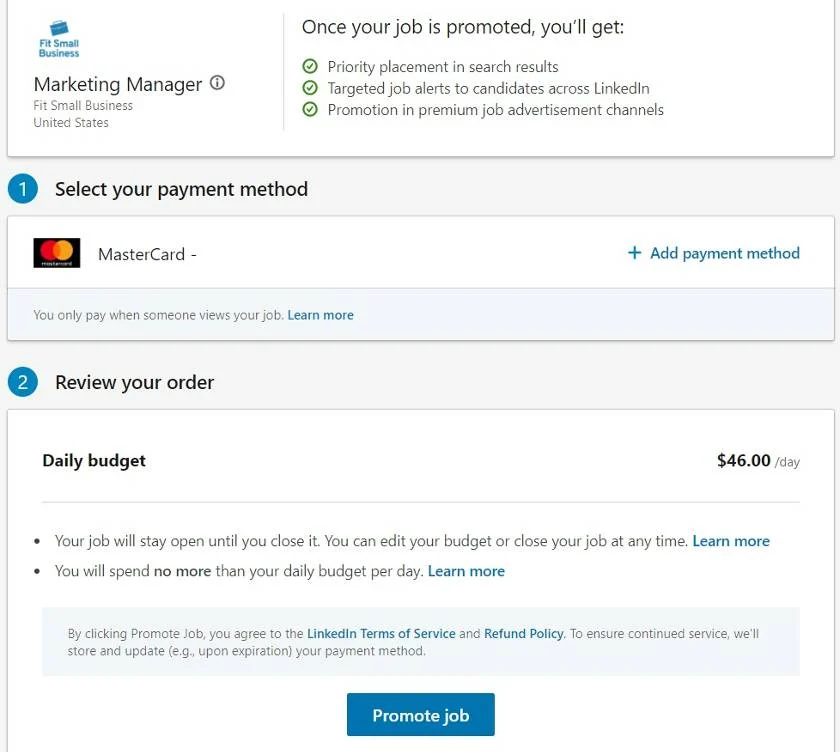
If you choose to promote your job listing, you will be prompted to submit payment. Once your job is promoted, you will receive priority placement in search results, targeted job alerts to candidates, and promotion in premium job advertisement channels.
To process your payment, simply use your default credit card on file or click Add Payment Method to submit a new card. You only pay when someone views your job, and you can change your budget and close your job at any time.
Step 7: Improve Your Job Post
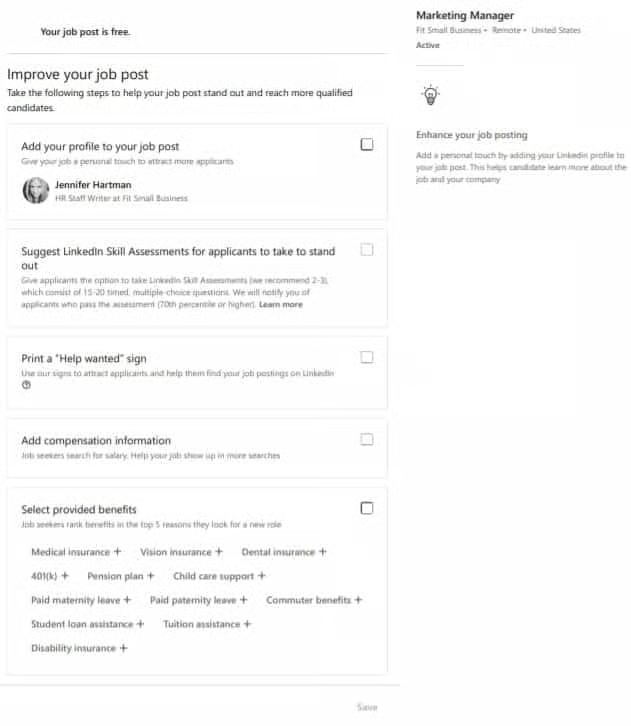
After you have completed the job details and applicant options and decided whether or not to promote your job, you can improve your job post to help your chances of finding qualified employees. This includes:
- Adding your job post to your personal profile
- Adding LinkedIn skills assessments (you will be notified when applicants pass the assessments with a 70% or higher)
- Printing a Help Wanted sign (uses a QR code that directs job seekers to your LinkedIn job postings)
- Adding compensation information (displayed at the top of your job posting; helps your job show up in more search results)
- Selecting benefits provided by your company to display on your ad
Use LinkedIn’s #Hiring Feature
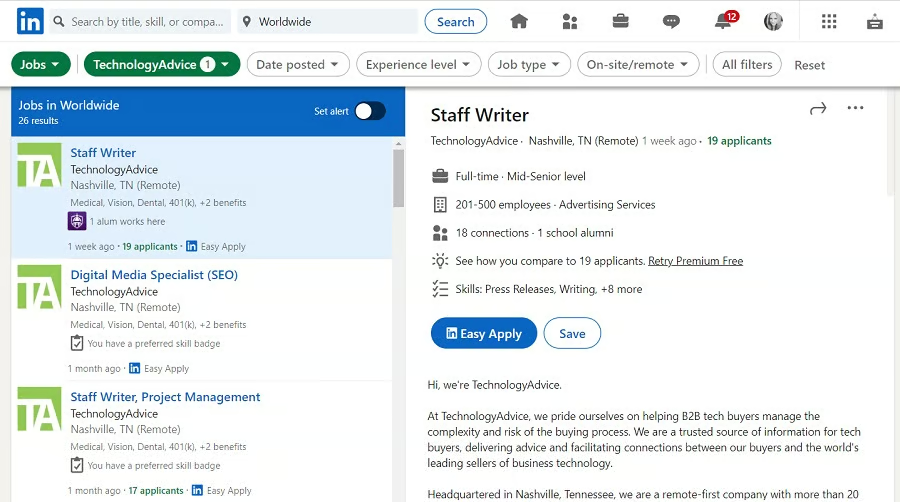
LinkedIn’s #Hiring feature can help spread the word that your company is hiring. Encourage your employees to share a job post from their profile page; this will add the #Hiring frame to your employee’s profile photo, feature that employee on the job post’s “Meet the Team” section, and notify the employee’s network of the open role.
To have your employees share the job post, simply have them:
- Click the Me icon at the top of their LinkedIn homepage
- Click View Profile
- Click Open to, which appears below their profile photo
- Select an existing job from the pop-up window that appears
- Click Add to profile
Step 8: Manage Your Posted Jobs
After you have posted your job, you can refer back to it for a number of needs—such as making adjustments to the job, updating a payment method, and reviewing applicants.
Make Edits
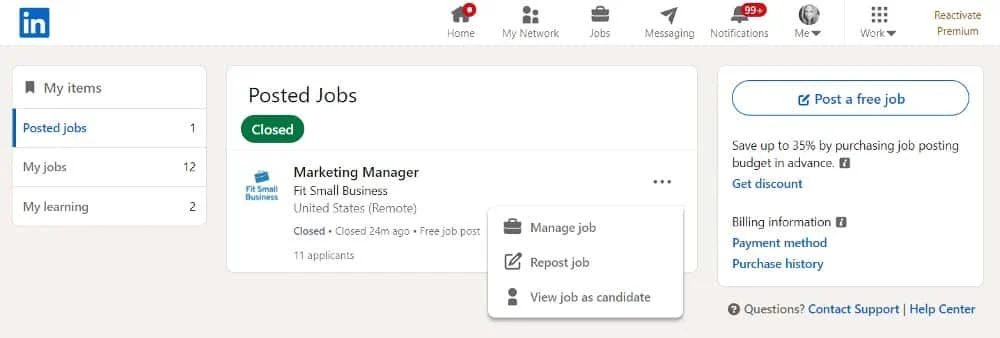
To make edits to your job posting, visit your Posted Jobs page and select the three dots next to the job you want to edit. Then, click Manage Job to make changes.
Review Applicants
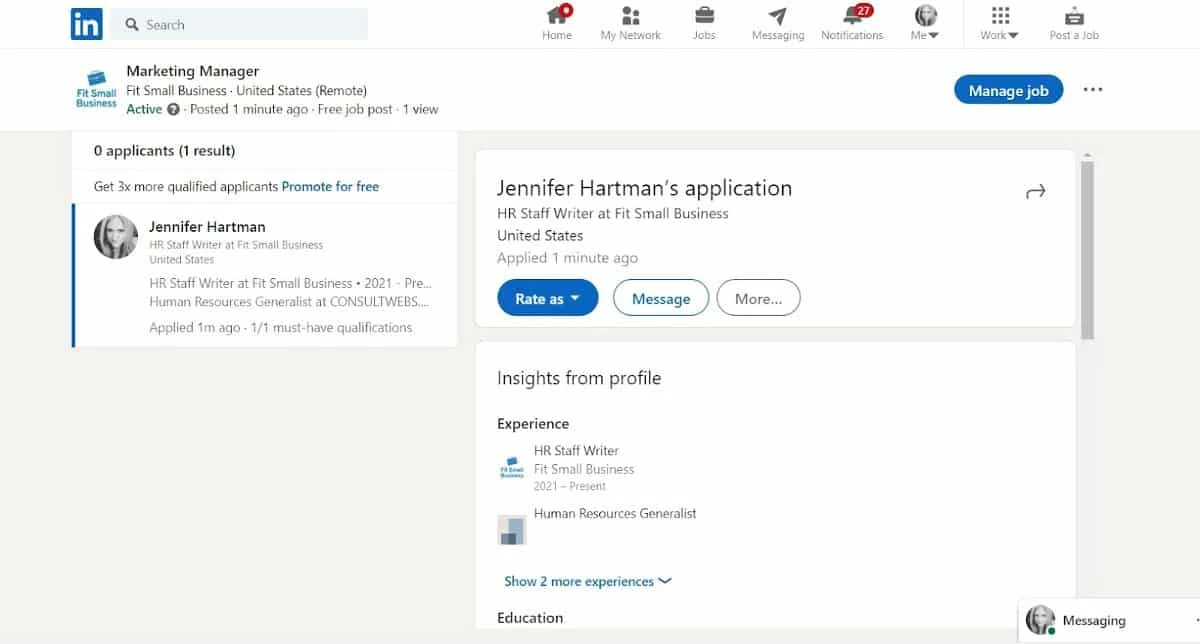
Click on your posted job title to bring up the list of candidates who have applied. From there, you can scroll through each applicant’s resume (in a preview screen for convenience).
Message Applicants
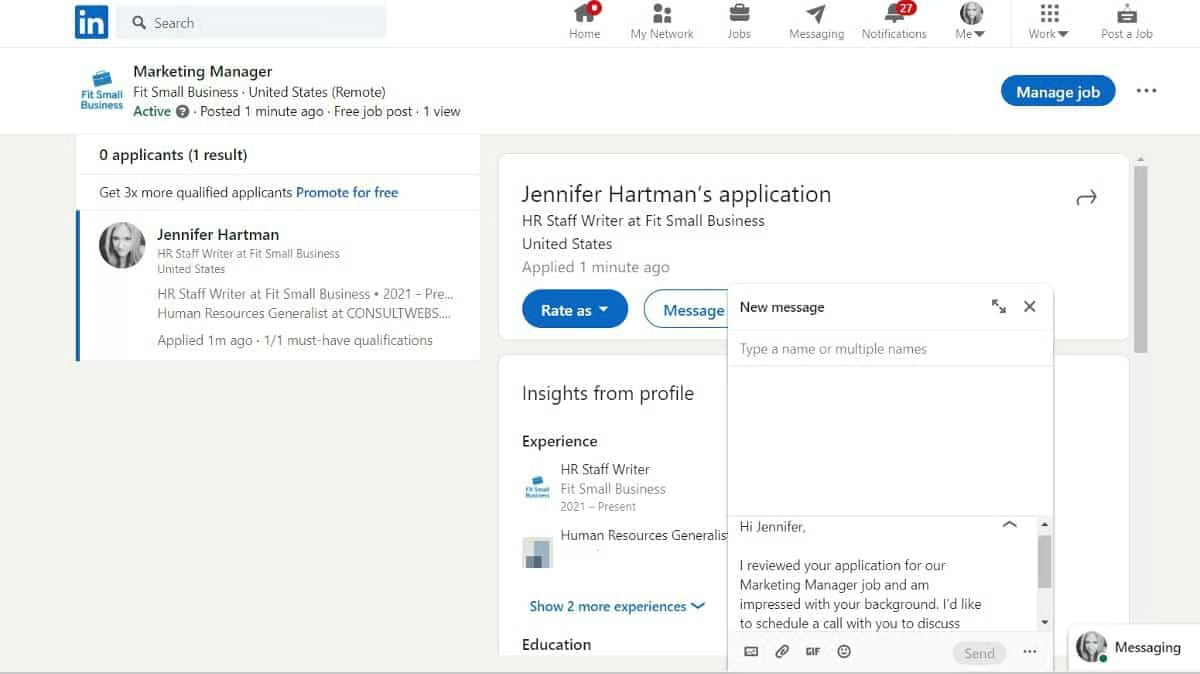
You can communicate with job candidates directly through their applications. Click Message to send a direct message to any candidate that is in your network. LinkedIn provides an automated message that you can customize to fit your needs.
Rate Candidates
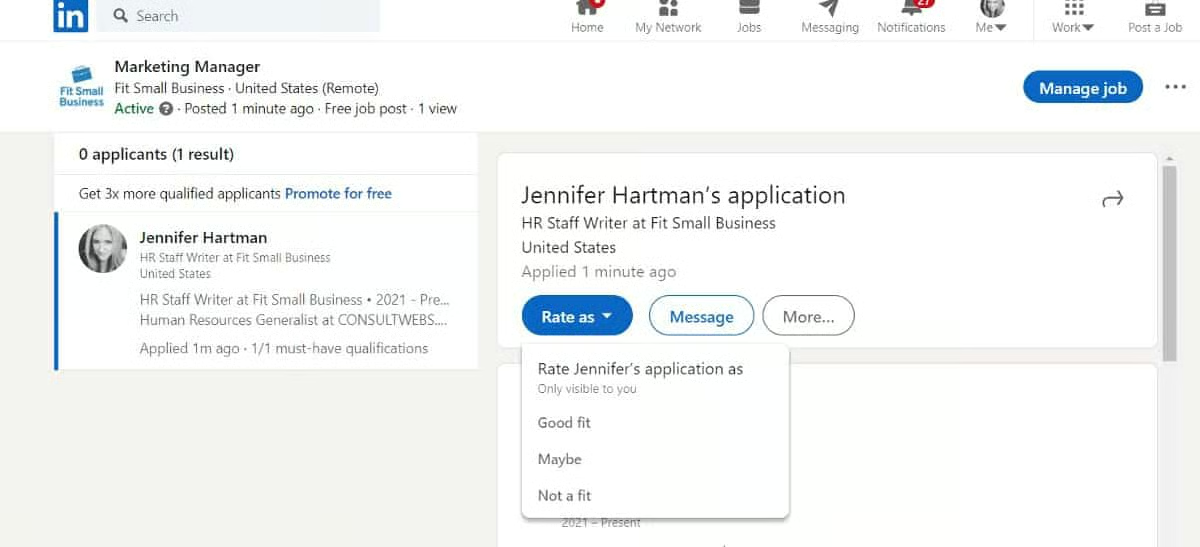
You can rate your applicants as a Good Fit, Maybe, or Not a Fit directly in your jobs dashboard. Once an applicant is rated Not a Fit, you can select Reject to remove the candidate from your pool of possibilities.
Share Job Post
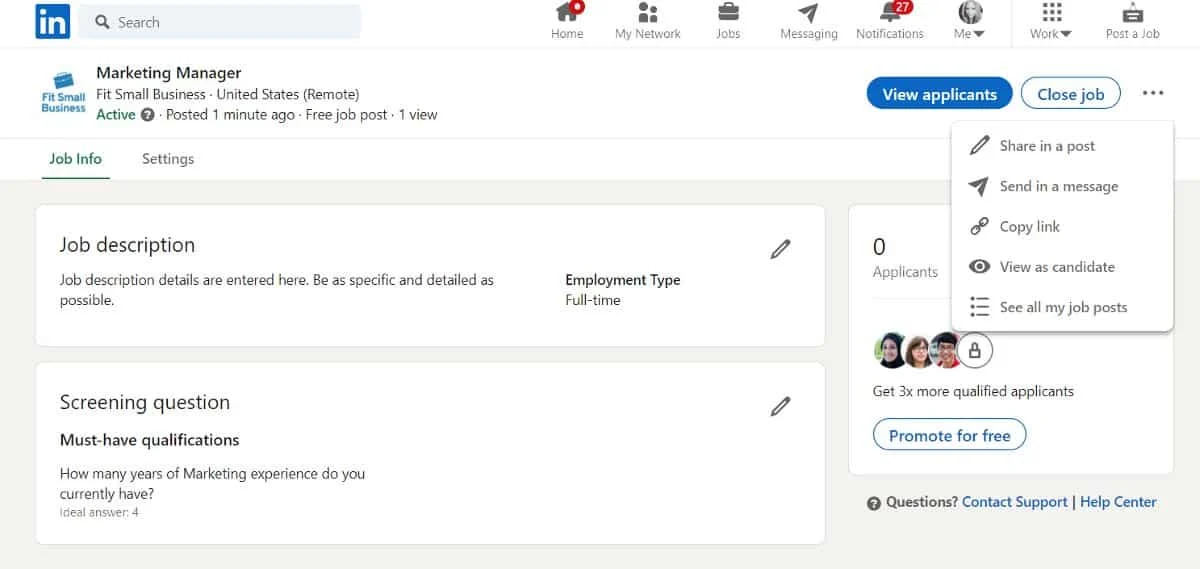
In addition to posting jobs, you can also share these postings with other members on LinkedIn for free. This feature is a great tool for getting your company, brand, and open position in front of passive job seekers. Choose the three dots on your job post and simply Share in a Post or Send in a Message.
Close Job
Once you have found your top candidate, you can close your job (or repost if you have already closed the job and wish to reopen it for more candidates) by clicking on the job title and selecting Close Job.

How to Post a Job on LinkedIn Frequently Asked Questions (FAQs)
How many jobs can you post on LinkedIn for free?
You can post one job at a time on LinkedIn for free. The free job post will stay active for up to 30 days. If you decide to take your post down before it maxes out at 30 days, you can post an additional job post. However, you can only post a maximum of two free jobs within a 30-day period.
Can I post multiple jobs on LinkedIn?
If you want to post more than one job at a time, you can use LinkedIn’s Talent Solutions—Recruiter and Recruiter Lite. Take note that there is a cost associated with using LinkedIn’s Talent Solutions.
For more information, see our LinkedIn review.
Bottom Line
Learning how to post a job on LinkedIn is easy, and using the platform can generate positive results for many companies looking to find the most qualified candidates. Simply follow the above steps and online prompts throughout LinkedIn to post your job in 15 minutes or less. Best of all, it’s free—but for a daily amount that is within your budget, your job will be promoted for a greater reach.
