Accounting Software Buyer's Guide - Top 3 Small Business Options Compared
 In this buyer's guide, we give you all the information you
need to select the best accounting software for your business.
This guide was written by Fit Small Business's CPA and
accounting software expert Crystallyn Shelton. In addition to
writing for Fit Small Business Crystallyn is an Adjunct
Instructor at UCLA Extension where she has taught hundreds of
small business owners how to use Accounting Software.
In this buyer's guide, we give you all the information you
need to select the best accounting software for your business.
This guide was written by Fit Small Business's CPA and
accounting software expert Crystallyn Shelton. In addition to
writing for Fit Small Business Crystallyn is an Adjunct
Instructor at UCLA Extension where she has taught hundreds of
small business owners how to use Accounting Software.
For this guide Crystallyn has narrowed the field of more than 20
small business accounting software down to the 3 options that
represent the best range of features and functionality for small
business owners. QuickBooks and Xero were selected because
they both offer features that go beyond the basics, such as
inventory management and budgeting. Wave stood out because it is
a free option packed with great features. Below you will
find a summary overview of each option, followed by Crystallyn's
recommendation for the best accounting software for different
types of small businesses, and an in depth comparison of the 3
options.
Small Businesses Accounting Software Summary Table
QuickBooks Online: Best Overall Accounting Software for Small Business
Owners

There are four primary reasons why we chose QuickBooks Online as the best accounting software for small businesses:
1. QuickBooks ecosystem
Accounting software is different from other types of software
because you'll be giving other users, such as your accountant or
bookkeeper, access to your information. It's important for
people that you share access with to be familiar with the system
you're using, and that's almost guaranteed with QuickBooks. It's the most commonly used accounting system with over 1
million customers and is regarded as the 'default' accounting
software. This is also an advantage in terms of integrations or
if you need help understanding how to do something in
QuickBooks. There are over 20,000 accountants and bookkeepers
who are certified in QuickBooks and a large network of ProAdvisors (myself included) all all across the country.
2. It's easy to use
Most business owners do not have an accounting background. The QuickBooks user interface consists of completing forms to bill your customers
and to pay bills or write checks. Once you understand how to complete
the forms, QuickBooks does the accounting behind the scenes for you.
3. QuickBooks will grow and expand with your business
It has advanced features like inventory tracking and the ability
to create budgets. In addition, you can easily add on payroll
once you hire your first employee, and sign up for an Intuit Merchant Services account when you are ready to accept credit card payments from your
customers. These services come with an additional cost, but the good
news is that you can add them with just a click of a button and there
is no need to upgrade to a new version.
4. Create financial statements in minutes
QuickBooks comes with 40 + reports that you can run in minutes. This includes
a Profit and Loss Statement, Balance Sheet Report and Statement of Cash Flows, which provide you with a complete picture of how well your
business is doing. Xero offers similar reporting capabilities.
While you can run a Profit and Loss Statement and a Balance
Sheet Report in Wave, you cannot prepare a Statement of Cash
Flows in Wave.
Even with all of the great features that QuickBooks Online
offers, if you do find that it does not do something that you
need it to do, adding an app just might be the solution.
QuickBooks syncs with over 400 business apps, including inventory management, ecommerce, and payroll apps.
If there is a downside to QuickBooks, I would have to say that
the quality of the support that you get when you contact them
for help can be inconsistent. As a QuickBooks ProAdvisor, I have
had a lot of experience with calling support while at a client's
office or using the chat support feature when available. My
experience with using the chat support channel has been much
more successful than when I call the support line. The good news
is there are some other great help resources that you can take
advantage of. We will discuss those in the Support and Training section of this guide.
Visit QuickBooks Online
Xero: Best Accounting Software for Free Payroll Processing
Xero is not as well known as QuickBooks and is sort of the “new kid on
the block,” but it is quickly making a name for itself with over 700,000
small business subscribers. Xero has over 16,000 certified advisors
who can help you get up and running. You can find a Xero certified advisor
by entering your city, state and zip on the website.
In my opinion, the look and feel of the Xero interface is very
similar to QuickBooks Online, so it is perfect for existing
QuickBooks users that are thinking about making a change.
Xero includes payroll processing for up to 5 employees in their product
offerings (up to 10 in premium edition). The benefit of course is
that when your business grows to where you need to hire employees,
there is no need to upgrade or any additional costs to pay. With QuickBooks,
you need to pay an extra cost if you want payroll functionality.
Unlike QuickBooks, Xero allows an unlimited number of users to
access the program at no additional charge. This is great if you
have several people like your tax professional, CPA, and
employees that need access to your data. Similar to QuickBooks,
you can set each person up with their own user id and password
and give them access to just the areas of Xero that they need.
The downside to Xero is their customer support. Free email support is included in all
plans but if you would like to talk to someone, then you have to include
a request for a telephone call in your email. The response time for
emails is generally 3-4 hours. The other disadvantage with Xero is
that they don't have a direct relationship with most US commercial
banks. Therefore, they have to use a 3rd party company called Yodlee
to allow you to connect your bank account to your Xero account. In
general, this seems to work, but just involves a few extra steps to
set up. Lastly, although Xero is quickly catching up to QuickBooks,
they still don't have the same number of local experts/certified advisors.
So if you're thinking of choosing Xero, make sure your accountant
or bookkeeper is onboard.
Visit Xero
Wave: Best Free Accounting Software
Heard of Wave before? Neither had I before I started doing some research for this
guide. With a price tag of FREE, I must say that I didn't expect much.
But, I was pleasantly surprised at the long list of features this
accounting software has to offer for absolutely free. There are limitations
on what you can do with Wave, but for a free accounting tool, the
functionality is quite extensive.
Wave was designed for contractors, freelancers, and businesses
with 9 or fewer employees. They have over 2500 Pros who support
small businesses that use Wave. This is significantly less than
the 20,000 QuickBooks Pros and the 16,000 Xero Pros out there so
it might be more challenging to find a local expert. However, the program is pretty easy to use and they have some great
training resources that we will explore in the Support and Training section of this guide.
Wave is able to handle the day to day business basics like invoicing
customers, importing credit card and debit card transactions, and
running financial statements like profit and loss and balance sheet
reports. However, you cannot run a statement of cash flows in Wave.
Also, it is limited when it comes to paying bills. You can enter your
bills and manage their due dates in Wave, but you cannot actually
write a check in Wave. Therefore, you will have to manually write
checks to pay your bills and then go into Wave and manually mark your
bills as paid. Since this process is manual, your accounts payable
account will not be up-to-date until you have manually marked the
bills as paid.
There's also another catch: you will see display ads on the
right side of the screen. But to be honest, after working in the
program for an hour, I forgot they were there.
Visit Wave
QuickBooks vs. Xero vs. Wave In-Depth Review
Pricing
The three companies we compare in this guide range the gamut in
terms of price. Wave is free, and Xero and QuickBooks are pretty evenly priced, at $30 and $40/month respectively. Here's
a summary of pricing and what you get with our recommended edition
and the premium edition of each product.
QuickBooks Online - QuickBooks Online offers three subscriptions levels: Simple
Start ($15 per month), Essentials ($30 per month) and Plus ($40
per month). The primary difference between the Essentials and
the Plus level is that inventory management and prepare and print
1099 forms is not available in Essentials. The primary differences
between the Simple Start and the Essentials level is that you
cannot pay bills with Simple Start, and since there is only 1
user, you cannot limit their access. This is why we recommend
the Plus level, which is also the most popular version used by
small businesses.
Xero - Xero offers three subscription levels: Starter ($9 per month),
Standard ($30 per month) and Premium ($70 per month). All levels
include an unlimited number of users. However, the starter edition
is limited to 5 customer invoices per month, 5 vendor bills per
month, and 20 bank transactions per month. There's no limit on
these in the Standard edition, which is why it's our preferred
option for small businesses.
The primary difference between the Standard edition (our
recommendation) and the Premium edition of Xero is the
number of employees that you can run payroll for is 5 in
Standard and 10 in the Premium edition. The Premium edition
also includes a multi-currency feature that allows you to
create invoices, quotes, and manage bank accounts in over
160 different currencies.

Wave - Wave has one edition and it is completely free. You can invite
an unlimited number of collaborators (users) to view your data and
set them up with either View Only or View and Edit privileges. However,
you cannot grant them access to bank and credit card information like
you can with QuickBooks and Xero.
Ease of Setup
One of the key factors that you should consider when deciding
which accounting software to use is how quickly can you get up
and running. As part of our research, we set up demo accounts
for all three products so that we could experience the product
first hand. QuickBooks Online and Xero are relatively easy to set up, but Wave is the easiest (though that comes with certain limitations of how
you can use the software).
For all three products, setup will generally take you about two
hours. Of course, this will vary based on how much historical
information you are bringing over from your existing system. If
you are a brand new business, then it should take you even less
time since you don't have any historical transactions to bring
over.
The initial account sign up for QuickBooks Online, Xero, and
Wave just requires you to enter some basic information about
your business, such as legal business name, address, telephone
number, email, and website address, if applicable. This part of
account setup will generally take no more than 10 minutes.
Once you have an account, the next step is to set up the
following key areas:
- Chart of Accounts -
This is a list of accounts used to categorize your income
and expenses (i.e. meals and entertainment, utilities,
consulting income etc;)
- Open Balances for all Bank and Credit Card
Accounts, Unpaid Bills - The latest bank and credit card statements along with a list
of any unpaid bills that you owe to your suppliers and a list
of open customer invoices. You enter these into the accounting
software and establish the existing balances for each account.
- Customer List - A list
of your customer contact info like name, address, and telephone
number.
- Vendor List - A
list of your vendor contact info like name, address, and
telephone number.
- Products/Services List -
A list of the products and services that you sell
along with any on hand quantities for products.
- Connect Bank and Credit Card Accounts -
This allows your bank and credit card transactions
to automatically download into your accounting software.
- Set Up Multiple users -
Grant other people like your accountant or
tax professional access to your accounting info.
Chart of Accounts
QuickBooks Online - QuickBooks allows you to import your chart of accounts from an
Excel CSV file. You can also use the default
chart of accounts list that QuickBooks will recommend based on your industry. The benefit
of this is that you won't have to create a chart of accounts from
scratch.
Xero - Similar to QuickBooks, you can import your chart of accounts from
an Excel CSV file. If you don't have a chart of accounts, then Xero
has a generic chart of accounts list that you can use, but it is not
industry-specific.
Wave - Unlike QuickBooks and Xero, you cannot import a
chart of accounts into Wave. However, Wave does have a preset list of accounts that
you can modify to meet your business needs.
Set Up Open Balances
QuickBooks Online - You can manually enter or import from an Excel CSV file the opening
balances for all bank and credit card accounts, open customer invoices,
and unpaid bills into QuickBooks.
Xero - Similar to QuickBooks, you can manually enter or import from an
Excel CSV file the opening balances for all bank and credit card accounts,
open customer invoices, and unpaid bills into Xero. Unlike QuickBooks,
Xero allows you to import detailed invoice line items for customer
invoices and vendor bills.
Wave - You can import bank and credit card balances from an Excel CSV
file into Wave. However, outstanding customer invoices, unpaid bills,
and any other accounts that you have existing balances for must be
manually entered into your Wave account.
Customer List, Vendor List, and Products and Services List
QuickBooks Online - QuickBooks allows you to import all of your
customer,
vendor, and
products and services information from an Excel CSV file. You can easily download the
template from directly in QuickBooks or use your existing spreadsheet
and just map the fields for the import.
Xero - Similar to QuickBooks, Xero allows you to import all of your customer,
vendor and products and services information from an Excel CSV file.
You can download the template from directly in Xero or use your existing
spreadsheet and just map the fields for the import.
Wave - Wave does not allow you to import any information other than bank
and credit card transactions into your account.
Connect Bank and Credit Card Accounts
QuickBooks Online - You can
connect your bank and
credit card accounts pretty easily to QuickBooks. However, if you need to import more
than 90 days worth of transactions when you first setup the account,
then you will need to import those transactions from an Excel CSV
file.
Xero - Xero allows you to connect your bank and credit card accounts
as well but the number of banks that they have a direct relationship
with is short. As a workaround, they use a 3rd party company,
Yodlee, that might be an option for you. Within the bank feeds
section of Xero, there are step by step instructions on how to
set up Yodlee feeds. If you are not able to connect your bank
account using either of these options, then you can import these
transactions using an Excel CSV file. Xero also offers bank feeds
for PayPal accounts. QuickBooks and Wave do not currently offer
this.
Wave - Similar to QuickBooks, Wave allows you connect your bank and credit
card account pretty easily. If for some reason you are unable to connect
your account to Wave, you can import the transactions from an Excel
CSV file.
Set Up Multiple Users
QuickBooks Online - QuickBooks allows you to set up
multiple users to access your QuickBooks data. You get to determine the level of
access to give each user: Regular, Admin, Reports Only, or Accountant.
The Plus subscription comes with 5 users plus 2 accountant users.
There is an additional cost to add more users.
Xero - Xero allows you to set up as many users as you would like. Similar
to QuickBooks, you get to determine the level of access to grant each
user: Standard, Advisor, Read only, Invoice only, Payroll Employee,
or Payroll Admin.
Wave - Wave allows you to grant access to other users as well. You can
give them access to View only or View and Edit transactions. However,
you cannot grant access to bank and credit card information to other
users.
Ease of Use
After test driving all three of these products, I think that the
user interface is pretty intuitive for all three. QuickBooks, Xero and Wave all have their version of a company dashboard on the initial login
page. The purpose of the dashboard is to give you a snapshot of your
business cash inflow (income) and outflow (expenses) without having
to run a report. To drill down to run reports and other detailed info,
all three products have easily identifiable menu tabs so that you
can quickly navigate to the information that you need.
QuickBooks Online Dashboard and Menus
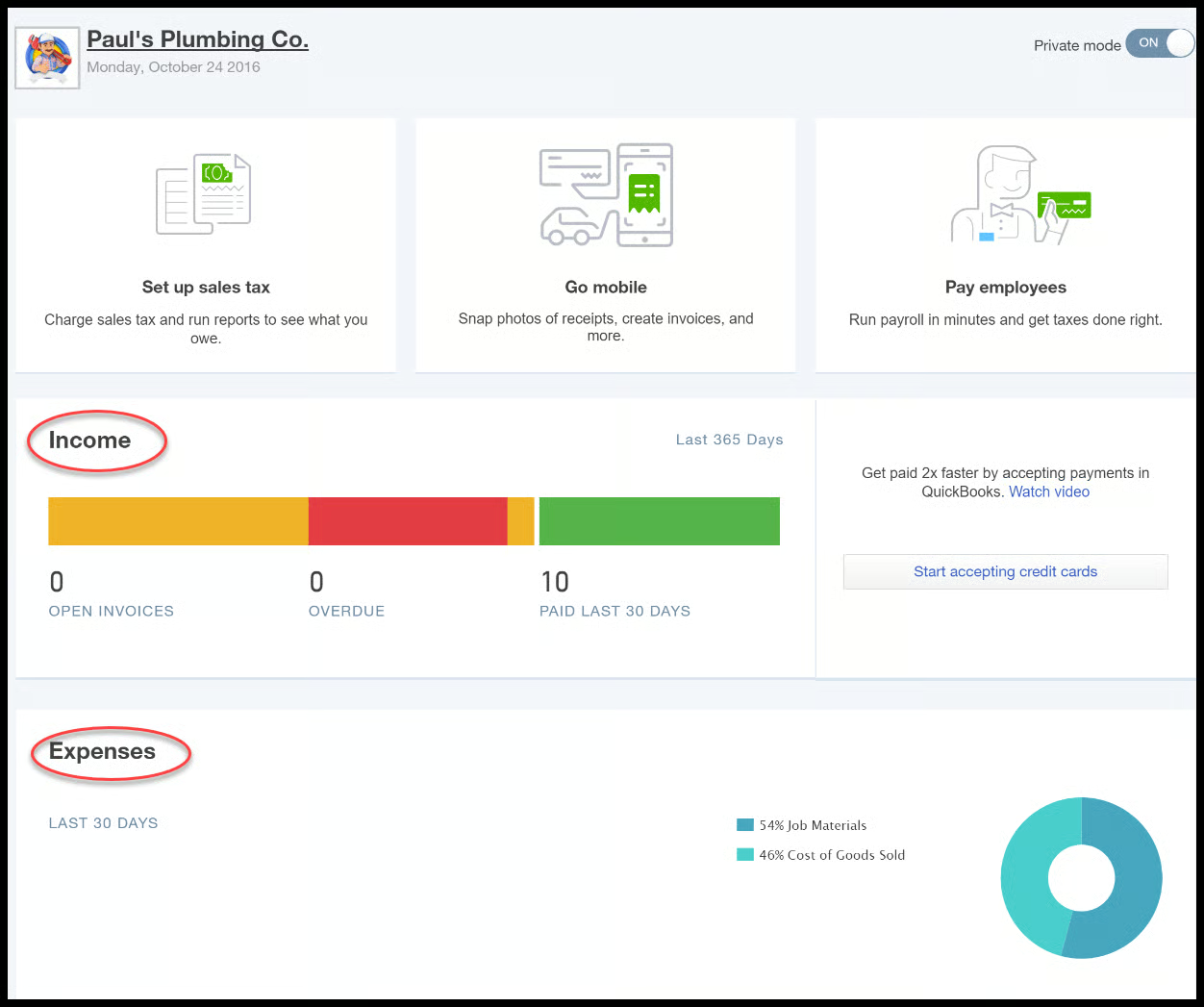
QuickBooks Online Income and Expense Dashboard
Above is the QuickBooks dashboard for a fictitious company,
Paul's Plumbing. Notice the Income and Expenses section as
indicated in the screenshot above. You can click on any of the
colored bars right below the Income section to get additional
information about customer invoices. For the Expenses section,
you can click on any section of the graph to get additional
detail about the expenses for each category.
There are multiple types of menus in QuickBooks. One is a
“hidden” menu (accessible by clicking the “X” at the top center
of the screen) that includes a list of the transactions
categorized into four groups: Customers, Vendors, Employees, and
Other as indicated below. The intent of this menu design was to
keep the dashboard from being cluttered. However, I also think
it makes it harder for new users to find what they are looking
for.
The other menu is the left menu bar as indicated in the
screenshot below. This menu allows you to navigate to a specific
area of QuickBooks, like Customer Center or the Reports Center.
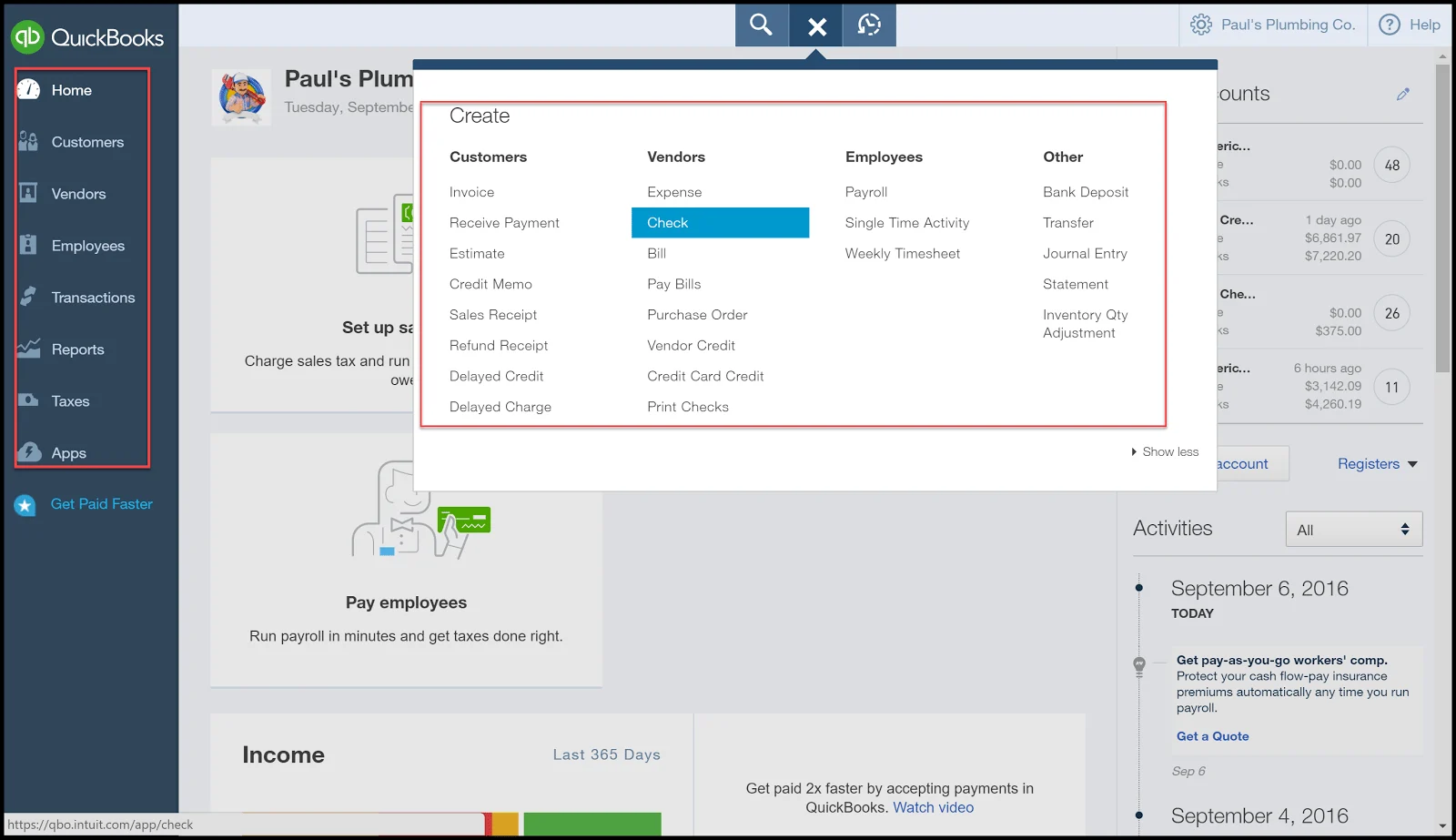
QuickBooks left menu bar and Quick Create menu
Xero Dashboard and Menus
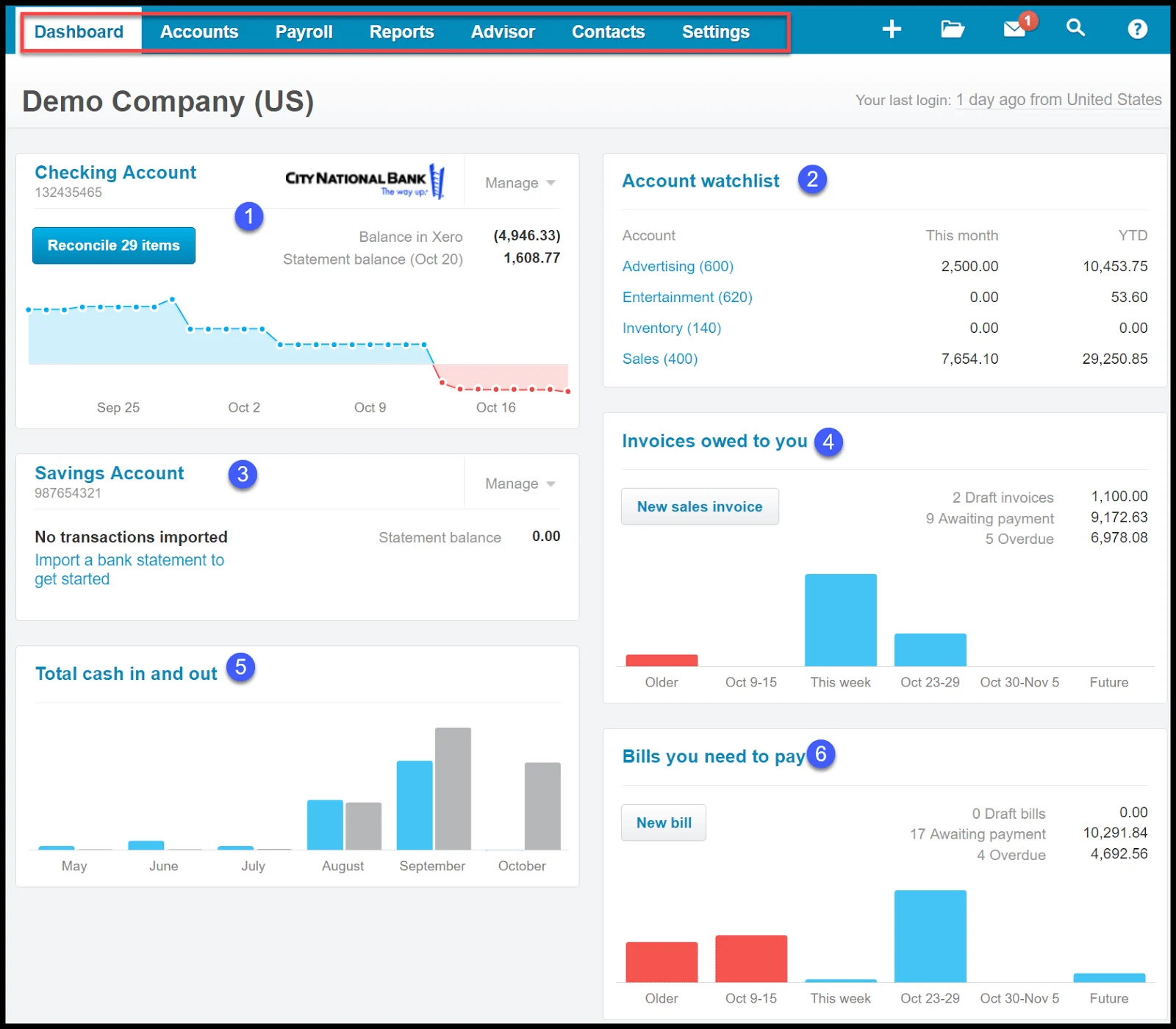
Above is the Xero dashboard for a Demo company. At the very
top of the page are the various tabs that you can click on to
navigate to Accounts, Payroll, and other areas of your account.
From this screen you can see the following info and you can view
additional details by clicking on any of the numbers and bar
graphs:
-
Checking account balance compared to your bank statement
- A list of accounts that have been set up on a watchlist
- The savings account balance
-
Invoices owed to you in summary total and bar graph form
- Total cash in and out
- Bills you need to pay in summary and bar graph form
One of the reasons why we chose to include Xero in this buyer's
guide is because they have done a great job of keeping the
language that is used throughout the program simple by not using
any accounting jargon. If you look at the screenshot above,
you'll see they use simple language like Cash in and out, Invoices owed to you, and Bills you need to pay.
Wave Dashboard and Menus
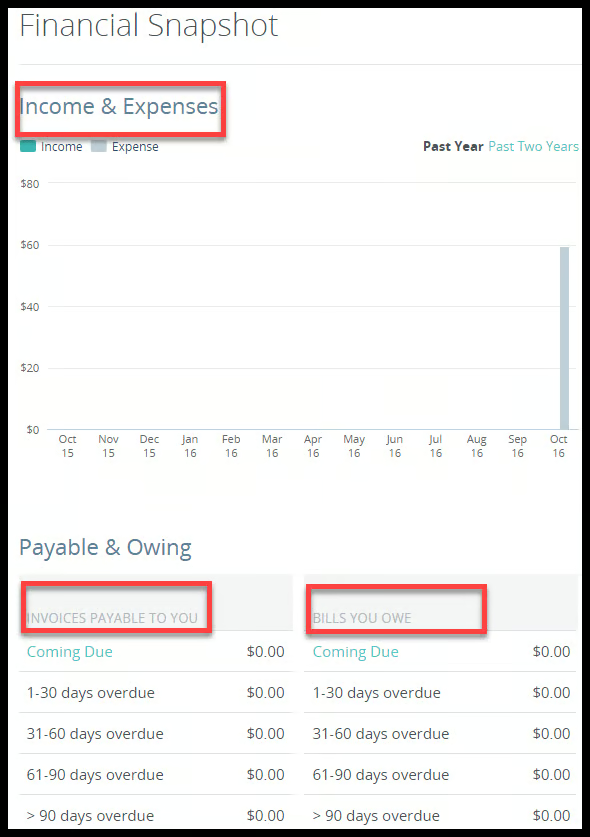
Xero Financial Snapshot
Above is the Wave dashboard for a demo company. From this
page, we can quickly see Income and Expenses, Invoices payable
to you, and what you owe to your vendors and suppliers. Similar
to QuickBooks and Xero, you can click on these items to drill
down for additional details.
Similar to QuickBooks, Wave also has a left menu bar that will
take you to other areas like Receipts, Reports, and Payroll, as
indicated below.
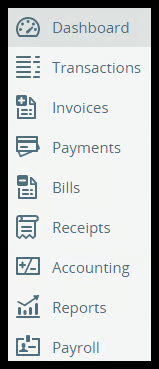
Xero left menu bar
Key Features
When it comes to an accounting software program, you want to
select a product that will track basic day to day business
transactions, including the following:
- Invoicing customers
- Paying bills
- Importing bank and credit card transactions
-
Creating reports and financial statements (e.g. Profit and
Loss Statement, Balance Sheet, Statement of Cash Flows)
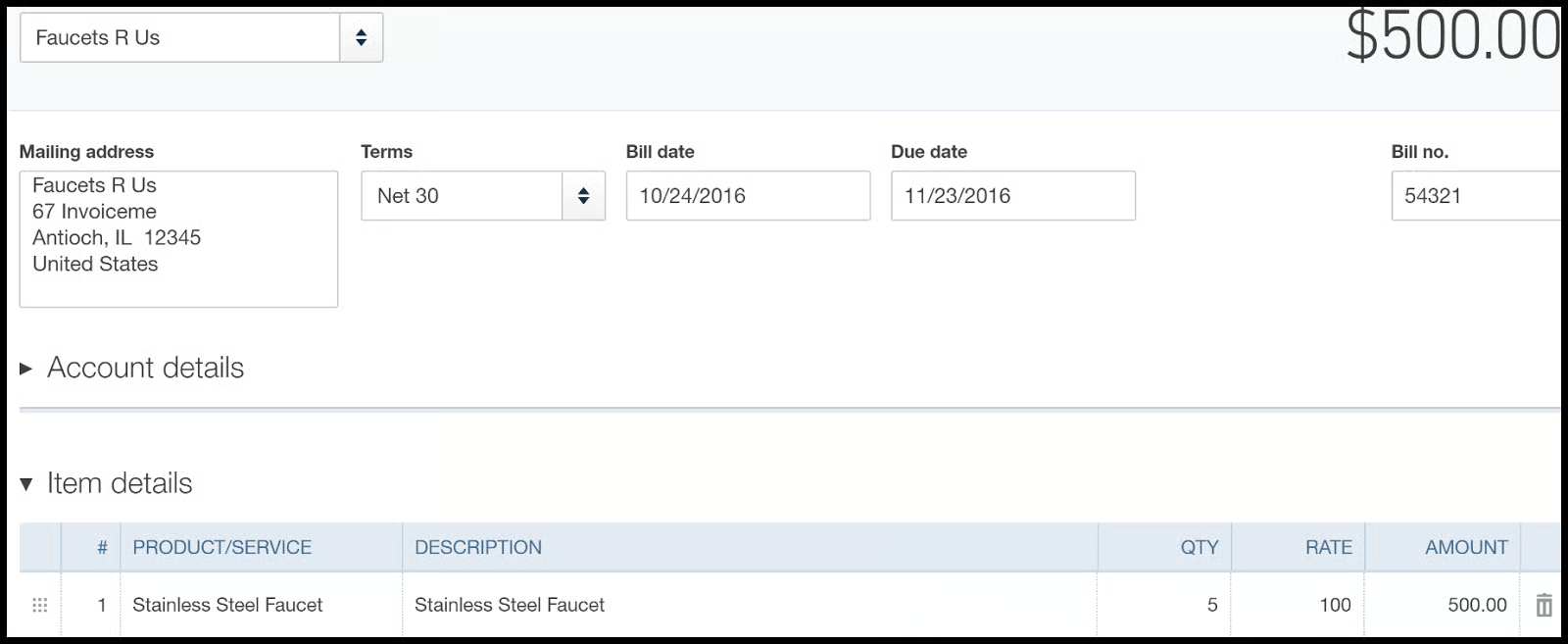
QuickBooks Online Vendor Bill Form
In addition to handling the basic day to day business
transactions, QuickBooks comes with advanced capabilities
like inventory management and the ability to create budgets
to project income and expenses.
One of the reasons why we love QuickBooks is that you don't
need to have an accounting background to use the program.
You will complete a QuickBooks form similar to the Vendor Bill
form below. When you save the form, QuickBooks will
create the accounting debits and credits in the background.
As a result, your financial statements are updated
immediately.
Another great feature In QuickBooks is you can run most
reports in just a few minutes. Below is a sample of a profit
and loss statement for a fictitious company, Paul's
Plumbing. You can export reports to Excel or email them
directly from QuickBooks to your tax professional or CPA.
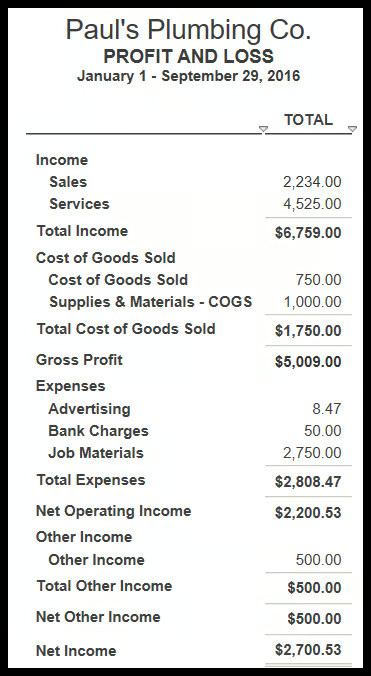
QuickBooks Profit and Loss Report Sample
Xero - In addition to handling the basic day to day business transactions,
Xero comes with full payroll processing features. Xero payroll
service includes automatic payroll tax calculations (all you have
to do is provide the number of hours to pay). It also comes with
self-service access for your employees to submit timesheets and
request time off. You can pay your employees with direct deposit
or check, and you can electronically file payroll tax forms and
taxes directly from Xero.
Another unique feature that Xero offers is an email account.
Share your Xero email address with your suppliers and have
all of your vendor bills appear in your inbox within Xero.
From your inbox, you have the option to select the bill and
create an expense directly in Xero for the bill without ever
having to print it out!
Wave - Wave does not live up to the old saying “you get what you
pay for.” In fact, you get a LOT more than what you would expect
from a free accounting software. Wave is able to handle basic
day to day transactions like invoicing customers and importing
bank and credit card transactions and it can produce a Profit
and Loss statement and a Balance Sheet report. We will get into
a couple of the limitations in a few minutes.
One great feature that Wave offers over both QuickBooks and
Xero is that you can set up multiple businesses using the
same account. The way this works is you log in once and then
toggle between each business to manage your accounting.
Another great feature that Wave offers is the ability to
upload receipts. Wave has built in software that will read
the receipt information and create an expense transaction
from that receipt.
One of the downsides of using Wave is that you cannot write
and print checks to pay vendors. However, you can enter your
bills into Wave and then later on mark them as paid when the
check or online payment clears your bank statement. One
other limitation of Wave is that you cannot prepare a
statement of cash flows.
Integrations with other Systems
One of the great things about using cloud based programs is the
ability to add an app that will perform a function that your
accounting software does not do on its own. Payroll, Inventory
Management, and eCommerce are key areas that you want to be sure
are integrated with your accounting software.
QuickBooks and Xero integrate with more than 400 apps. Unfortunately, Wave only integrates with three apps: Shoeboxed, Etsy, and PayPal.
Here are some of the top ranked apps that integrate with
QuickBooks and Xero along with a brief description of what they
offer.
Payroll Apps: Both QuickBooks and Xero have built-in
payroll functionality. If you are able to run your payroll within
these programs, I would recommend using the built-in payroll integration
over a third party payroll program. Wave does not offer payroll apps.
Inventory Apps: You can manage your inventory
within both QuickBooks and Xero, but you may find that an app
better suits your business needs. Dear Systems integrates with
Xero and was ranked pretty high. It offers full cycle inventory
management from creating purchase orders to tracking the receipt
of goods and inventory adjustments. SOS Inventory integrates
seamlessly with QuickBooks. With SOS Inventory, you can create
sales orders and track inventory for multiple locations. Wave
does not integrate with inventory apps.
eCommerce: If you generate sales from a website
with a shopping cart then you will definitely need an app like Shopify. QuickBooks and Xero integrate with Shopify. Small and
medium-sized businesses use Shopify to design, set up, and
manage their stores across multiple sales channels like web,
mobile, social media, and brick-and-mortar locations. Wave does
not integrate with eCommerce apps.
Customer Support/Training Resources
When it comes to customer support, I believe that a customer
should always have the option to talk to a live person. The good
news is that QuickBooks, Xero, and Wave all offer live phone support options, along with a variety of other
support options.
In addition, if you prefer to find answers to your questions
instead of contacting customer support, there are also a variety
of training resources available for all three products.
QuickBooks Online - QuickBooks offers free telephone and chat support. Their support
agents are US based and available Monday thru Friday, 6am to 6pm
PST. My favorite customer support option is live chat. As I mentioned
previously, I have had nothing but great experiences using QuickBooks
support chat. The agents seem to be more knowledgeable than the
reps who answer the phones, and the response time is much faster
than waiting in a telephone queue.
For those who prefer a self-paced training resource, Fit
Small Business has created a course of 39 Free QuickBooks Online video tutorials. These tutorials include both written step by step
instructions and video instruction. QuickBooks Online also
has a great knowledge base that you can access directly in
the product by clicking on the Help menu.
Xero - The primary support channel for Xero is email. However,
you can request that someone give you a call by sending them an
email with a detailed description of what the issue is. In general,
you can expect a response within a few hours since support is
available 24 hours a day, 7 days a week.
Xero has an extensive library of step by step videos for
small business owners and accountants and bookkeepers.
Videos are on topics such as Setting up Xero Step by Step
and Bank Reconciliation for Beginners. Xero also
has a great knowledge base that you can access directly in the
product by clicking on the Help menu.
Wave - Wave offers three primary support plans. Basic support is
through email, and it is free. However, you may have to wait 2-3
days to receive a response or upgrade to one of the paid support
plans. The plus plan is $9 per month and includes priority email
with a response time of one day or the option to chat with an
agent for instant answers. The premium plan is $19 per month and
includes phone, chat, and priority email support. Telephone and
chat support are available Monday thru Friday from 9-5pm EST.
Wave has an extensive knowledge base library that you can
access from the Help menu within the program. It includes
step by step written instructions with screenshots.
Mobile App
Each of these accounting programs has an app that you can
download on your mobile device and use to stay on top of your
business while on the go.
QuickBooks Online - QuickBooks Online mobile app is free with a QuickBooks Online
subscription and available on all
iOS
and
Android
devices. You can run your entire business from the app,
including sending invoices and estimates to customers, snap a
photo of your receipts and categorize them on the spot for tax
time.
Xero - Xero Mobile app is free with a Xero subscription and available
on all
iOS and
Android devices. You can run every aspect of your business right from your
mobile device. This includes reviewing account balances, paying bills,
and creating invoices.
Wave - The only
app
available is the Wave Receipt app. Available on
iOS and
Android, this app allows you to take a picture of your receipts and
import them into your Wave account. You cannot perform any other
functions with this app.
Other Accounting Software Options
While QuickBooks Online, Xero and Wave offer a wide range of options for small to medium sized businesses,
freelancers, and self-employed, we wanted to share the full list of
products that we considered.
The Bottom Line
Selecting an accounting software program is one of the most
important decisions that you will make as a small business
owner. As you can see, there are a number of products on the
market.
We feel that QuickBooks Online outshines them all when it comes to being able to handle the basic
day to day business transactions, ease of use, and how quickly you
can get up and running. QuickBooks is also one of the few accounting
software products that offer free live telephone and chat support
if you get stuck and need a little help.
Visit QuickBooks Online
Be sure to leave us a comment and let us know which accounting
software product you decided to go with and why.

 QuickBooks Online
 Xero
Xero