







You can enter a partial customer payment in QuickBooks Online using the Receive Payment form. This allows you to locate the outstanding invoice, enter the required details, such as the customer and the partial payment amount, and then apply the partial payment. Similarly, you can make partial payments to vendors using the Pay Bills screen. This allows you to locate the bill you wish to pay partially and enter the partial payment amount.
This guide shows how to make partial payments on invoices in QuickBooks Online as well as how to record partial payments to vendors.
How To Receive a Partial Payment From a Customer in QuickBooks
Step 1: Navigate to ‘Receive Payment’
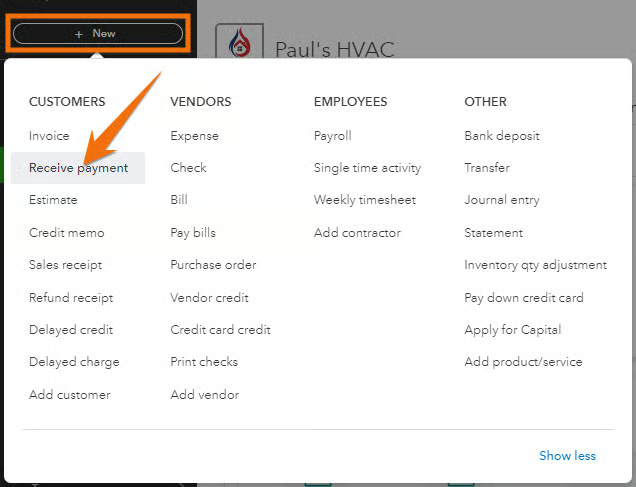
Click on the +New icon in the upper-left corner of your QuickBooks Online dashboard and then select Receive payment under the Customer column, as shown below.
Step 2: Record the Partial Payment
In the Receive Payment form, select the name of the customer who made the partial payment. QuickBooks will display a list of outstanding transactions associated with that customer.
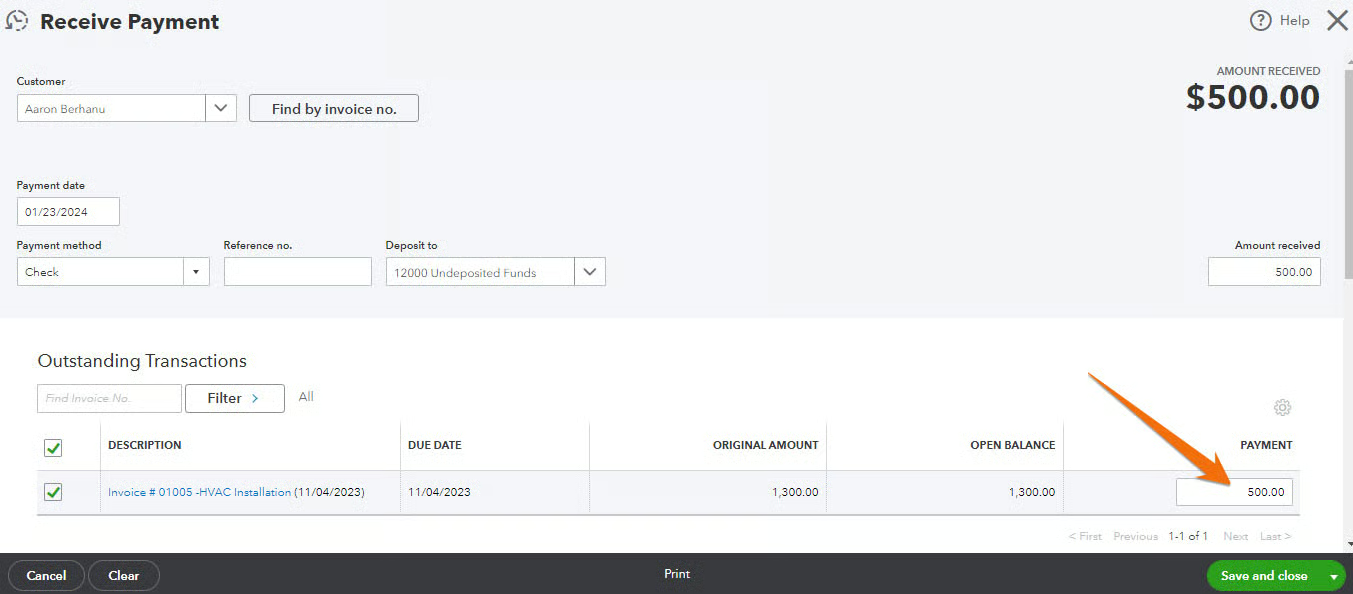
To better illustrate how to enter a QuickBooks Online partial payment, assume a customer named Aaron Berhanu submitted a partial payment of $500 toward a total invoice amount of $1,300 for a heating, ventilation, and air conditioning
(HVAC) installation service.
To record the partial payment, select the customer (we selected Aaron Berhanu). Next, click on the checkbox next to the invoice for which you want to record a partial payment and then enter the partial payment amount in the Payment field. In the screenshot below, we’ve marked the $1,300 invoice and entered the $500 partial payment.
Once done, click Save and close.
If no invoice was issued prior to receiving the partial payment, you need to create a new invoice and then apply the partial payment. You can revisit our guide on invoicing customers in QuickBooks Online if you need help.
Additionally, don’t forget to enter the other details, such as the payment date and payment method, such as check, and the account where you want to deposit the payment. If you need a refresher on how to record payments in QuickBooks, see our guide on how to receive payments in QuickBooks Online.
Step 3: Verify That the Partial Payment Is Applied
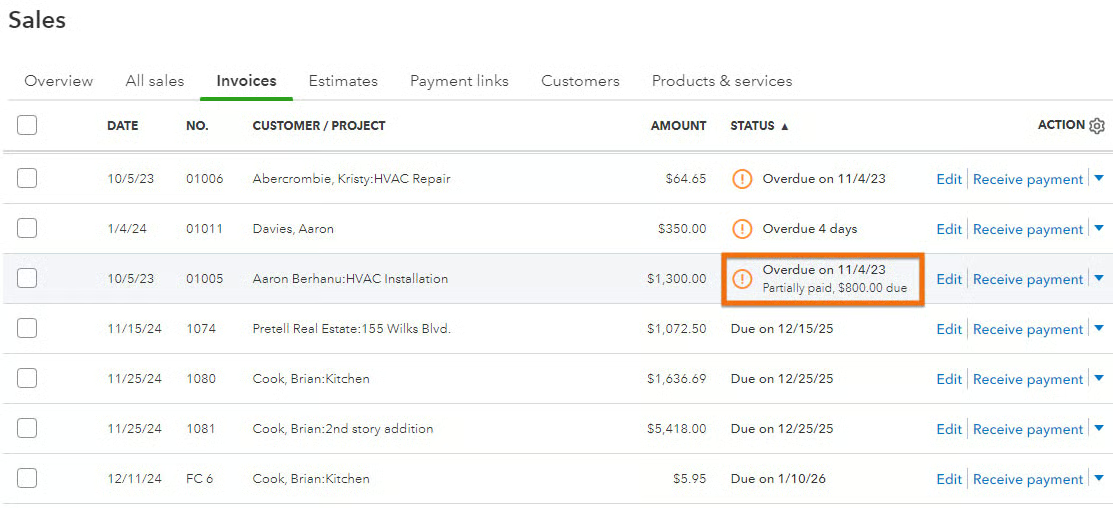
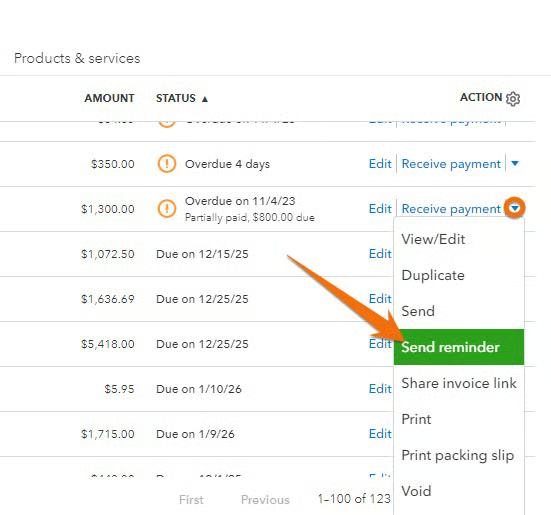
You can tell that the partial payment is successfully applied when you see a “Partially paid” remark under the Status column of the invoice. In the screenshot below, we confirm that the $500 partial payment we entered for Aaron Berhanu is successfully recorded.
Step 4: Send an Invoice Reminder to Your Customer
You can send an invoice reminder to your customer so that they’ll see the breakdown of the invoice, including the applied partial payment. To send a reminder, locate the invoice, click on the drop-down arrow next to Receive payment, and then select Send Reminder.
When the customer pays the remaining balance, you can click on Receive payment again, enter the remaining balance in the Receive Payment form, and then save the transaction. QuickBooks will allocate the payment automatically to the remaining balance and mark the invoice as paid.
Step 5: See the Remaining Balance for the Customer
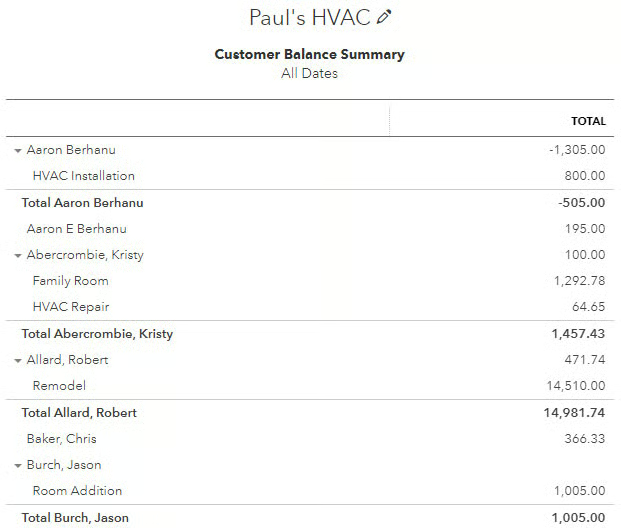
While you can view the remaining balance of a specific customer right from the invoice, you can run a Customer Balance Summary report to track the outstanding amounts for all customers.
To do this, click on Reports in the left navigation panel and then locate the Customer Balance Summary report. Run the report and view the customer’s remaining balance in the Total column.
At the bottom of the report, you’ll see the total outstanding balance for all customers combined (not shown in the report below).
How To Make a Partial Payment to a Vendor in QuickBooks
Step 1: Navigate to ‘Bills’
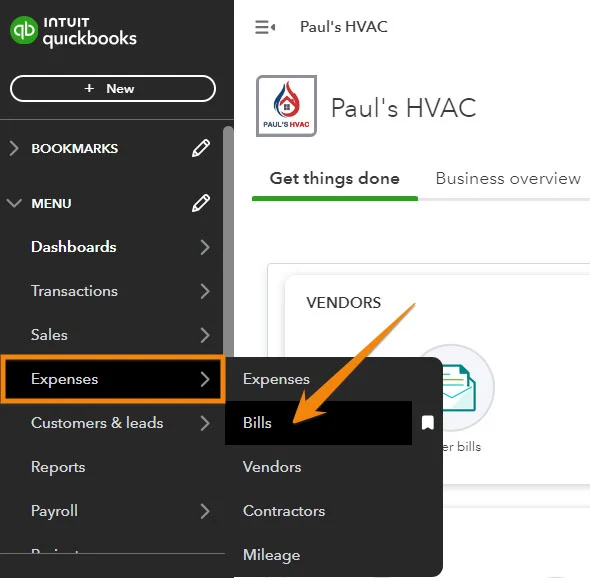
Click on Expenses in the left-side menu and then select Bills.
Step 2: Locate the Bill You Wish to Pay Partially
Next, tap the Pay bills button under the Bills tab, as shown below.
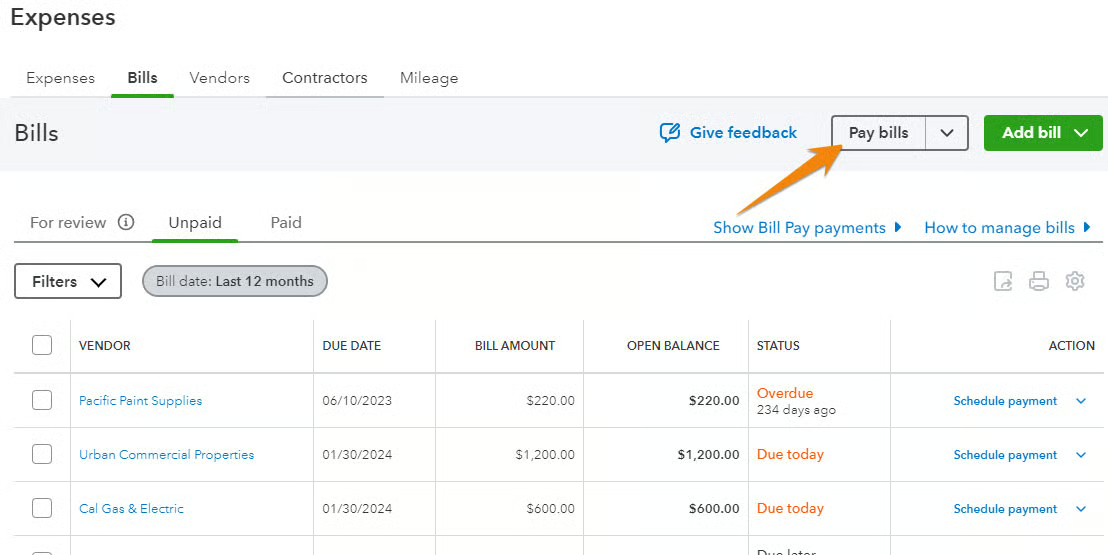
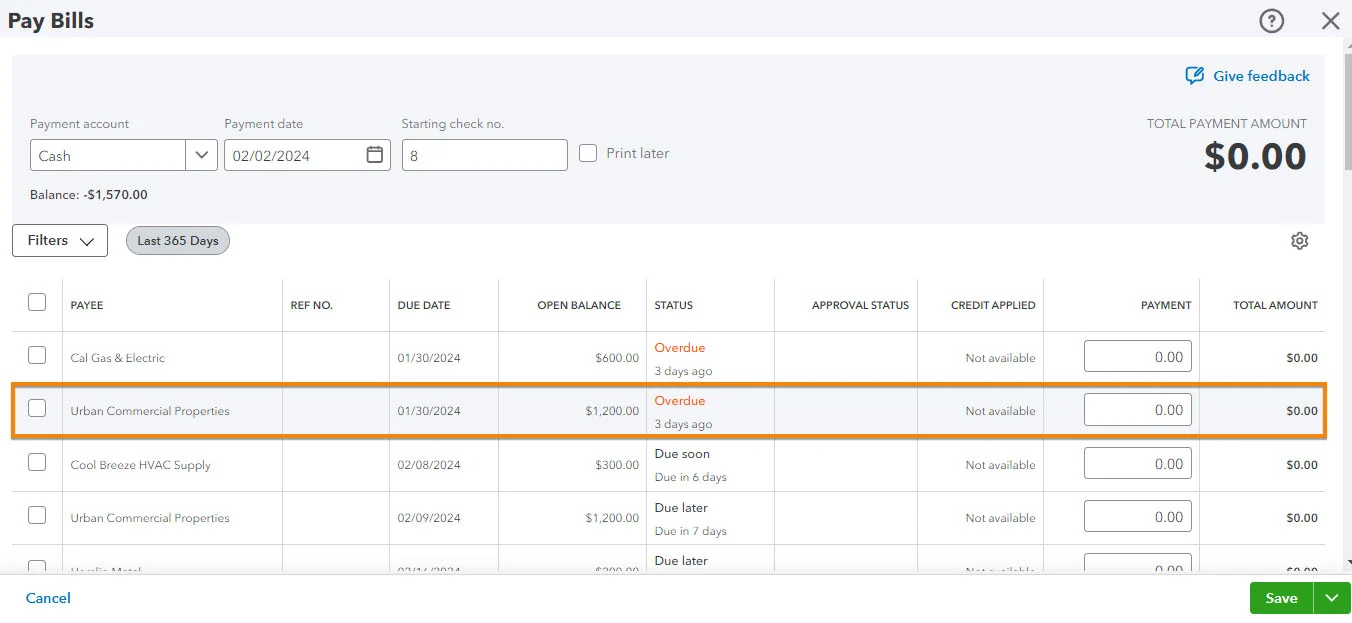
On the Pay Bills screen, locate the bill you wish to partially pay from the list of outstanding bills. As an example, let’s assume that we received a bill from a vendor named Urban Commercial Properties for monthly rent of $1,200 and we would like to make a partial payment of $600.
In the image below, we can see the highlighted bill.
Step 3: Enter the Partial Payment
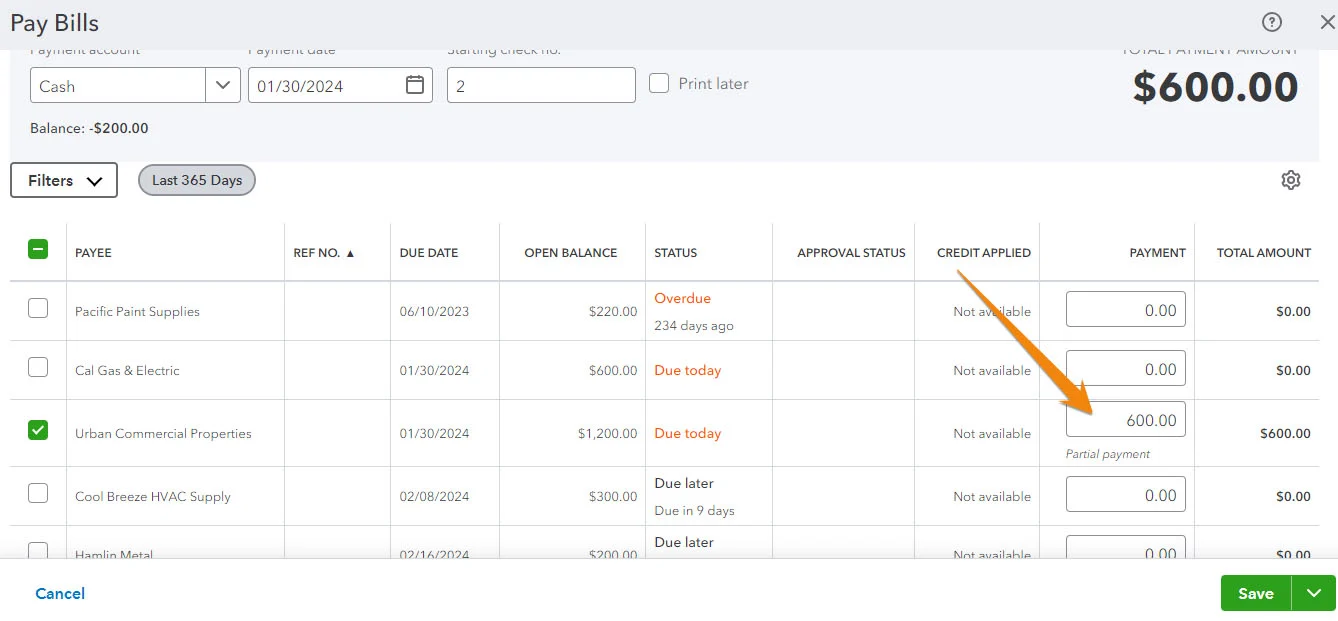
Enter the partial payment under the Payment column (we entered $600 based on our sample scenario), and then click on Save to record the partial payment.
If you need help with paying vendor bills in QuickBooks, you can check our detailed guide on how to pay bills in QuickBooks Online.
Step 4: Verify That the Partial Payment is Applied & the Balance Is Adjusted
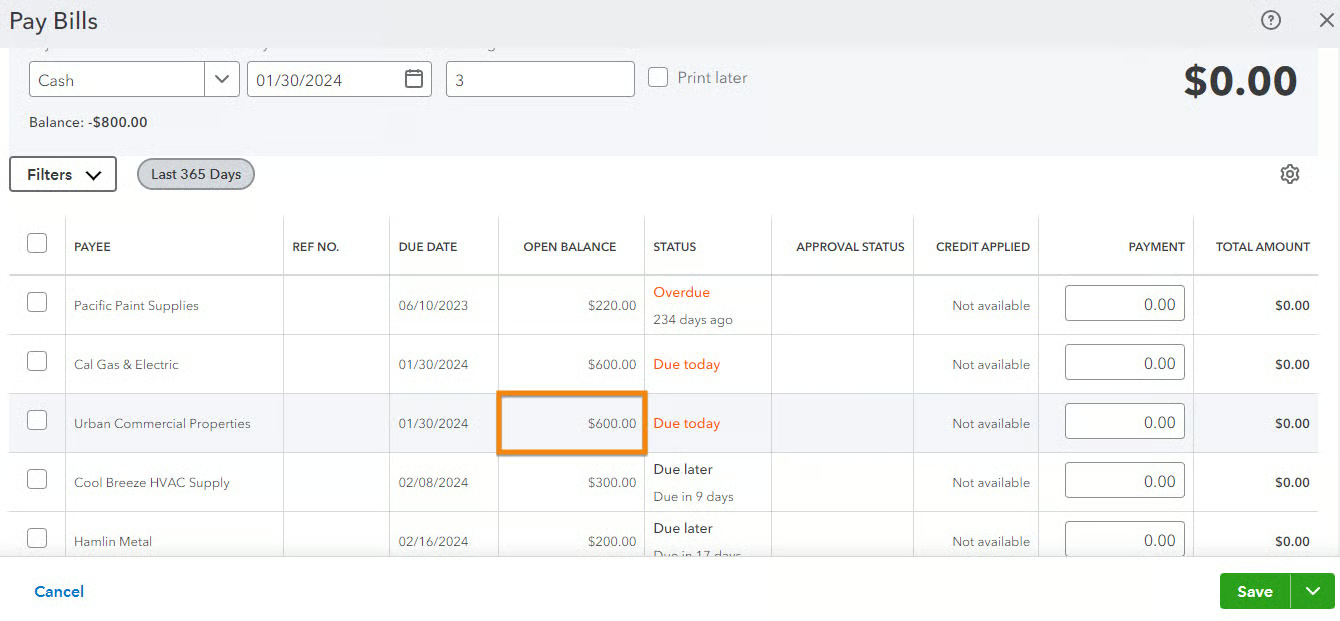
Check the bill from the Pay Bills screen and confirm that the open balance has been adjusted accordingly. Below, you’ll see that our bill from Urban Commercial Properties is now showing an open balance of $600, which means that the $600 we partially paid is recorded successfully.
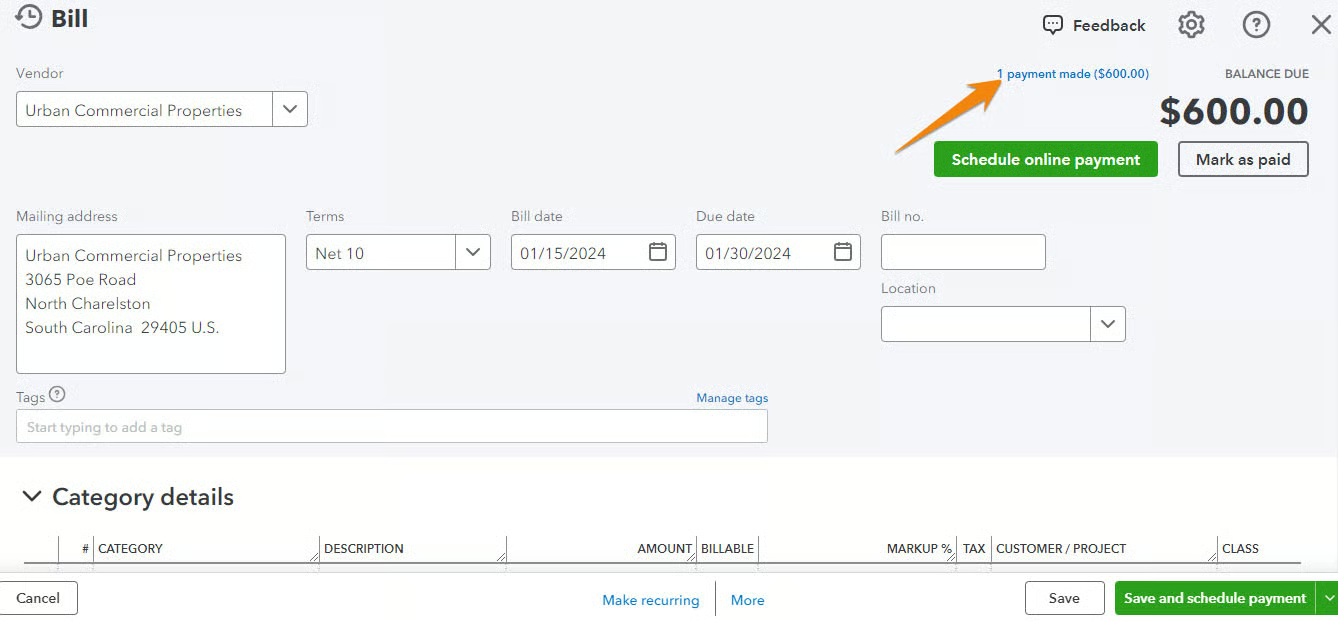
Additionally, when you click on the bill, you’ll see the partial payment reflected in the document. QuickBooks will indicate how many payments have been made for that transaction, helping you easily see the history associated with a specific bill.
In the screenshot below, we can see that one payment transaction has been made against our bill.
Now, when you’re ready to pay the remaining balance, enter the amount in the Payment column, just like what you did in Step 3, and then click Save. QuickBooks will automatically mark the bill as paid and remove it from your list of outstanding bills.
Frequently Asked Questions (FAQs)
How do I enter a QuickBooks Online invoice partial payment?
Using the Receive payment form, select the customer, choose the invoice, and then enter the partial payment amount and the other required details. Click Save and close to update the invoice status.
How do I make partial payments to a vendor in QuickBooks?
On the Pay Bills screen, locate the bill you wish to partially pay, enter the partial payment amount, and then click Save.
Can I allocate a partial payment to multiple invoices in QuickBooks?
Yes, you can. You can select multiple invoices for allocation in the Receive payment form.
Can I void or delete a partial payment transaction in QuickBooks?
While you can, it’s generally not recommended to void or delete partial payments. Instead, you can adjust the payment if needed.
Wrap Up
Congratulations on learning how to record partial payments in QuickBooks Online. To help you further improve your QuickBooks knowledge and skills, check out our other free QuickBooks Online tutorials.
